Mailsac MCP server: test inboxes for AI coding agents

Give Your AI Coding Agent a Test Inbox: the Official Mailsac MCP Server

By Mailsac Engineering. Written for @mailsac/mcp 0.1.0.

AI coding agents can now build a sign-up flow in minutes. Checking that it works is still awkward: the last step happens in an inbox the agent can’t see. So the agent stops and asks you to open your email, or it marks the task done without knowing whether the confirmation email arrived, whether the link works, or whether the code is six digits or five.

The official Mailsac MCP server closes that gap. It gives any agent that speaks the Model Context Protocol (Claude Code, Cursor, VS Code, Claude Desktop and others) its own disposable test inboxes. The agent creates an address, uses it in your app, waits for the email, and reads the link or code itself.

What the agent can do

Tool What it does
create_test_address Makes a new unique address, such as signup-mf3k2a1b-9c41d2@mailsac.com. It can receive mail immediately; there is nothing to create first.
wait_for_email Waits for the email to arrive (optionally matching a subject, sender or time), then returns the subject, text, every link, the link most likely to confirm, reset or log in (actionLink), and any one-time codes.
list_emails / read_email Lists what arrived, and reads one email as text, HTML, raw source or headers.
delete_emails Cleans up after a test.
list_domains Shows your private domains, so the agent can use one instead of a public address.

Set it up in a minute

Create a free Mailsac account and an API key, then add the server.

Claude Code

claude mcp add mailsac -e MAILSAC_API_KEY=your-key -- npx -y @mailsac/mcp

Cursor (.cursor/mcp.json) or Claude Desktop

{
  "mcpServers": {
    "mailsac": {
      "command": "npx",
      "args": ["-y", "@mailsac/mcp"],
      "env": { "MAILSAC_API_KEY": "your-key" }
    }
  }
}

VS Code (.vscode/mcp.json)

{
  "servers": {
    "mailsac": {
      "type": "stdio",
      "command": "npx",
      "args": ["-y", "@mailsac/mcp"],
      "env": { "MAILSAC_API_KEY": "your-key" }
    }
  }
}

The documentation lists every setting, including MAILSAC_DOMAIN for private domains.

What it looks like

Ask the agent to check a flow the way a person would:

Sign up on http://localhost:3000 with a fresh test address and confirm the account by email.

The agent calls create_test_address, fills in your form, then calls wait_for_email. When the email arrives, the tool hands back something like this (from our own test run):

{
  "subject": "Confirm your Example account",
  "from": "no-reply@example.test",
  "actionLink": "https://example.test/verify?token=e2e-abc123",
  "codes": ["731905"],
  "polls": 1
}

The agent opens actionLink (or types the code), checks that the account is confirmed, and reports back, including when something is wrong: no email within a minute, a link pointing at the wrong host, or a code the form rejects. delete_emails then tidies up.

The same works for password resets, magic-link logins, invitations and two-factor codes.

Turn the check into a test

An agent’s check proves the flow works today. A test keeps it working. Once the agent has seen the email, ask it to write an end-to-end test for the flow. Our Playwright CI example shows the pattern it can follow: a unique address per test, polling with a timeout, and assertions on the link and code, in GitHub Actions and GitLab CI. For Cypress there is @mailsac/cypress, and any language can use the REST API.

Public addresses and private domains

Addresses at @mailsac.com are public: anyone who guesses the address can read the mail. They are perfect for made-up test data and need no setup, which is why the server uses them by default. For a staging environment that sends real names or data, use a private domain: your own subdomain or a zero-setup yourteam.msdc.co subdomain. Set MAILSAC_DOMAIN and every new address uses it. Mail to a private domain is visible only to your account.

What it costs

Each API call uses one Mailsac operation. wait_for_email checks every three seconds, so an email that arrives within a few seconds typically costs two to five operations, and creating an address costs nothing. The free plan includes 1,500 operations a month, enough for a few hundred agent checks; paid plans start at 25,000.

Open source

The server is MIT-licensed on GitHub and published to npm as @mailsac/mcp. Requests from it identify themselves with a Mailsac-Client: mcp header, so we can count how many people use Mailsac through AI agents. We never look at your email content for that. Issues and pull requests are welcome.

Playwright email testing with Mailsac

Playwright Email Testing: Test Signup and Password-Reset Emails with Mailsac

By Mailsac Engineering. Tested on September 24, 2026 with @playwright/test 1.63 on Node.js 22, 24 and 26.

Related guides: test email OTP codes and magic links (Playwright, Cypress, Python and Selenium) and a private email domain for testing for staging and CI.

In short: Playwright can’t open an inbox by itself. Send your app’s signup or reset email to a Mailsac address, wait for it from the Playwright test runner with the Mailsac REST API, then type the emailed code or open the emailed link. The helper below is about 75 lines and needs no extra packages.

Get a free API key → The free plan includes an API key, 1 private address and 1,500 operations a month. Team plans with shared custom domains start at $89/month.

Playwright can fill in your signup and password-reset forms, but the step that proves they work happens outside the browser: an email arrives with a 6-digit code or a link. This tutorial adds that step to your Playwright tests. Your app sends mail through its usual provider, Mailsac receives it at a unique test address, and the test reads it through the Mailsac REST API before typing the code or opening the link.

You will build a small helper, two signup-verification tests (one types the emailed code, one follows the emailed link) and a password-reset test that signs in with the new password. The tests run side by side in parallel workers and in GitHub Actions. Every code block below was run with real Playwright against a local test app and a mock of the Mailsac API.

How Playwright email testing works

Each test follows three steps:

  • Trigger. The test signs up, or asks for a reset, with a brand-new address such as signup-3-1790000000000-1a2b3c4d@yourteam.msdc.co, and notes the time just before it clicks. There is no inbox to create first: any address at mailsac.com or on your custom domain can receive mail.
  • Wait. The test polls GET /api/addresses/{email}/messages, which lists the inbox newest first, until a message with the expected subject arrives after that time, or a 60-second deadline passes.
  • Check. The test reads the links Mailsac found in the message from GET /api/addresses/{email}/messages/{messageId}, or its plain text from GET /api/text/{email}/{messageId}. Then it types the code or opens the link in the browser.

Every request sends your API key in the Mailsac-Key header. The helper runs in Playwright’s Node.js test runner, so the key never reaches the page under test.

Before you start

  • Node.js 22, 24 or 26, the versions Playwright currently supports.
  • A Mailsac API key. Create a free account, then generate a key under API Keys & Users in the dashboard. Every plan includes API access; the free plan includes 1,500 Ops a month. A key is shown only once, so store it like a password.
  • An app that sends real email, running on your machine or in a test environment. Mailsac receives and inspects test email; it doesn’t send it. To stop a staging app from emailing real people, you can point its SMTP settings at Mailsac’s Email Capture instead; your tests read captured mail by recipient address with the same API. Captured mail is public unless you turn on private capture.
  • A place for the mail. Public @mailsac.com addresses are fine for a first try with made-up accounts. For reset links and codes that would work on a real account, use a verified private custom domain, available on Indie and higher plans. See public vs private addresses below.

Set up the project

Create a project with Playwright Test and its Chromium browser. In an existing Node.js project, skip the first two lines. @types/node gives your editor types for process and node:crypto.

mkdir email-tests && cd email-tests
npm init -y
npm install --save-dev @playwright/test @types/node
npx playwright install chromium
mkdir -p tests

Already using Playwright? Keep your config, but make sure its test timeout is longer than the email wait, as below. The config that npm init playwright generates also sets workers: 1 on CI, which runs your email tests one at a time.

Save this as playwright.config.ts in the project root:

import { defineConfig } from '@playwright/test';

export default defineConfig({
  testDir: './tests',
  timeout: 90_000, // longer than the 60 s email wait, so a missing email gets a clear error
  fullyParallel: true, // every test has its own address, so tests can run side by side
  workers: process.env.CI ? 4 : undefined,
  use: { baseURL: process.env.BASE_URL ?? 'http://localhost:3000' }, // PLACEHOLDER: your app
});

  • timeout: 90_000 gives each test more time than the helper’s 60-second wait, so a missing email fails with the helper’s message instead of Playwright’s default 30-second test timeout.
  • fullyParallel, and 4 workers on CI, are safe because every test gets its own address. See parallel workers below.
  • baseURL comes from BASE_URL, so the same tests can target your laptop or a staging deployment.

Add a Mailsac helper

Save this as tests/mailsac.ts. It uses Node’s built-in fetch, so there is nothing else to install.

// tests/mailsac.ts: read test email with the Mailsac REST API and Node's built-in fetch.
// It runs in the Playwright test runner, not in the browser, so the key never reaches a page.
import { randomUUID } from 'node:crypto';
import type { TestInfo } from '@playwright/test';

const API = process.env.MAILSAC_API_URL ?? 'https://mailsac.com/api';
// @mailsac.com inboxes are public unless reserved. Set MAILSAC_DOMAIN to your private domain.
const DOMAIN = process.env.MAILSAC_DOMAIN || 'mailsac.com';

async function mailsac(path: string) {
  const key = process.env.MAILSAC_API_KEY; // a secret: keep it in the runner's environment
  if (!key) throw new Error('Set MAILSAC_API_KEY');
  const headers = { 'Mailsac-Key': key };
  const res = await fetch(API + path, { headers, signal: AbortSignal.timeout(10_000) });
  // Fail fast on errors. A 429 means the account hit its monthly Ops limit.
  if (!res.ok) throw new Error(`Mailsac API returned ${res.status} for ${path}`);
  return res;
}

// A new address for every test (and every retry), so workers never share an inbox.
export function newAddress(testInfo: TestInfo, prefix: string) {
  const id = `${testInfo.workerIndex}-${Date.now()}-${randomUUID().slice(0, 8)}`;
  return `${prefix}-${id}@${DOMAIN}`;
}

type Message = { _id: string; subject: string; received: string };
type WaitOptions = { subject: string; receivedAfter: number; timeoutMs?: number };

// Poll every 2 s until the deadline. Ignore mail received before `receivedAfter`.
export async function waitForEmail(email: string, options: WaitOptions) {
  const { subject, receivedAfter, timeoutMs = 60_000 } = options;
  const deadline = Date.now() + timeoutMs;
  while (Date.now() <= deadline) {
    const res = await mailsac(`/addresses/${email}/messages?limit=10`); // newest first
    const messages = (await res.json()) as Message[];
    const match = messages.find((m) =>
      Date.parse(m.received) >= receivedAfter && m.subject?.includes(subject));
    if (match) return match;
    await new Promise((resolve) => setTimeout(resolve, 2_000));
  }
  throw new Error(`No "${subject}" email for ${email} in ${timeoutMs / 1000} s`);
}

// The links Mailsac found in the message's text and HTML bodies.
export async function getLinks(email: string, id: string) {
  const res = await mailsac(`/addresses/${email}/messages/${id}`);
  const { links } = (await res.json()) as { links?: string[] | null };
  // Plain-text links can keep trailing punctuation, e.g. <url> or [url]; drop it.
  return [...new Set((links ?? []).map((url) => url.replace(/[>\]).,;:!?'"*]+$/, '')))];
}

// The plain-text body. Mailsac generates one when the email is HTML-only.
export async function getText(email: string, id: string) {
  const res = await mailsac(`/text/${email}/${id}`);
  return res.text();
}

// Exactly one distinct link with the same origin and path as `url`, or an error.
export function extractLink(links: string[], url: string) {
  const want = new URL(url);
  const found = new Set(links.filter((link) => {
    if (!URL.canParse(link)) return false;
    const { origin, pathname } = new URL(link);
    return origin === want.origin && pathname === want.pathname;
  }));
  if (found.size !== 1) throw new Error(`Expected 1 link to ${url}, found ${found.size}`);
  return [...found][0];
}

// Exactly one distinct standalone 6-digit code, or an error.
export function extractCode(text: string) {
  const codes = new Set(text.match(/\b\d{6}\b/g) ?? []);
  if (codes.size !== 1) throw new Error(`Expected 1 six-digit code, found ${codes.size}`);
  return [...codes][0];
}

What each part does:

  • The API key comes from the environment. MAILSAC_API_KEY is read inside the test runner process. Never put it in browser code, in a variable your frontend build embeds, or in your repository. MAILSAC_API_URL is optional; leave it unset unless you point the helper at a mock API in your own tests.
  • newAddress builds a new address for every test from Playwright’s testInfo.workerIndex, a timestamp and a random suffix. The worker index and timestamp make addresses easy to find in logs, and the random part keeps addresses unique even when two CI jobs start in the same millisecond. A retry runs the test body again, so it gets a new address too.
  • waitForEmail lists the 10 newest messages every 2 seconds. It returns the first one whose subject contains your text and whose received time is at or after receivedAfter. The inbox endpoint can’t return only the mail received after a given time, so the helper filters in the test. After 60 seconds it throws an error that names the subject and the address.
  • getLinks reads the message metadata, where Mailsac lists the HTTP(S) links it found in the text and HTML bodies. A link in plain text can keep punctuation such as a closing >, so the helper trims it and removes duplicates.
  • getText returns the plain-text body. If the email only has HTML, Mailsac generates the text.
  • extractLink and extractCode return exactly one match or throw. A test that picks one of two codes can pass for the wrong reason; a test that fails loudly tells you the email changed.
  • Errors stop the test at once. A 401 means Mailsac didn’t accept the key. A 429 means the account has used its monthly Ops, so retrying won’t help.

Test signup verification with a code or a link

Save this as tests/signup.spec.ts. Both tests sign up with a new address. The first reads the 6-digit code from the email and types it in; the second opens the verification link instead. Keep whichever matches your app, or both if your email offers both.

import { test, expect, type Page } from '@playwright/test';
import {
  newAddress, waitForEmail, getText, getLinks, extractCode, extractLink,
} from './mailsac';

// PLACEHOLDER: your signup page's labels, button and heading.
async function signUp(page: Page, email: string) {
  await page.goto('/signup');
  await page.getByLabel('Email').fill(email);
  await page.getByLabel('Password').fill('a-test-password-123');
  const receivedAfter = Date.now(); // just before the app sends the email
  await page.getByRole('button', { name: 'Create account' }).click();
  await expect(page.getByRole('heading', { name: 'Check your email' })).toBeVisible();
  return receivedAfter;
}

test('signup: the emailed 6-digit code verifies the account', async ({ page }, testInfo) => {
  const email = newAddress(testInfo, 'signup');
  const receivedAfter = await signUp(page, email);

  const message = await waitForEmail(email, { subject: 'Verify your email', receivedAfter });
  const code = extractCode(await getText(email, message._id));

  await page.getByLabel('Verification code').fill(code);
  await page.getByRole('button', { name: 'Verify' }).click();
  await expect(page.getByRole('heading', { name: 'Email verified' })).toBeVisible();
});

test('signup: the emailed link verifies the account', async ({ page, baseURL }, testInfo) => {
  const email = newAddress(testInfo, 'signup');
  const receivedAfter = await signUp(page, email);

  const message = await waitForEmail(email, { subject: 'Verify your email', receivedAfter });
  const links = await getLinks(email, message._id);

  await page.goto(extractLink(links, new URL('/verify', baseURL).href));
  await expect(page.getByRole('heading', { name: 'Email verified' })).toBeVisible();
});

Change the paths, labels, button names, headings and email subject to match your app. Two details matter more than they look:

  • Take receivedAfter just before the click that makes your app send the email. Taken after the click, it could skip an email that arrives quickly.
  • extractLink compares origin and path. It keeps only links whose origin and path match new URL('/verify', baseURL), so footer links, help pages and links to other sites are ignored.

Test the full password-reset flow

Save this as tests/password-reset.spec.ts. It creates an account, requests a reset, opens the emailed link, sets a new password and signs in with it.

import { test, expect } from '@playwright/test';
import { newAddress, waitForEmail, getLinks, extractLink } from './mailsac';

test('password reset: the emailed link works', async ({ page, baseURL }, testInfo) => {
  const email = newAddress(testInfo, 'reset');

  // An account to reset. PLACEHOLDER: or create one through your app's API or seed data.
  await page.goto('/signup');
  await page.getByLabel('Email').fill(email);
  await page.getByLabel('Password').fill('an-old-test-password');
  await page.getByRole('button', { name: 'Create account' }).click();
  await expect(page.getByRole('heading', { name: 'Check your email' })).toBeVisible();

  await page.goto('/forgot-password');
  await page.getByLabel('Email').fill(email);
  const receivedAfter = Date.now(); // just before the app sends the email
  await page.getByRole('button', { name: 'Send reset link' }).click();
  await expect(page.getByRole('heading', { name: 'Check your email' })).toBeVisible();

  // The inbox also holds the signup email; the subject and time filter skip it.
  const message = await waitForEmail(email, { subject: 'Reset your password', receivedAfter });
  const links = await getLinks(email, message._id);

  await page.goto(extractLink(links, new URL('/reset', baseURL).href));
  await page.getByLabel('New password').fill('a-new-test-password');
  await page.getByRole('button', { name: 'Update password' }).click();
  await expect(page.getByRole('heading', { name: 'Password updated' })).toBeVisible();

  // The new password works.
  await page.goto('/login');
  await page.getByLabel('Email').fill(email);
  await page.getByLabel('Password').fill('a-new-test-password');
  await page.getByRole('button', { name: 'Sign in' }).click();
  await expect(page.getByRole('heading', { name: 'Signed in' })).toBeVisible();
});

By the time the reset email arrives, the inbox also holds the signup email. The subject and receivedAfter filters skip it, just as they would skip older messages in a real inbox. If your app can create accounts through an API or seed data, use that instead of the signup form; the reset part stays the same. If your app only allows a reset or sign-in after the email is verified, verify the account first with the steps from the signup test.

Run the tests

Set your key, your private domain and your app’s URL, then run the suite with four workers:

export MAILSAC_API_KEY=your_api_key      # PLACEHOLDER: from your Mailsac dashboard
export MAILSAC_DOMAIN=yourteam.msdc.co   # PLACEHOLDER: your private domain
export BASE_URL=http://localhost:3000    # PLACEHOLDER: an app that sends real email
npx playwright test --workers=4

When each test finds its email, Playwright reports 3 passed. To try the helper without a custom domain, leave MAILSAC_DOMAIN unset: it then uses public @mailsac.com addresses, which suit made-up accounts only.

Run email tests in parallel workers

Email tests run in parallel safely when no two tests share an inbox:

  • One address per test. Each test calls newAddress, so its inbox only receives mail for that test. Workers, retries, shards and separate CI jobs never see each other’s email.
  • Parallel inside files too. fullyParallel: true lets the two signup tests in one file run at the same time, and --workers=4 (or the CI setting in the config) runs up to four tests at once.
  • Shared Ops. Parallel tests share your account’s monthly Ops. Each API call is one Op, and each email received by a private address or custom domain is one more. On a private domain, when the email is already there on the first poll, the code test and the link test use 3 Ops each, and the reset test uses 4 because it receives two emails. Mail to public @mailsac.com addresses isn’t counted, so there each test uses 2. Each extra 2-second poll adds 1, so a test that times out uses about 30.
  • Throttling. Public addresses are throttled at lower volumes: delivery slows by up to about a minute, then mail is deferred. Busy suites belong on a verified custom domain.
  • Fixed accounts. If some tests must share one address, such as a pre-seeded account, give them the same Playwright test lock, for example { lock: 'seeded-account' }. They then never run at the same time, while the rest of the suite stays parallel. receivedAfter still stops them from reading older mail in that inbox.

Run the tests in GitHub Actions

Add your key as a repository secret: in your repository’s Settings, open Secrets and variables, then Actions, choose New repository secret and name it MAILSAC_API_KEY. Then save this workflow as .github/workflows/email-tests.yml:

name: Email tests
on:
  push:
    branches: [main]
  pull_request:
permissions:
  contents: read
jobs:
  playwright:
    runs-on: ubuntu-latest
    timeout-minutes: 15
    steps:
      - uses: actions/checkout@v6
      - uses: actions/setup-node@v6
        with:
          node-version: lts/*
      - run: npm ci
      - run: npx playwright install --with-deps chromium
      - run: npx playwright test
        env:
          MAILSAC_API_KEY: ${{ secrets.MAILSAC_API_KEY }}
          MAILSAC_DOMAIN: yourteam.msdc.co # PLACEHOLDER: your private domain
          BASE_URL: https://staging.example.com # PLACEHOLDER: your deployed test app

  • GitHub Actions sets CI, so the config runs 4 workers.
  • The workflow runs on pushes to main (change it to your default branch) and on pull requests, so a pull request doesn’t run the suite, and spend Ops, twice.
  • BASE_URL points at a deployed test environment whose mail provider sends real email. To test an app started inside the job instead, start it before the test step, or use Playwright’s webServer option, and make sure it can send mail.
  • MAILSAC_DOMAIN isn’t secret, so it can live in the file. The key stays in GitHub’s secret store.
  • GitHub doesn’t pass Actions secrets to workflows triggered from a forked repository or by Dependabot, so those pull requests fail with Set MAILSAC_API_KEY. Run email tests on branches in your own repository, and add the key as a Dependabot secret too if you want Dependabot’s pull requests tested.
  • This config doesn’t record traces, screenshots or videos. The config that npm init playwright generates records a trace on the first retry, and traces record the codes your tests type and the URLs they open, including reset links. Keep reports and artifacts private.

Public vs private addresses and custom domains

Where the test email goes decides who else can read it.

  • Public @mailsac.com addresses need no setup and work on every plan, including the free plan. Anyone can view a public inbox on the Mailsac website without an account, and any Mailsac API key can read it or delete individual messages from it. Public inboxes are temporary, and their messages may be recycled quickly.
  • Private addresses are reserved in the dashboard or with POST /api/addresses/{email}. Only your account and team can read their mail. The free plan includes one. A private address suits one fixed test account, not a new address for every test.
  • Custom domains, on Indie and higher plans (not the free plan), give every test its own private address. A zero-setup subdomain of msdc.co, such as yourteam.msdc.co, receives mail right away with no DNS changes. You can also bring your own domain: verify it with a TXT record and point its MX records to Mailsac. Mail to a domain that isn’t verified yet is public. Every address on the domain receives mail without setup, so newAddress works unchanged.

@mailsac.com inboxes are public unless you reserve them as private addresses. Anyone who knows or guesses a public address can read its mail, including reset links and codes. The helper falls back to public addresses only so you can try it on the free plan with made-up accounts. Before you test links or codes that would work on a real account, or emails that contain real personal data, set MAILSAC_DOMAIN to your verified private domain. Plan limits for private addresses and custom domains are on the pricing page.

Troubleshooting

  • Set MAILSAC_API_KEY: the variable isn’t set in the process that runs Playwright. In GitHub Actions, check the secret’s name, and remember that pull requests from forks and from Dependabot don’t receive Actions secrets.
  • Mailsac API returned 401: Mailsac didn’t accept the key. Look for extra spaces or an old key. A key is shown only once, so create a new one if you’ve lost it.
  • Mailsac API returned 403: the address is a private address owned by another Mailsac account. Check MAILSAC_DOMAIN, and use a key from the account that owns your private addresses and domain.
  • Mailsac API returned 429: the account has used its monthly Ops. The limit is soft: Mailsac emails warnings first, but if usage keeps going, API requests return 429 until the next month, which stops your email tests. Ops reset on the first of each month (UTC). To keep testing, add Ops or move to a larger plan.
  • Other HTTP errors, such as a 5xx: the helper stops at the first error. If they show up in CI, retry them within your deadline.
  • No "…" email for … in 60 s: compare the address in the error with the one your app actually sent to, and check that the subject text matches (the match is case-sensitive). Check your email provider’s logs too, because some test or sandbox modes accept mail without delivering it. Keep the test machine’s clock in sync, because the helper compares its own time with Mailsac’s received time. On public @mailsac.com addresses, throttling can delay a busy suite’s mail by up to about a minute, so run busy suites on a verified custom domain. The missing mail guide covers other causes.
  • Expected 1 link to …, found 0: no link in the email has that origin and path. Common causes: your email provider’s click tracking rewrote the link (turn tracking off for test mail), the token is part of the path, as in /verify/abc123, or BASE_URL doesn’t match the host in your emails.
  • Expected 1 link to …, found 2: the email has two different links to that path, for example because the sender hard-wrapped a long link in the plain-text part. Fix the template, or filter the links before calling extractLink.
  • Expected 1 six-digit code: found 0 usually means the code is formatted differently, such as 482 913. Found 2 means another 6-digit number, such as an order number or postcode, is in the email. Make the pattern in extractCode match your email’s wording.
  • The link opens but your app rejects it: check the plain-text part of the email for HTML leftovers such as &amp; inside the link.
  • Tests pass alone but fail in parallel: two tests share an address or a fixed account. Call newAddress in every test.
  • Reading mail through the Mailsac website instead of the API? Since September 17, 2026, the website shows email HTML in a sandboxed iframe, so page-level selectors won’t find content inside it. The API calls in this tutorial need no selectors. If you automate the website anyway, use Playwright’s frame locators with the preview’s iframe title, as described in the email preview update.

Next steps

  • Using Cypress? The Cypress email testing tutorial covers the same password-reset flow with the @mailsac/cypress plugin.
  • See the whole workflow. The Email Testing API page explains the trigger, wait and check loop, how Ops add up, and includes a dependency-free Node.js example.
  • Look up endpoints. The API reference lists every endpoint, and the Mailsac documentation covers private addresses, custom domains, webhooks and WebSockets.
  • Skip polling. Turn on webhook or WebSocket forwarding for a private address, or for a catch-all address on your custom domain, and Mailsac pushes each new email to you. Domain-wide WebSockets need a Business or Enterprise plan, and pushed messages use Ops.
  • Record the UI steps. Playwright Codegen writes the form-filling part of these tests for you.

Create a free Mailsac account to get an API key, then point these tests at your own app.

Blog Cover

Automate the Testing Pain Away with Browser Automation

When I say “You need to test your code”, do you wince? Is it a feeling of guilt, one of “I know I should, but…”. Testing may not conjure up the sexiest of images. We as developers frequently put tests off until the end of our feature cycle. Or respond to a production bug by issuing a quick patch. Or worse, just bury our heads in the sand and pretend that we don’t have any bugs in our code at all. (Note: All code has bugs).

The reality is that testing is an incredible investment in your code’s future. Investing in tests is like an insurance policy: hedging your bets against an unknown future. An unknown future consisting of bitrot, dependency deprecations, or service API changes. Testing provides the ability to patch those unknowns through refactoring or flat-out removing stale dependencies. Testing can also buffer against those risks, providing peace of mind.

In this post, I’ll outline 3 different types of testing tools:

  • Selenium WebDriver
  • Selenium IDE
  • Puppeteer

To do an apples-to-apples comparison the testing scenario will be the same for all three tools. I’ll also model my testing after a user’s typical behavior. Behaviors like login attempts, searching, and form submissions. They also try to hit every layer of the application, from the user interface to the database.

Benefits of Testing a User Interface

Testing isn’t just limited to the backend. Testing your interface can provide complete end-to-end testing scenarios such as:

  1. Repeated calls to your modal. Does the modal come back after the first call?
  2. Does your submit button produce an error if the form has an incorrect value?
  3. Does the UI load after a successful login to an empty state in your application?
  4. Does a specific result come back after a form search?

I’m going to walk through a straightforward testing scenario with three tools. Not to rank them, but to touch on the nuances of each. Some of these tools allow you to create tests through simple browsing. Others are headless, allowing you to drive through programming languages.

What’s a headless browser?

Conventional browsing involves rendering forms, buttons, and images to the user. A headless browser interacts with websites through code without displaying any controls. Headless browsing opens up possibilities that are tough to achieve with conventional browsers like:

  • Integration with your build systems
  • Consistency in testing
  • Decreasing the duration of your tests
  • Layout screen captures and comparisons

Tools of the Automated Browser Trade

Onto the good stuff: The tools and testing scenarios.

The Most Popular – Selenium WebDriver

Selenium is by far the most popular testing tool out there. It covers headless testing and both local and remote tests.

WebDriver targets as its core base Developers and QA Team members who can write code.

The Easiest To Get Started with – Selenium IDE

Selenium designed the IDE version for exploratory testing and bug replication. It’s perfect for walking through a bug with someone else or creating a recording of a bug for your ticketing system.

The NodeJS Fan Favorite – Puppeteer

Puppeteer is a favorite of the NodeJS community due to its easy integration into your existing build system. It automates form submission, UI testing, keyboard inputs, and more. It’s main limitation however is the browsers it supports. As of this writing Puppeteer only supports Chrome. Firefox support is, as of this writing, experimental.

Puppeteer’s killer feature is that it installs the browser binary for you, making the integrating into your build system easy.

Testing Scenario: A Failed Login to dev.to

Here’s our testing scenario:

  1. Load https://dev.to
  2. Click the “Log in” button
  3. Load a page with “Welcome! – DEV Community” in its title.
  4. Click on the “Continue” button
  5. Ensure an “Unable to login” banner appears on the page.

For consistency throughout the walkthrough, I’ll use:

  1. Chrome as my browser
  2. Javascript as the programming language of choice

Test Case 1 – Selenium WebDriver

Let’s begin with an empty directory and selenium package installation:

npm init tests
cd tests
npm install selenium-webdriver

Next, download a browser driver. You can find the full supported list in selenium’s code repository. You can place the binary anywhere. For this walkthrough, I’ll place it in the current project directory under the bin/ path.

Set your specific browser driver path:

export PATH=$PATH:$PWD/bin

I’ll be using this quick test setup (selenium.js):

const {Builder, Browser, By, Key, until} = require('selenium-webdriver');

(async function example() {
  let driver = await new Builder().forBrowser(Browser.CHROME).build();
  try {
    await driver.get('http://dev.to');
    await driver.findElement(By.linkText('Log in')).click();
    await driver.wait(until.titleIs('Welcome! - DEV Community'), 3000);
    await driver.findElement(By.name('commit')).click();
    await driver.wait(until.titleIs(''), 3000);
    let errorBox = await driver.findElement(By.className('registration__error-notice'));
    await driver.wait(until.elementIsVisible(errorBox));
    let errorText = await errorBox.getText();

    if (!errorText.includes('Error')){
      throw new Error(`Error text does not contain expected value: ${errorText}`);
    }

  } finally {
    await driver.quit();
  }
})();

Set your driver and run the file

SELENIUM_BROWSER=chrome node selenium.js
A failed Selenium Test

In general I like to ensure my tests fail from the start, followed by working towards passing the tests:

const {Builder, Browser, By, Key, until} = require('selenium-webdriver');

(async function example() {
  let driver = await new Builder().forBrowser(Browser.CHROME).build();
  try {
    await driver.get('http://dev.to');
    await driver.findElement(By.linkText('Log in')).click();
    await driver.wait(until.titleIs('Welcome! - DEV Community'), 3000);
    await driver.findElement(By.name('commit')).click();
    await driver.wait(until.titleIs(''), 3000);
    let errorBox = await driver.findElement(By.className('registration__error-notice'));
    await driver.wait(until.elementIsVisible(errorBox));
    let errorText = await errorBox.getText();

    if (!errorText.includes('Unable to login')){
      throw new Error(`Error text does not contain expected value "${errorText}"`);
    }

  } catch(e) {
    console.error(`Error running test suite: ${e.message}`)
  }
  finally {
    await driver.quit();
  }
})();

With line 15 fixed, rerun the script:

A successful Selenium Test

Success!

The above was a taste of what you can do with Selenium. You can even break out of the testing mindset and use Selenium for scraping and populating activity trackers.

On to the next tool.

Test Case 2 – Selenium IDE

While the previous test requires some programming ability, Selenium IDE is friendly to anyone who can drive a browser. The IDE version’s main use case is bug discovery, recording and profiling.

First, download the package from the Selenium page.

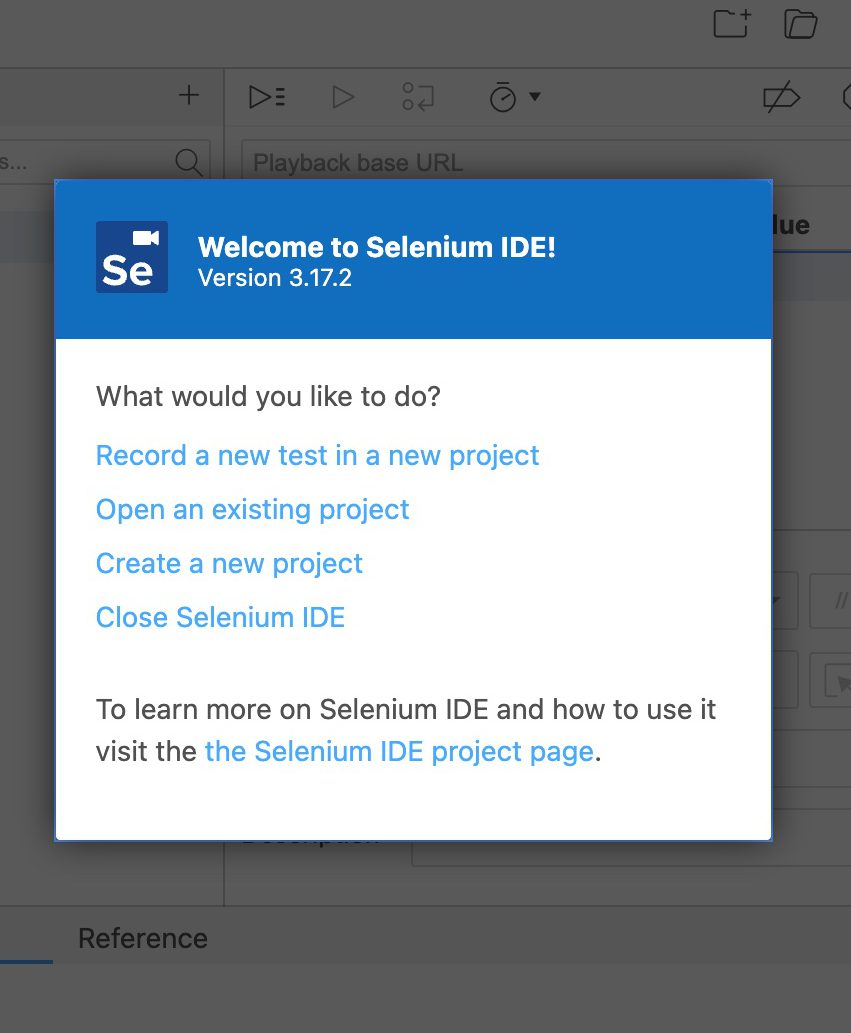
After installing the plugin, start a new project:

Selenium IDE introduction screen.
New Project Page
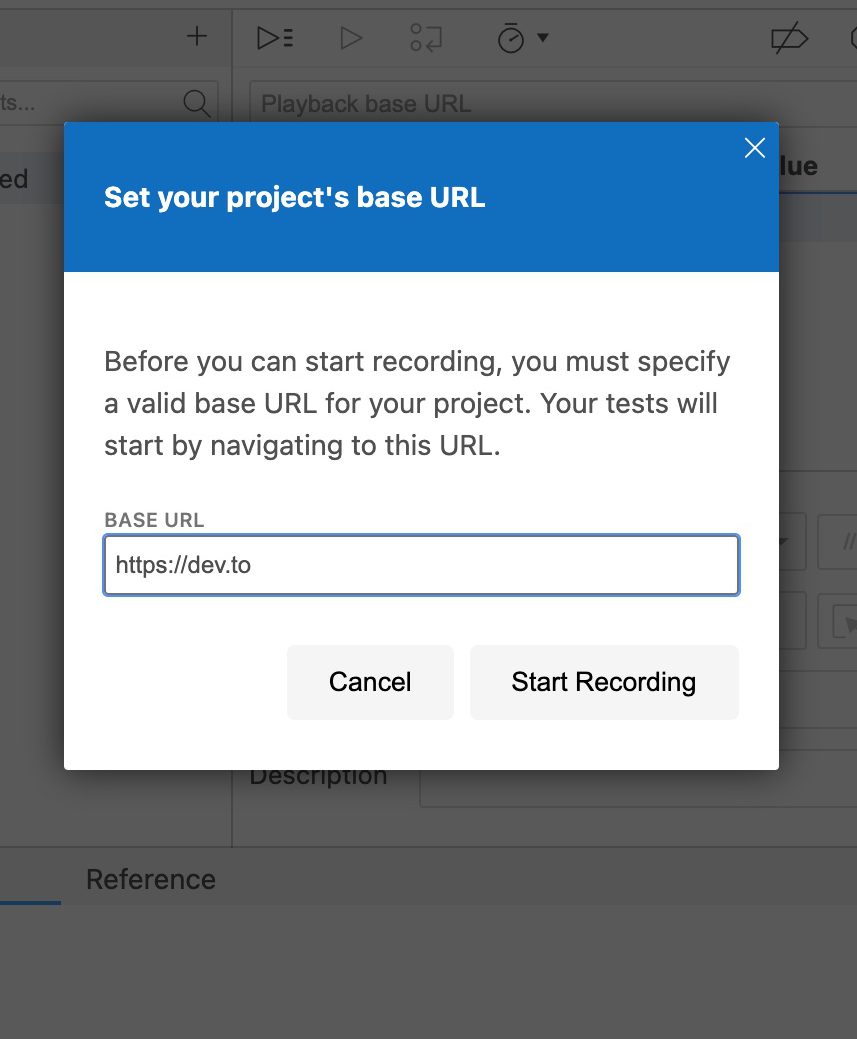
Selenium IDE's project base URL, where all of your tests will start.
Set our base url to dev.to

After you hit “Start Recording”, Selenium will launch a new Chrome window and redirect you to dev.to

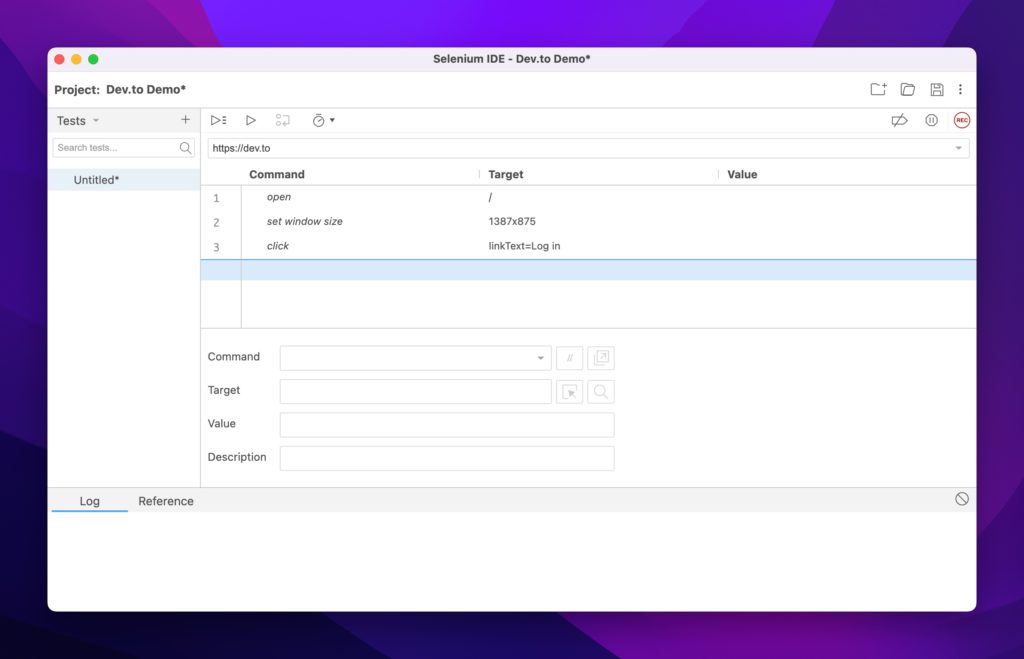
Initial Dev.To Walkthrough with Selenium IDE

From the video, we:

  1. Let the initial dev.to page load
  2. Clicked on the “Log in” button
  3. Clicked on the Selenium IDE extension
  4. Stopped the Extension recording
  5. Arrived at the Commands window below
Selenium IDE's properties loaded automatically
Selenium testing properties loaded automatically

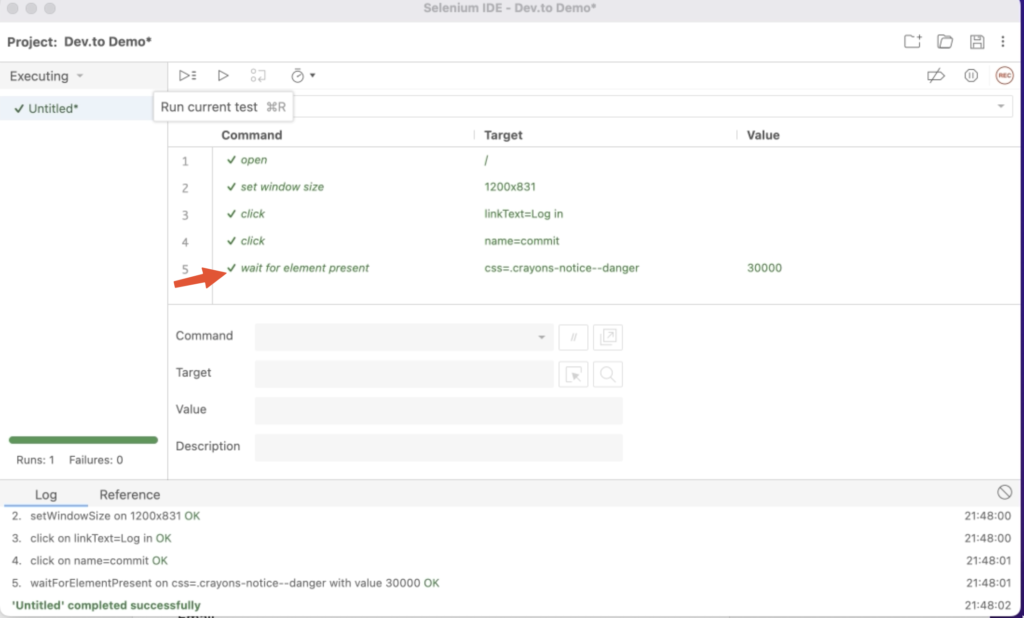
To continue our test scenario, let’s ensure that the page title is Welcome! - DEV Community and that our login attempt fails with an empty submission.

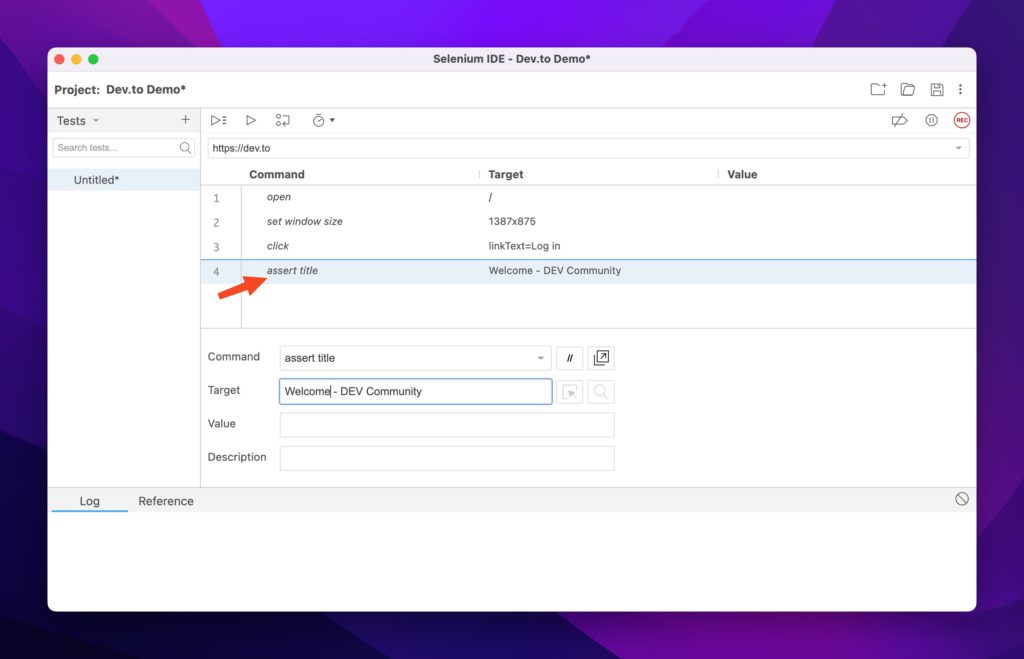
Again, I always like to have my tests fail first, so let’s start with that case. Use Selenium’s assert title command to ensure the title is what we expect. Add it to the command list:

Selenium IDE's asserting that the title fails.
Asserting the page title to fail

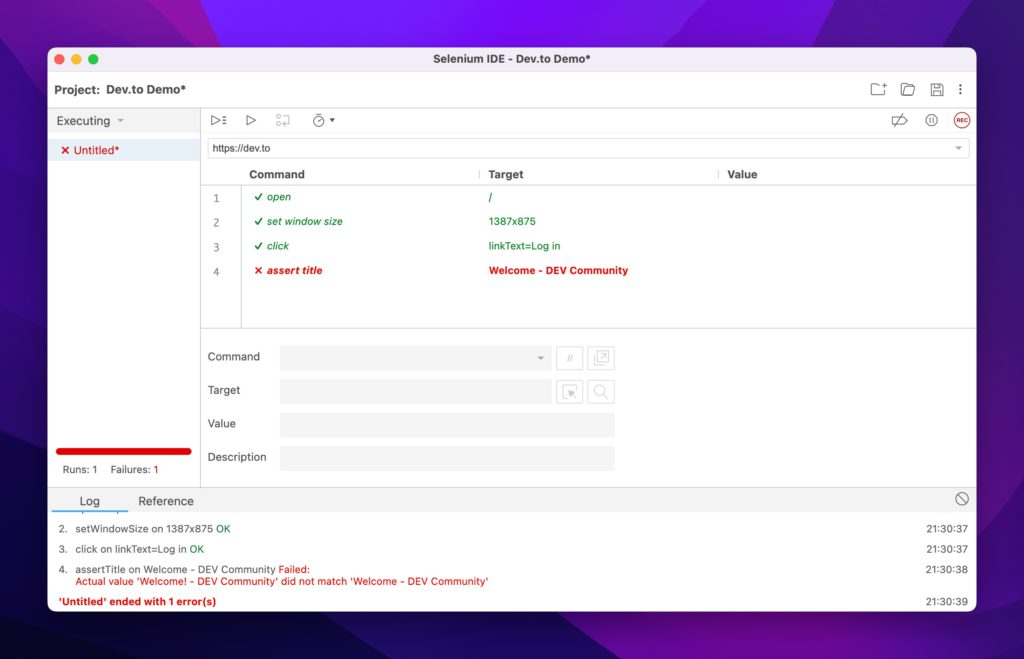
If you run the test, it should fail:

Failed automation testing in Selenium IDE.
Example of a failed test

Let’s go ahead and fix it with the correct title and rerun the test:

Successful Title Check

And success! Now let’s add the login check:

Walking through a complete test to success.

To summarize the video, we:

  1. Started a new recording
  2. Hit the Log in button
  3. Clicked Continue without supplying credentials
  4. Used the Selenium element picker to pick out the element we were interested in asserting.

The Commands window should now look like this:

Successful automation testing in Selenium IDE.
Added Command Check

Success!

The IDE version is the simplest to get started with and I recommend it for initial test write-ups. It can help you identify which elements you need to test against, think about app flow and what counts as a failure.

One question remains: Rendering the browser is nice, but I want to hook this into my continuous integration system. How can I do that when every test wants to load an application that requires a windowing system?

The answer is to go headless.

Test Case 3 – Puppeteer

Puppeteer is the perfect match to test web UI components inside a continuous integration system. It’s fast, headless, brings its own dependencies and runs the latest versions of Chrome and Firefox.

Let’s start by installing puppeteer on a new project:

mkdir tests
npm i puppeteer

Keep in mind that this automatically installs the chrome driver we had to manually download in the Selenium example. From Puppeteer’s documents:

When you install Puppeteer, it downloads a recent version of Chromium (~170MB Mac, ~282MB Linux, ~280MB Win) that is guaranteed to work with the API (customizable through Environment Variables).

https://pptr.dev/#installation

With that said, let’s create a test file that will run (and fail) our test scenario (puppeteer.js):

const puppeteer = require('puppeteer');

(async () => {
  const browser = await puppeteer.launch({headless: false});
  const page = await browser.newPage();
  const loginSelector = 'a[href="/enter"]';
  const submitLoginSelector = '[name="commit"]';
  const errorBoxSelector = '.bad notice';
  try {
    await page.goto('https://dev.to');
    await page.waitForSelector(loginSelector,{ timeout: 3000 });
    await page.click(loginSelector);
    const pageTitle = await page.title();

    if (pageTitle !== 'Welcome! - DEV Community'){
      throw new Error(`Page title ${pageTitle} does not match expected value`);
    }
    await page.waitForSelector(submitLoginSelector,{ timeout: 3000 });
    await page.click(submitLoginSelector);
    await page.waitForSelector(errorBoxSelector,{ timeout: 3000 });
    
  }catch(e){
    console.error(`Error in test suite: ${e.message}`)
  }finally {
    await browser.close();
  }
})();
Failed test due to incorrect error box selection

Some notes on the above code:

  • Lines 6-8 are Puppeteer’s method of selecting elements on the page.
  • Like Selenium WebDriver, you have to manually check a page’s attributes and decide on what to do should they fail
    • In the above code it’s line 15, asserting the title matches the expected value
    • It’ll also implicitly fail on line 20, due to the error div class not matching what dev.to sends to the browser.
  • I’ve disabled the headless feature to show that Puppeteer lets you do that!

Let’s fix the test. Change it to the correct value *and* turn on headless mode:

const puppeteer = require('puppeteer');

(async () => {
  const browser = await puppeteer.launch({headless: true});
  const page = await browser.newPage();
  const loginSelector = 'a[href="/enter"]';
  const submitLoginSelector = '[name="commit"]';
  const errorBoxSelector = '.registration__error-notice';
  try {
    await page.goto('https://dev.to');
    await page.waitForSelector(loginSelector,{ timeout: 3000 });
    await page.click(loginSelector);
    const pageTitle = await page.title();

    if (pageTitle !== 'Welcome! - DEV Community'){
      throw new Error(`Page title ${pageTitle} does not match expected value`);
    }

    await page.waitForSelector(submitLoginSelector,{ timeout: 3000 });
    await page.click(submitLoginSelector);
    await page.waitForSelector(errorBoxSelector,{ timeout: 3000 });
  }catch(e){
    console.error(`Error in test suite: ${e.message}`)
  }finally {
    await browser.close();
  }
})();

Now rerunning the test simply gets you the empty prompt:

tests:DreamMachine % node puppeteer.js
tests:DreamMachine % 

Nice, simple, and clean.

Conclusion

I’ve gone through three different sets of tools for different needs. The best part about these tools is that you can string them all together or pick and choose the ones that are right for you.

I hope the main takeaway is the same: Testing can be painless and even fun!

Selenium can also be used to test email signups with Mailsac.

Questions or comments? Stop by the Mailsac Forums, we’d love to hear from you!

Selenium Email Testing: Verify Signup Emails with Node.js

Updated September 2026. Tested with selenium-webdriver 4.49, headless Chrome 153 and Node.js 22, 24 and 26.

Related: how to read OTP codes and magic links from email in Selenium, Playwright, Cypress and Python tests.

Selenium email testing covers the part of a user journey that leaves the browser. Your app sends an email, and the test has to read it before it can continue. Selenium WebDriver can fill in a signup form, but the email lands somewhere else. This guide adds that missing piece with the Mailsac email testing API, in JavaScript with selenium-webdriver and headless Chrome.

You’ll build an end-to-end signup test. It signs up with a new address, waits for the verification email, follows its link and checks that the account is verified. The same helper then reads a 6-digit sign-in code, and the whole suite runs in GitHub Actions.

How Selenium email testing works

  1. Trigger. Selenium signs up with a new, unique address at mailsac.com. Your app sends the verification email through its usual email provider; Mailsac only receives it. There’s no inbox to create first: any address at mailsac.com, or on your own custom domain, can receive mail.
  2. Wait. The test asks the Mailsac REST API for that address’s messages every 2 seconds. It gives up after 60 seconds, and it ignores anything that arrived before the signup.
  3. Check. It reads the links Mailsac found in the email, opens the verification link in the same browser, and checks the page your app shows.

What you need

  • Node.js 22 or later. selenium-webdriver 4.47 and later declare Node.js 22 as their minimum. The Mailsac helper on its own runs on Node.js 18 and later.
  • Google Chrome. Selenium Manager ships with selenium-webdriver and downloads a matching ChromeDriver when none is on your PATH, so there’s no driver to install.
  • A Mailsac API key. Create a free account; API access is included on every plan, including free. Generate a key under API Keys & Users in the dashboard. It’s shown only once, so treat it like a password.
  • Your app, running where Chrome can reach it and able to send real email. This guide assumes http://localhost:3000.

Set up Selenium 4 with headless Chrome

Add selenium-webdriver to your app’s repository, or to a new folder if your tests live on their own. 4.49.0 is the version tested here.

# In your app's repository, or in a new folder after running: npm init -y
npm install --save-dev selenium-webdriver@4.49.0
npm pkg set scripts.test:email="node --test e2e/*.test.mjs"
mkdir e2e

The test:email script uses Node’s built-in test runner, so there’s no test framework to install. If your suite uses Mocha or Jest, keep the Selenium and Mailsac code below and adapt the imports, the before/after hooks (Jest calls them beforeAll/afterAll) and the timeout setting.

Add a small Mailsac helper

Save this as e2e/mailsac.mjs. It uses Node’s built-in fetch and has no dependencies. It reads your API key from the MAILSAC_API_KEY environment variable and sends it only in the Mailsac-Key header.

// e2e/mailsac.mjs: wait for an email with the Mailsac REST API. Node 18+, no dependencies.
import { randomUUID } from 'node:crypto';

const API = process.env.MAILSAC_API_URL || 'https://mailsac.com/api'; // override only for a mock

// A new address for every test, so reruns and parallel jobs never share an inbox.
// Public @mailsac.com by default; set MAILSAC_TEST_DOMAIN to use your private domain.
export function uniqueAddress(prefix) {
  const domain = process.env.MAILSAC_TEST_DOMAIN || 'mailsac.com';
  return `${prefix}-${Date.now()}-${randomUUID().slice(0, 8)}@${domain}`;
}

async function mailsac(path, as = 'json') {
  const key = process.env.MAILSAC_API_KEY; // a CI secret; never in browser code
  if (!key) throw new Error('Set MAILSAC_API_KEY');
  const headers = { 'Mailsac-Key': key };
  const res = await fetch(API + path, { headers, signal: AbortSignal.timeout(10_000) });
  // Fail fast on errors. A 429 means the account hit its monthly Ops limit; retrying won't help.
  if (!res.ok) throw new Error(`Mailsac API returned ${res.status} for ${path}`);
  return as === 'json' ? res.json() : res.text();
}

// Poll every 2 s until the deadline. The list is newest first; skip anything received
// before `receivedAfter`, a Date.now() taken just before your app sends the email.
export async function waitForEmail(email, { subject, receivedAfter, timeoutMs = 60_000 }) {
  const deadline = Date.now() + timeoutMs;
  while (Date.now() <= deadline) {
    const list = await mailsac(`/addresses/${email}/messages?limit=10`);
    const match = list.find((m) =>
      Date.parse(m.received) >= receivedAfter && m.subject?.includes(subject));
    if (match) {
      // Metadata has links[], the URLs Mailsac found in the email. Plain-text links can keep
      // trailing punctuation, e.g. <url> or [url]; drop it, then de-duplicate.
      const message = await mailsac(`/addresses/${email}/messages/${match._id}`);
      const links = (message.links ?? []).map((url) => url.replace(/[>\]).,;:!?'"*]+$/, ''));
      return { ...message, links: [...new Set(links)] };
    }
    await new Promise((resolve) => setTimeout(resolve, 2_000));
  }
  throw new Error(`No "${subject}" email for ${email} within ${timeoutMs / 1000} s`);
}

// The message as plain text. Mailsac generates it for HTML-only email.
export const readText = (email, messageId) => mailsac(`/text/${email}/${messageId}`, 'text');

What it does:

  • A unique address per test. uniqueAddress('signup') returns a new address each time, so reruns, retries and parallel CI jobs never read each other’s mail.
  • Bounded polling. waitForEmail() lists the inbox every 2 seconds, newest first, and throws when timeoutMs (60 seconds by default) runs out. Each request also has a 10-second timeout, so a stalled connection can’t hang your suite.
  • Only mail received after the trigger. The list endpoint has no “received after” filter, so the helper compares each message’s received time with receivedAfter and also matches the subject. An older verification email, or a welcome email that arrives first, is skipped. Tests that just take the newest message can end up clicking yesterday’s link.
  • Links parsed by Mailsac. The message metadata includes links, the HTTP(S) URLs Mailsac found in the email’s text and HTML. The helper trims punctuation that plain-text emails can leave on the end of a link, such as > or ].
  • Plain text for codes. readText() returns the message as plain text. Mailsac generates it for HTML-only email.
  • Fails fast on API errors. Any non-2xx response throws with the status and path, never the key. In CI, consider retrying 5xx responses within your deadline. MAILSAC_API_URL is only for pointing the helper at a mock server.

Each API call counts as one Mailsac Op. The signup test uses 2 Ops when the email is there on the first poll (list, then metadata), plus 1 for each extra poll. The 2FA test below also reads the text, so it starts at 3. Each message that arrives at a private address or custom domain adds 1 more. A test that times out after 60 seconds uses about 30. The free plan includes 1,500 Ops a month; here’s how Ops are counted.

Test the signup verification email

Save this as e2e/signup.test.mjs. Change the lines marked PLACEHOLDER to match your app’s signup page, field names, confirmation text and email subject.

// e2e/signup.test.mjs: sign up in headless Chrome, then verify the address from the email.
import assert from 'node:assert/strict';
import { after, before, describe, it } from 'node:test';
import { Browser, Builder, By, until } from 'selenium-webdriver';
import chrome from 'selenium-webdriver/chrome.js';
import { readText, uniqueAddress, waitForEmail } from './mailsac.mjs';

const APP_URL = process.env.APP_URL || 'http://localhost:3000'; // PLACEHOLDER: your app

describe('signup email', () => {
  let driver;
  before(async () => {
    const options = new chrome.Options().addArguments('--headless=new', '--window-size=1280,1000');
    driver = await new Builder().forBrowser(Browser.CHROME).setChromeOptions(options).build();
  });
  after(() => driver?.quit());

  it('verifies a new account from the link in the email', { timeout: 90_000 }, async () => {
    const email = uniqueAddress('signup');

    // PLACEHOLDER: your signup page, field names, confirmation text and email subject.
    await driver.get(`${APP_URL}/signup`);
    await driver.findElement(By.name('email')).sendKeys(email);
    await driver.findElement(By.name('password')).sendKeys('a-test-password-123');
    const receivedAfter = Date.now(); // just before the app sends the email
    await driver.findElement(By.css('button[type=submit]')).click();
    const status = await driver.wait(until.elementLocated(By.css('[role=status]')), 10_000);
    await driver.wait(until.elementTextMatches(status, /check your email/i), 10_000,
      'Signup not confirmed');

    const message = await waitForEmail(email, { subject: 'Verify your email', receivedAfter });
    const links = message.links.filter((url) => url.startsWith(`${APP_URL}/verify`));
    assert.equal(links.length, 1, `Expected one verification link, found ${links.length}`);

    await driver.get(links[0]);
    const heading = await driver.wait(until.elementLocated(By.css('h1')), 10_000);
    await driver.wait(until.elementTextIs(heading, 'Email verified'), 10_000, 'Email not verified');
  });
});

Start your app, then run the test with your key in the environment. Keep the key out of committed files.

MAILSAC_API_KEY=your_api_key npm run test:email

The test fails with a clear message if the email doesn’t arrive within 60 seconds, or if it doesn’t contain exactly one distinct link to your app’s /verify page. Filtering on your app’s origin and path means the test can’t pass by following a help or unsubscribe link, or a link to another site.

Take receivedAfter just before the click that sends the email. Taken earlier, it can let an older email through. Taken after the click, it can skip an email that arrived quickly.

Read a 6-digit OTP or 2FA code

Codes work the same way, except the test reads the plain text and finds the code itself; Mailsac doesn’t extract codes for you. Two-factor tests usually sign in to a seeded account, so the address is fixed and older codes pile up in its inbox. Because the code signs in to an account, give that account a private address; the free plan includes one.

Add this test inside the describe block in e2e/signup.test.mjs (readText is already imported), and set TWO_FACTOR_EMAIL and TWO_FACTOR_PASSWORD for the seeded account. It clears the browser’s cookies first, because many apps sign you in as soon as you verify an email.

  it('signs in with the 6-digit code from the email', { timeout: 90_000 }, async () => {
    // PLACEHOLDER: a seeded test account with email 2FA turned on. Its address is fixed, so
    // older codes stay in the inbox; receivedAfter makes the test read only the new one.
    const { TWO_FACTOR_EMAIL: email, TWO_FACTOR_PASSWORD: password } = process.env;
    assert.ok(email && password, 'Set TWO_FACTOR_EMAIL and TWO_FACTOR_PASSWORD');

    await driver.manage().deleteAllCookies(); // the signup test may have left you signed in
    await driver.get(`${APP_URL}/login`);
    await driver.findElement(By.name('email')).sendKeys(email);
    await driver.findElement(By.name('password')).sendKeys(password);
    const receivedAfter = Date.now();
    await driver.findElement(By.css('button[type=submit]')).click();
    const codeInput = await driver.wait(until.elementLocated(By.name('code')), 10_000);

    const message = await waitForEmail(email, { subject: 'Your sign-in code', receivedAfter });
    const codes = [...new Set((await readText(email, message._id)).match(/\b\d{6}\b/g))];
    assert.equal(codes.length, 1, `Expected one 6-digit code, found ${codes.length}`);

    await codeInput.sendKeys(codes[0]);
    await driver.findElement(By.css('button[type=submit]')).click();
    await driver.wait(until.urlContains('/account'), 10_000); // PLACEHOLDER: your signed-in page
  });

Requiring exactly one distinct 6-digit number keeps the test honest. If the email also contains an order number or a postcode with six digits, the test fails instead of typing the wrong one. In that case, match the words around the code instead, such as /code is (\d{6})/, and use its first capture group. For a longer walkthrough of a login form with an emailed 2FA code, see Verifying 2FA code delivery via email with Selenium.

Run the email tests in CI

In CI, the app under test has to send real email to the test address, just as it does locally. This GitHub Actions workflow assumes the tests live in your app’s repository. It starts the app, waits until it answers, then runs the tests in headless Chrome. The ubuntu-latest runner image includes Google Chrome and a matching ChromeDriver, so there’s nothing to install.

# .github/workflows/email-tests.yml
name: Email tests
on: [push, pull_request]
permissions:
  contents: read
jobs:
  selenium:
    runs-on: ubuntu-latest # includes Chrome and a matching ChromeDriver
    steps:
      - uses: actions/checkout@v7
      - uses: actions/setup-node@v7
        with:
          node-version: 24
          cache: npm
      - run: npm ci
      - name: Start the app, then run the Selenium email tests
        env:
          MAILSAC_API_KEY: ${{ secrets.MAILSAC_API_KEY }}
          MAILSAC_TEST_DOMAIN: ${{ vars.MAILSAC_TEST_DOMAIN }} # e.g. yourteam.msdc.co
        run: |
          npm start & # PLACEHOLDER: start your app; it must really send its email
          timeout 60 bash -c 'until curl -s -o /dev/null http://localhost:3000; do sleep 1; done'
          npm run test:email

Add MAILSAC_API_KEY as a repository secret under Settings, then Secrets and variables, then Actions. Optionally add a MAILSAC_TEST_DOMAIN variable for a private domain (see below). If you added the 2FA test, store TWO_FACTOR_EMAIL and TWO_FACTOR_PASSWORD as secrets and add them to the step’s env, like MAILSAC_API_KEY. Its seeded inbox is shared, so keep two runs from overlapping: add concurrency: email-tests at the top level of the workflow.

Pull requests from forks don’t receive repository secrets, so the helper fails there with Set MAILSAC_API_KEY. To skip the job for those pull requests, add if: ${{ !github.event.pull_request.head.repo.fork }} to it. For a walkthrough of the GitHub settings with screenshots, see Run Selenium tests in GitHub Actions: email testing.

Don’t want a staging app delivering mail at all? Point its SMTP settings at Email Capture (capture.mailsac.com). Mailsac keeps each message instead of delivering it, and the same helper reads it by recipient address. Each captured message is one Op, and captured mail is public unless you turn on private capture or use a private custom domain.

Public vs private test addresses

By default, mail sent to a mailsac.com address is public. Anyone can view a public inbox on the Mailsac website without an account, and any Mailsac API key can read it or delete individual messages from it through the API. Public inboxes are temporary: messages may be recycled quickly. Public addresses also have lower inbound throttling thresholds.

A random address makes it unlikely that anyone stumbles on your test mail, but it isn’t access control. Use public addresses for synthetic test data only. If a verification link or code would work on a real account, or the email contains real personal data, use a private address or a private custom domain:

  • Private address. Reserve an address in the dashboard or with POST /api/addresses/{email}, and only your account can read its mail. The free plan includes one; it suits a fixed test account like the 2FA example. Private address docs
  • Custom domain. Every address on the domain can receive mail without setup, and its mail is private once the domain is verified. A zero-setup subdomain of msdc.co, such as yourteam.msdc.co, works right away with no DNS changes. Or bring your own domain: verify it with a TXT record, then point its MX records to Mailsac. Paid plans include custom domains (Indie 1, Business 5, Enterprise 12+); the free plan doesn’t. Custom domain docs

With a custom domain, set MAILSAC_TEST_DOMAIN=yourteam.msdc.co and every uniqueAddress() is on your private domain, so each test still gets its own private inbox. It’s the setup we recommend for team CI suites. Compare plans on the pricing page.

Troubleshooting

  • No "Verify your email" email for … within 60 s. Check that your app really sends email in this environment (many dev and CI setups log mail or use a sandbox instead), that the test polls the exact address the app emailed, and that the subject in the test matches; the match is case-sensitive. Keep the test machine’s clock in sync, because the helper skips mail received before receivedAfter. Busy public addresses can be throttled. The missing-mail guide covers other causes.
  • Expected one verification link, found 0. No link in the email starts with your APP_URL and /verify. Check that APP_URL matches the host the email uses, for example localhost versus 127.0.0.1. If your email provider rewrites links for click tracking, turn tracking off for test mail, or match the tracking link and let Chrome follow the redirect.
  • Expected one verification link, found 2 means the email has two different matching links, such as a plain-text part that broke a long URL across lines. Fix the template, or make the filter stricter.
  • Mailsac API returned 401 means the key is wrong; Set MAILSAC_API_KEY means it’s empty. In CI, pass the secret in the step’s env. 403 means the address is another account’s private address: pick another name or use your own domain. 429 means your account went past its monthly Ops and API access is paused; Mailsac emails warnings before that happens. Retrying won’t help: add Ops or move to a larger plan.
  • SessionNotCreatedError: session not created: This version of ChromeDriver only supports Chrome version …. An old ChromeDriver on your PATH takes precedence over Selenium Manager. Remove it, and Selenium Manager downloads the driver that matches your Chrome.
  • ERR_MODULE_NOT_FOUND for selenium-webdriver/chrome. In an ES module, import selenium-webdriver/chrome.js, with the extension.
  • npm warn EBADENGINE during install. Your Node.js is older than 22, the minimum that current selenium-webdriver declares. Upgrade Node.js.

Next steps

  • See the same trigger, wait and check loop with curl and plain Node.js on the Email Testing API page.
  • Browse every endpoint, including attachments, headers and cleanup, in the API reference, or start with the Mailsac docs.
  • For long waits, turn on webhook or WebSocket forwarding for a private address, or for a catch-all on your custom domain, instead of polling. Domain-wide WebSockets need Business or Enterprise, and pushed messages use Ops.
  • Using Cypress too? Read the Cypress email testing guide.

Create a free Mailsac account to get an API key, then run the signup test against your app.