Plus-addressing is supported by all Mailsac inboxes

When you send to any inbox @mailsac.com, if a + plus symbol is included, we remove that symbol and everything after it.

jeff+12345asdf@mailsac.com

will be delivered to

[email protected]

Many email services including Gmail, iCloud and Fastmail support stripping the + plus symbol and everything after it in the local-part of the address (everything before the @ symbol).

Plus-addressing has long been a useful feature to segment user accounts across services. At Mailsac we offer a variety of disposable email and forwarding utilities that are designed for software QA engineers and developers. Things like forwarding all messages in a domain to a single address, or automatically routing email to webhooks or slack, are really easy – may not even require DNS setup.

Speed Up Integration Tests Using WebSockets

All the code shown in this article is published at https://github.com/mailsac/mailsac-integration-test-examples

Integration tests identify errors between systems. These tests can be slow to run because of the interactions between multiple systems.

Mailsac can facilitate integration testing between web apps and transactional email services.

This article explains how to use WebSockets to make your email integration tests faster and simpler than with REST API polling.

Explaining the differences: REST APIs vs WebSockets

A REST API call uses a HTTP request for creating, reading, updating, and deleting objects. The HTTP connection between the client and server is short lived. An example of this is the List Messages In Inbox endpoint. The endpoint will return JSON formatted information about email messages in a Mailsac Inbox. Each time a client checks for new messages a new HTTP connection will be used.

A WebSocket is a persistent connection between a client and server providing full-duplex communication. By reusing an established connection there is no need to poll the REST API for changes, instead data can be pushed to the client in real time. WebSockets often listen on port 80/443 but does not use HTTP, except for the initial connection handshake.

REST API Polling Examples

The examples below use the “old way” – hit the Mailsac REST API and “poll” the inbox for new messages.

Polling is reliable and familiar for API programmers.

However, this approach can result in significant delays between when the email was received by Mailsac and when the test checks for a new message. Every few seconds, you ask the server if there are new messages.

Using a Web Socket Instead of Polling

What if the server could notify you that there are new messages? That’s where WebSockets come in.

This code example uses Node.js and Mocha test framework. Portions of the code example are presented below.

Steps to Validate Email Contents Using a WebSocket

Here’s how you can get notified of a new email message:

  1. Establish a WebSocket connection with Mailsac
  2. Send an email using SMTP to a private Mailsac address
  3. Receive content of the email over the established WebSocket
  4. Validate the content of the email
  5. Send a second email using SMTP to a private Mailsac addrress
  6. Receive content of second email over the established WebSocket
  7. Validate the content of the second email
  8. Delete both email messages
  9. Close WebSocket connection

Test Configuration

This test requires several variables be defined. They can be set by editing the script or by setting environment variables.

const mailsacAPIKey = process.env.MAILSAC_API_KEY || ''; // Generated by mailsac. See https://mailsac.com/api-keys
const mailsacToAddress = process.env.MAILSAC_TO_ADDRESS || ''; // Mailsac email address where the email will be sent
const smtpUserName = process.env.SMTP_USER || ''; // Username for smtp server authentication
const smtpPassword = process.env.SMTP_PASSWORD || ''; // Password for smtp server authentication
const smtpHost = process.env.SMTP_HOST || ''; // hostname of the smtp server
const smtpPort = process.env.SMTP_PORT || 587; // port the smtp is listening on

Setup: Configure Mailsac Address for WebSocket Forwarding

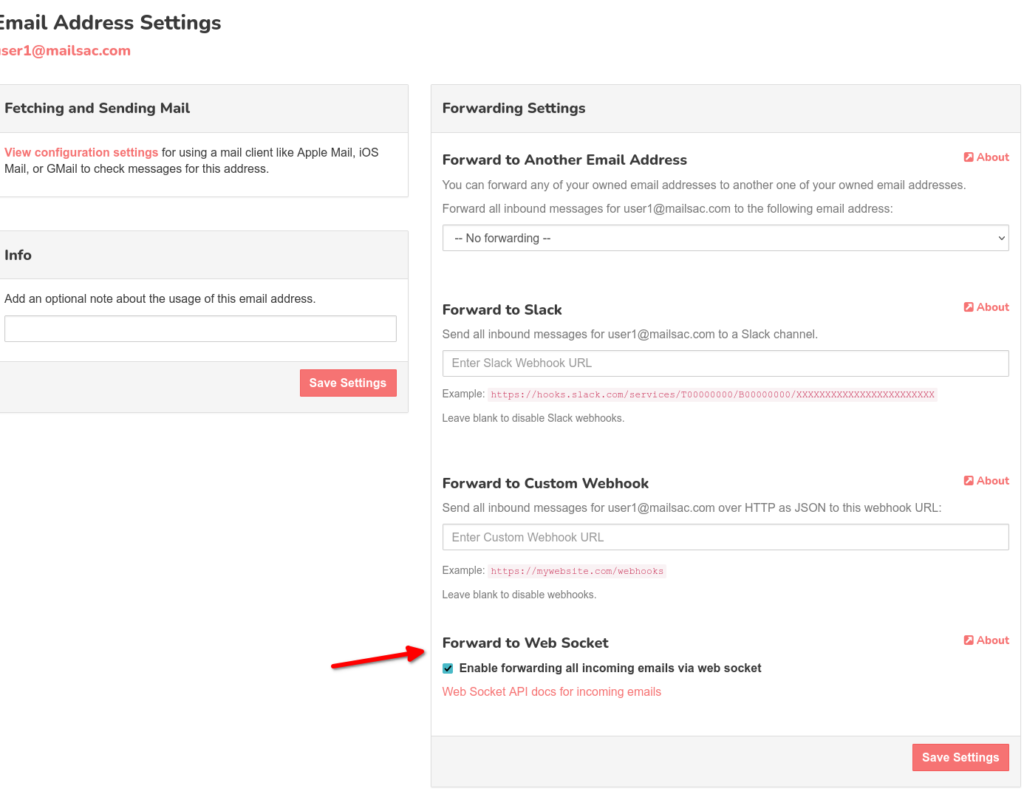
The Mailsac address used in this example needs to have WebSocket forwarding enabled on it. Any messages sent to the email address will be forwarded by the Mailsac WebSocket server.

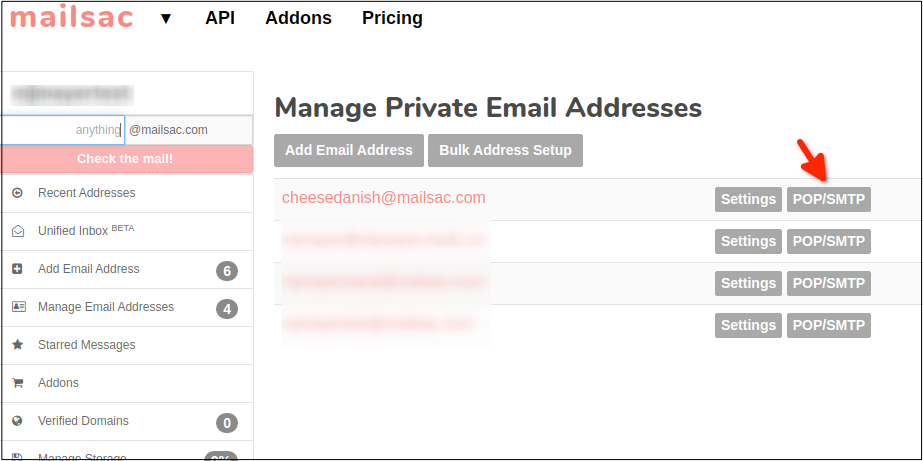
To enable WebSocket forwarding the Mailsac address must be private. Private addresses have additional features such as forwarding to Slack, forwarding to a Webhook, and forwarding to a WebSocket. Select the “Settings” button next to the email address you want to configure from Manage Owned Email Addresses. Select the check box to “Enabled forwarding all incoming email via web socket” and select “Save Settings”.

1. Establish WebSocket Connection

The NPM package ws is a WebSocket client used to connect to the Mailsac WebSocket service.

The Websocket connection to Mailsac is established on lines 12-14. The ws package will only reject a Promise if it fails to connect to the WebSocket server due to a network error. Wrapping the connection in a Promise allows for additional validations.

The Mailsac WebSocket server will send the message ({"status":200,"msg":"Listening","addresses":["[email protected]"]}) after the initial connection. In lines 16-26 the initial message is parsed and checked for value of the property status. The Promise is rejected if the initial status message is not received or does not have a status code of 200.

const mailsacAPIKey = process.env.MAILSAC_API_KEY || ''; // Generated by mailsac. See https://mailsac.com/api-keys
const mailsacToAddress = process.env.MAILSAC_TO_ADDRESS || ''; // Mailsac email address where the email will be sent

describe("send email to mailsac", function () {

  // Open websocket waiting for email. This websocket will be reused for tests in this file.
  before(() => {
    return new Promise((resolve, reject) => {
      ws = new WebSocket(
        `wss://sock.mailsac.com/incoming-messages?key=${mailsacAPIKey}&addresses=${mailsacToAddress}`
      );
      let wsMessage; // message response object
      ws.on("message", (msg) => {
        try {
          wsMessage = JSON.parse(msg);
        } catch {
          assert(wsMessage, "Failed to parse JSON from websocket message");
        }
        if (wsMessage.status != 200) {
          reject(new Error("connection error: " + wsMessage.error));
          return;
        }
        resolve(wsMessage);
      });
      ws.on("error", (err) => {
        reject(err);
      });
    });
  });
});

2. Send email using SMTP

The NPM package nodemailer is used to send a test email via SMTP.

The connection to the STMP server is configured in lines 4-10. Most SMTP servers will require authentication.

The email’s to, from, subject, and content are set in lines 14-18. The email will be sent to the address defined in the configuration at the beginning of the script or the environment variable MAILSAC_TO_ADDRESS. The email will include a link to the website https://example.com.

  it("sends email with link to example.com website", async () => {
    // create a transporter object using the default SMTP transport
    const transport = nodemailer.createTransport({
      host: smtpHost,
      port: smtpPort,
      auth: {
        user: smtpUserName,
        pass: smtpPassword,
      },
    });
    // send mail using the defined transport object
    const result = await transport.sendMail({
      from: smtpUserName, // sender address
      to: mailsacToAddress, // recipient address
      subject: "Hello!",
      text: "Check out https://example.com",
      html: "Check out <a href https://example.com>My website</a>",
    });
  });

3. Receive Message via WebSocket

Once the email arrives, Mailsac will send a JSON formatted version of the email on the WebSocket established earlier in this example. ws.on("message", (msg) => { ... } is a function that will run when new message is sent by the WebSocket server. The msg is parsed as JSON. Then the Promise will resolve if the message has a to property. The existence of the to property is checked to make sure the message sent by the WebSocket server was an email and not a status message. The await keyword will cause the test to wait until a message is sent over the WebSocket or the test times out.

const wsMessage = await new Promise((resolve) => {
  ws.on("message", (msg) => {
    const wsResponse = JSON.parse(msg);
    if (wsResponse.to) {
      resolve(wsResponse);
    }
  });
});

Example JSON formatted message

{

    "status": 200,
    "email": 

{

    "text": "string",
    "body": "string",
    "raw": "string",
    "headers": { },
    "_id": "m3phnJ2ag3example-0",
    "from": 

[

    {
        "name": "string",
        "address": "string"
    }

],
"to": 
[

    {
        "name": "string",
        "address": "string"
    }

],
"cc": 
[

    {
        "name": "string",
        "address": "string"
    }

],
"bcc": 
[

    {
        "name": "string",
        "address": "string"
    }

],
"subject": "string",
"savedBy": "string",
"originalInbox": "string",
"inbox": "[email protected]",
"domain": "example.com",
"received": "1985-04-12T23:20:50.52Z",
"size": 0,
"attachments": 
[

    "5ea9c924627e68f988c9c7ca44340892"

],
"ip": "string",
"via": "string",
"folder": "inbox",
"labels": 
[

    "string"

],
"read": true,
"rtls": true,
"links": 

        [
            "string"
        ],
        "spam": 0.345
    }

}

4. Validate Content of the Email

The assert package is used to validate the contents of the email. The subject and text properties are assigned to new variables. assert.equal(subject, "Hello!"); will cause an exception if subject is not equal to Hello!. The test framework Mocha will interpret this as a failure and the test will fail. Likewise, if the variable email_text is not Check out https://example.com the test will fail.

const subject = wsMessage.subject;
const email_text = wsMessage.text;
assert.equal(subject, "Hello!");
assert.equal(email_text, "Check out https://example.com");

5-7. Send Another Email and Validate Its Content

The reason to send a second email is to demonstrate that the Mailsac WebSocket connection can be reused. This second test will reuse the WebSocket connection established (variable name ws) in the before() block in step 1. The only difference between the first and second test is the content of the email.

// Sends a second email reusing the websocket.
it("sends email with link to unsubscribe.example.com website", async () => {
  const transport = nodemailer.createTransport({
    host: smtpHost,
    port: smtpPort,
    auth: {
      user: smtpUserName,
      pass: smtpPassword,
    },
  });
  const result = await transport.sendMail({
    from: smtpUserName, // sender address
    to: mailsacToAddress, // recipient address
    subject: "Unsubscribe",
    text: "Click the link to unsubscribe https://unsubscribe.example.com",
    html: "Check out <a href https://example.com>My website</a>",
  });

  console.log("Sent email with messageId: ", result.messageId);

  const wsMessage = await new Promise((resolve) => {
    ws.on("message", (msg) => {
      const wsResponse = JSON.parse(msg);
      if (wsResponse.to) {
        resolve(wsResponse);
      }
    });
  });

  assert(wsMessage, "Never received messages!");

  const subject = wsMessage.subject;
  const email_text = wsMessage.text;
  assert.equal(subject, "Unsubscribe");
  assert.equal(
    email_text,
    "Click the link to unsubscribe https://unsubscribe.example.com"
  );
});

8. Delete Emails to Prevent Leaky Tests

An after() block will run after the tests have completed. The REST API Endpoint – Delete All Messages In An In Inbox is called to delete the test emails. By deleting all the test emails, it prevents these emails from being fetched in another test, which could impact the results of another test. It is best practice to clean up tests after they ran.

The NPM package supertest is used to make the REST call to delete the messages. Virtually any HTTP client library could be used to do this. Feel free to use the HTTP client library you feel most comfortable with.

afte(() =>
  request("https://mailsac.com")
    .delete(`/api/addresses/${mailsacToAddress}/messages`)
    .set("Mailsac-Key", mailsacAPIKey)
    .expect(204)
);

9. Close WebSocket Connection

An after() block is used to close the WebSocket connection after all the tests have completed. It is best practice to close all connections on the termination of the test.

// close websocket after all tests finish
after(() => ws.close());

Next Steps

The use of WebSockets helps speed up tests and uses API calls more efficiently.

See the WebSocket Test Page to see a WebSocket in action in your browser. This page includes a basic code example usage ofoffor a WebSocket client and is a great starting point before divining into integration testing using WebSockets.

If you have questions about this example or the Mailsac WebSocket service please post on https://forum.mailsac.com

Selenium Email Testing: Verify Signup Emails with Node.js

Updated September 2026. Tested with selenium-webdriver 4.49, headless Chrome 153 and Node.js 22, 24 and 26.

Related: how to read OTP codes and magic links from email in Selenium, Playwright, Cypress and Python tests.

Selenium email testing covers the part of a user journey that leaves the browser. Your app sends an email, and the test has to read it before it can continue. Selenium WebDriver can fill in a signup form, but the email lands somewhere else. This guide adds that missing piece with the Mailsac email testing API, in JavaScript with selenium-webdriver and headless Chrome.

You’ll build an end-to-end signup test. It signs up with a new address, waits for the verification email, follows its link and checks that the account is verified. The same helper then reads a 6-digit sign-in code, and the whole suite runs in GitHub Actions.

How Selenium email testing works

  1. Trigger. Selenium signs up with a new, unique address at mailsac.com. Your app sends the verification email through its usual email provider; Mailsac only receives it. There’s no inbox to create first: any address at mailsac.com, or on your own custom domain, can receive mail.
  2. Wait. The test asks the Mailsac REST API for that address’s messages every 2 seconds. It gives up after 60 seconds, and it ignores anything that arrived before the signup.
  3. Check. It reads the links Mailsac found in the email, opens the verification link in the same browser, and checks the page your app shows.

What you need

  • Node.js 22 or later. selenium-webdriver 4.47 and later declare Node.js 22 as their minimum. The Mailsac helper on its own runs on Node.js 18 and later.
  • Google Chrome. Selenium Manager ships with selenium-webdriver and downloads a matching ChromeDriver when none is on your PATH, so there’s no driver to install.
  • A Mailsac API key. Create a free account; API access is included on every plan, including free. Generate a key under API Keys & Users in the dashboard. It’s shown only once, so treat it like a password.
  • Your app, running where Chrome can reach it and able to send real email. This guide assumes http://localhost:3000.

Set up Selenium 4 with headless Chrome

Add selenium-webdriver to your app’s repository, or to a new folder if your tests live on their own. 4.49.0 is the version tested here.

# In your app's repository, or in a new folder after running: npm init -y
npm install --save-dev selenium-webdriver@4.49.0
npm pkg set scripts.test:email="node --test e2e/*.test.mjs"
mkdir e2e

The test:email script uses Node’s built-in test runner, so there’s no test framework to install. If your suite uses Mocha or Jest, keep the Selenium and Mailsac code below and adapt the imports, the before/after hooks (Jest calls them beforeAll/afterAll) and the timeout setting.

Add a small Mailsac helper

Save this as e2e/mailsac.mjs. It uses Node’s built-in fetch and has no dependencies. It reads your API key from the MAILSAC_API_KEY environment variable and sends it only in the Mailsac-Key header.

// e2e/mailsac.mjs: wait for an email with the Mailsac REST API. Node 18+, no dependencies.
import { randomUUID } from 'node:crypto';

const API = process.env.MAILSAC_API_URL || 'https://mailsac.com/api'; // override only for a mock

// A new address for every test, so reruns and parallel jobs never share an inbox.
// Public @mailsac.com by default; set MAILSAC_TEST_DOMAIN to use your private domain.
export function uniqueAddress(prefix) {
  const domain = process.env.MAILSAC_TEST_DOMAIN || 'mailsac.com';
  return `${prefix}-${Date.now()}-${randomUUID().slice(0, 8)}@${domain}`;
}

async function mailsac(path, as = 'json') {
  const key = process.env.MAILSAC_API_KEY; // a CI secret; never in browser code
  if (!key) throw new Error('Set MAILSAC_API_KEY');
  const headers = { 'Mailsac-Key': key };
  const res = await fetch(API + path, { headers, signal: AbortSignal.timeout(10_000) });
  // Fail fast on errors. A 429 means the account hit its monthly Ops limit; retrying won't help.
  if (!res.ok) throw new Error(`Mailsac API returned ${res.status} for ${path}`);
  return as === 'json' ? res.json() : res.text();
}

// Poll every 2 s until the deadline. The list is newest first; skip anything received
// before `receivedAfter`, a Date.now() taken just before your app sends the email.
export async function waitForEmail(email, { subject, receivedAfter, timeoutMs = 60_000 }) {
  const deadline = Date.now() + timeoutMs;
  while (Date.now() <= deadline) {
    const list = await mailsac(`/addresses/${email}/messages?limit=10`);
    const match = list.find((m) =>
      Date.parse(m.received) >= receivedAfter && m.subject?.includes(subject));
    if (match) {
      // Metadata has links[], the URLs Mailsac found in the email. Plain-text links can keep
      // trailing punctuation, e.g. <url> or [url]; drop it, then de-duplicate.
      const message = await mailsac(`/addresses/${email}/messages/${match._id}`);
      const links = (message.links ?? []).map((url) => url.replace(/[>\]).,;:!?'"*]+$/, ''));
      return { ...message, links: [...new Set(links)] };
    }
    await new Promise((resolve) => setTimeout(resolve, 2_000));
  }
  throw new Error(`No "${subject}" email for ${email} within ${timeoutMs / 1000} s`);
}

// The message as plain text. Mailsac generates it for HTML-only email.
export const readText = (email, messageId) => mailsac(`/text/${email}/${messageId}`, 'text');

What it does:

  • A unique address per test. uniqueAddress('signup') returns a new address each time, so reruns, retries and parallel CI jobs never read each other’s mail.
  • Bounded polling. waitForEmail() lists the inbox every 2 seconds, newest first, and throws when timeoutMs (60 seconds by default) runs out. Each request also has a 10-second timeout, so a stalled connection can’t hang your suite.
  • Only mail received after the trigger. The list endpoint has no “received after” filter, so the helper compares each message’s received time with receivedAfter and also matches the subject. An older verification email, or a welcome email that arrives first, is skipped. Tests that just take the newest message can end up clicking yesterday’s link.
  • Links parsed by Mailsac. The message metadata includes links, the HTTP(S) URLs Mailsac found in the email’s text and HTML. The helper trims punctuation that plain-text emails can leave on the end of a link, such as > or ].
  • Plain text for codes. readText() returns the message as plain text. Mailsac generates it for HTML-only email.
  • Fails fast on API errors. Any non-2xx response throws with the status and path, never the key. In CI, consider retrying 5xx responses within your deadline. MAILSAC_API_URL is only for pointing the helper at a mock server.

Each API call counts as one Mailsac Op. The signup test uses 2 Ops when the email is there on the first poll (list, then metadata), plus 1 for each extra poll. The 2FA test below also reads the text, so it starts at 3. Each message that arrives at a private address or custom domain adds 1 more. A test that times out after 60 seconds uses about 30. The free plan includes 1,500 Ops a month; here’s how Ops are counted.

Test the signup verification email

Save this as e2e/signup.test.mjs. Change the lines marked PLACEHOLDER to match your app’s signup page, field names, confirmation text and email subject.

// e2e/signup.test.mjs: sign up in headless Chrome, then verify the address from the email.
import assert from 'node:assert/strict';
import { after, before, describe, it } from 'node:test';
import { Browser, Builder, By, until } from 'selenium-webdriver';
import chrome from 'selenium-webdriver/chrome.js';
import { readText, uniqueAddress, waitForEmail } from './mailsac.mjs';

const APP_URL = process.env.APP_URL || 'http://localhost:3000'; // PLACEHOLDER: your app

describe('signup email', () => {
  let driver;
  before(async () => {
    const options = new chrome.Options().addArguments('--headless=new', '--window-size=1280,1000');
    driver = await new Builder().forBrowser(Browser.CHROME).setChromeOptions(options).build();
  });
  after(() => driver?.quit());

  it('verifies a new account from the link in the email', { timeout: 90_000 }, async () => {
    const email = uniqueAddress('signup');

    // PLACEHOLDER: your signup page, field names, confirmation text and email subject.
    await driver.get(`${APP_URL}/signup`);
    await driver.findElement(By.name('email')).sendKeys(email);
    await driver.findElement(By.name('password')).sendKeys('a-test-password-123');
    const receivedAfter = Date.now(); // just before the app sends the email
    await driver.findElement(By.css('button[type=submit]')).click();
    const status = await driver.wait(until.elementLocated(By.css('[role=status]')), 10_000);
    await driver.wait(until.elementTextMatches(status, /check your email/i), 10_000,
      'Signup not confirmed');

    const message = await waitForEmail(email, { subject: 'Verify your email', receivedAfter });
    const links = message.links.filter((url) => url.startsWith(`${APP_URL}/verify`));
    assert.equal(links.length, 1, `Expected one verification link, found ${links.length}`);

    await driver.get(links[0]);
    const heading = await driver.wait(until.elementLocated(By.css('h1')), 10_000);
    await driver.wait(until.elementTextIs(heading, 'Email verified'), 10_000, 'Email not verified');
  });
});

Start your app, then run the test with your key in the environment. Keep the key out of committed files.

MAILSAC_API_KEY=your_api_key npm run test:email

The test fails with a clear message if the email doesn’t arrive within 60 seconds, or if it doesn’t contain exactly one distinct link to your app’s /verify page. Filtering on your app’s origin and path means the test can’t pass by following a help or unsubscribe link, or a link to another site.

Take receivedAfter just before the click that sends the email. Taken earlier, it can let an older email through. Taken after the click, it can skip an email that arrived quickly.

Read a 6-digit OTP or 2FA code

Codes work the same way, except the test reads the plain text and finds the code itself; Mailsac doesn’t extract codes for you. Two-factor tests usually sign in to a seeded account, so the address is fixed and older codes pile up in its inbox. Because the code signs in to an account, give that account a private address; the free plan includes one.

Add this test inside the describe block in e2e/signup.test.mjs (readText is already imported), and set TWO_FACTOR_EMAIL and TWO_FACTOR_PASSWORD for the seeded account. It clears the browser’s cookies first, because many apps sign you in as soon as you verify an email.

  it('signs in with the 6-digit code from the email', { timeout: 90_000 }, async () => {
    // PLACEHOLDER: a seeded test account with email 2FA turned on. Its address is fixed, so
    // older codes stay in the inbox; receivedAfter makes the test read only the new one.
    const { TWO_FACTOR_EMAIL: email, TWO_FACTOR_PASSWORD: password } = process.env;
    assert.ok(email && password, 'Set TWO_FACTOR_EMAIL and TWO_FACTOR_PASSWORD');

    await driver.manage().deleteAllCookies(); // the signup test may have left you signed in
    await driver.get(`${APP_URL}/login`);
    await driver.findElement(By.name('email')).sendKeys(email);
    await driver.findElement(By.name('password')).sendKeys(password);
    const receivedAfter = Date.now();
    await driver.findElement(By.css('button[type=submit]')).click();
    const codeInput = await driver.wait(until.elementLocated(By.name('code')), 10_000);

    const message = await waitForEmail(email, { subject: 'Your sign-in code', receivedAfter });
    const codes = [...new Set((await readText(email, message._id)).match(/\b\d{6}\b/g))];
    assert.equal(codes.length, 1, `Expected one 6-digit code, found ${codes.length}`);

    await codeInput.sendKeys(codes[0]);
    await driver.findElement(By.css('button[type=submit]')).click();
    await driver.wait(until.urlContains('/account'), 10_000); // PLACEHOLDER: your signed-in page
  });

Requiring exactly one distinct 6-digit number keeps the test honest. If the email also contains an order number or a postcode with six digits, the test fails instead of typing the wrong one. In that case, match the words around the code instead, such as /code is (\d{6})/, and use its first capture group. For a longer walkthrough of a login form with an emailed 2FA code, see Verifying 2FA code delivery via email with Selenium.

Run the email tests in CI

In CI, the app under test has to send real email to the test address, just as it does locally. This GitHub Actions workflow assumes the tests live in your app’s repository. It starts the app, waits until it answers, then runs the tests in headless Chrome. The ubuntu-latest runner image includes Google Chrome and a matching ChromeDriver, so there’s nothing to install.

# .github/workflows/email-tests.yml
name: Email tests
on: [push, pull_request]
permissions:
  contents: read
jobs:
  selenium:
    runs-on: ubuntu-latest # includes Chrome and a matching ChromeDriver
    steps:
      - uses: actions/checkout@v7
      - uses: actions/setup-node@v7
        with:
          node-version: 24
          cache: npm
      - run: npm ci
      - name: Start the app, then run the Selenium email tests
        env:
          MAILSAC_API_KEY: ${{ secrets.MAILSAC_API_KEY }}
          MAILSAC_TEST_DOMAIN: ${{ vars.MAILSAC_TEST_DOMAIN }} # e.g. yourteam.msdc.co
        run: |
          npm start & # PLACEHOLDER: start your app; it must really send its email
          timeout 60 bash -c 'until curl -s -o /dev/null http://localhost:3000; do sleep 1; done'
          npm run test:email

Add MAILSAC_API_KEY as a repository secret under Settings, then Secrets and variables, then Actions. Optionally add a MAILSAC_TEST_DOMAIN variable for a private domain (see below). If you added the 2FA test, store TWO_FACTOR_EMAIL and TWO_FACTOR_PASSWORD as secrets and add them to the step’s env, like MAILSAC_API_KEY. Its seeded inbox is shared, so keep two runs from overlapping: add concurrency: email-tests at the top level of the workflow.

Pull requests from forks don’t receive repository secrets, so the helper fails there with Set MAILSAC_API_KEY. To skip the job for those pull requests, add if: ${{ !github.event.pull_request.head.repo.fork }} to it. For a walkthrough of the GitHub settings with screenshots, see Run Selenium tests in GitHub Actions: email testing.

Don’t want a staging app delivering mail at all? Point its SMTP settings at Email Capture (capture.mailsac.com). Mailsac keeps each message instead of delivering it, and the same helper reads it by recipient address. Each captured message is one Op, and captured mail is public unless you turn on private capture or use a private custom domain.

Public vs private test addresses

By default, mail sent to a mailsac.com address is public. Anyone can view a public inbox on the Mailsac website without an account, and any Mailsac API key can read it or delete individual messages from it through the API. Public inboxes are temporary: messages may be recycled quickly. Public addresses also have lower inbound throttling thresholds.

A random address makes it unlikely that anyone stumbles on your test mail, but it isn’t access control. Use public addresses for synthetic test data only. If a verification link or code would work on a real account, or the email contains real personal data, use a private address or a private custom domain:

  • Private address. Reserve an address in the dashboard or with POST /api/addresses/{email}, and only your account can read its mail. The free plan includes one; it suits a fixed test account like the 2FA example. Private address docs
  • Custom domain. Every address on the domain can receive mail without setup, and its mail is private once the domain is verified. A zero-setup subdomain of msdc.co, such as yourteam.msdc.co, works right away with no DNS changes. Or bring your own domain: verify it with a TXT record, then point its MX records to Mailsac. Paid plans include custom domains (Indie 1, Business 5, Enterprise 12+); the free plan doesn’t. Custom domain docs

With a custom domain, set MAILSAC_TEST_DOMAIN=yourteam.msdc.co and every uniqueAddress() is on your private domain, so each test still gets its own private inbox. It’s the setup we recommend for team CI suites. Compare plans on the pricing page.

Troubleshooting

  • No "Verify your email" email for … within 60 s. Check that your app really sends email in this environment (many dev and CI setups log mail or use a sandbox instead), that the test polls the exact address the app emailed, and that the subject in the test matches; the match is case-sensitive. Keep the test machine’s clock in sync, because the helper skips mail received before receivedAfter. Busy public addresses can be throttled. The missing-mail guide covers other causes.
  • Expected one verification link, found 0. No link in the email starts with your APP_URL and /verify. Check that APP_URL matches the host the email uses, for example localhost versus 127.0.0.1. If your email provider rewrites links for click tracking, turn tracking off for test mail, or match the tracking link and let Chrome follow the redirect.
  • Expected one verification link, found 2 means the email has two different matching links, such as a plain-text part that broke a long URL across lines. Fix the template, or make the filter stricter.
  • Mailsac API returned 401 means the key is wrong; Set MAILSAC_API_KEY means it’s empty. In CI, pass the secret in the step’s env. 403 means the address is another account’s private address: pick another name or use your own domain. 429 means your account went past its monthly Ops and API access is paused; Mailsac emails warnings before that happens. Retrying won’t help: add Ops or move to a larger plan.
  • SessionNotCreatedError: session not created: This version of ChromeDriver only supports Chrome version …. An old ChromeDriver on your PATH takes precedence over Selenium Manager. Remove it, and Selenium Manager downloads the driver that matches your Chrome.
  • ERR_MODULE_NOT_FOUND for selenium-webdriver/chrome. In an ES module, import selenium-webdriver/chrome.js, with the extension.
  • npm warn EBADENGINE during install. Your Node.js is older than 22, the minimum that current selenium-webdriver declares. Upgrade Node.js.

Next steps

  • See the same trigger, wait and check loop with curl and plain Node.js on the Email Testing API page.
  • Browse every endpoint, including attachments, headers and cleanup, in the API reference, or start with the Mailsac docs.
  • For long waits, turn on webhook or WebSocket forwarding for a private address, or for a catch-all on your custom domain, instead of polling. Domain-wide WebSockets need Business or Enterprise, and pushed messages use Ops.
  • Using Cypress too? Read the Cypress email testing guide.

Create a free Mailsac account to get an API key, then run the signup test against your app.
Write Integration Tests Using Mailsac

Mailsac has a REST API that can be leveraged to validate emails are being received with the correct contents. This can be useful for web applications that send customized emails to customers.

This example will demonstrate how to send an email via an SMTP server and validate the email was received. The code used in this example is available on GitHub.

Setup Project Directory

Node version 12 or greater is required for this example due to the use of async and await.

Begin by creating a directory for the project.

mkdir mailsac-tests
cd mailsac-tests
npm init # enter project information, for test command use 'mocha'

Verify package.json looks something like this. The most important part is "scripts": { "test": "mocha" }

{
  "name": "mailsac-integration-tests",
  "version": "1.0.0",
  "description": "",
  "main": "index.js",
  "directories": {
    "test": "test"
  },
  "scripts": {
    "test": "mocha"
  },
  "author": "",
  "license": "ISC"
}

Installing a Test Framework

The test framework for this example is Mocha. It is a test framework for Javascript applications. A test framework will allow us to write tests against our code.

Setup Test Directory

These directions are inspired by the Mocha Getting Started Guide.

cd mailsac-tests
npm install --save-dev mocha
mkdir test
$EDITOR test/test.js # or open with your favorite editor

Write a Test to Test For Truth

This section is for people who are new to Mocha and test frameworks. Skip ahead if you know how to write tests.

Mocha follows a Behavior Driven Development (BDD) model of testing. This allows for human readable descriptions of software behavior. The first line of the code shows exactly what the following tests will test (ie describe("tests truth"). The following lines state the expected outcome of the test (ie it(true equals true).

This test uses Node’s built in assert. The first parameter passed to assert() is checked for true. If it is true, the assert passes. If the value is false, it throws an exception. In this example, we assert that true is true and that false is equal to false.

Create a describe block in test/test.js
describe("tests truth", () => {
    it('true equals true', function() {
        assert(true); // assert checks for truth
    });
    it('false equals false', () => {
        // assert equal checks the first and second parameter are equal
        assert.equal(false,false);
    });
})

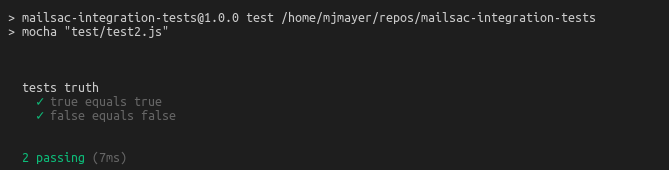
This code can be run and the test should pass. Run the test with npm test . Confirm the test passed.

Congratulations! You have a working test.

Write an Integration Test

In this example, an email will be sent to Mailsac using the ubiquitous Javascript SMTP library NodeMailer, then the test framework will call Mailsac to validate that the email was received.

Install Dependencies

There are a few Node modules that will make sending an email and interacting with the Mailsac REST API easier. NodeMailer will be used to send the email via SMTP. SuperTest will be used to call the Mailsac API.

npm install

Integration Test Example

Back in the text editor, open / create the file test.js in the test folder. Copy and paste the following code or see GitHub for the complete example.

Import required modules
const assert = require("assert");
const nodemailer = require("nodemailer");
const request = require("supertest");
Configure SMTP settings and Mailsac Credentials
// Generated by mailsac. See https://mailsac.com/api-keys
const mailsacAPIKey = "";
// Mailsac email address where the email will be sent
const mailsacToAddress = "[email protected]";
// Username for smtp server authentication
const smtpUserName = "";
// Password for smtp server authentication
const smtpPassword = "";
// hostname of the smtp server
const smtpHost = "";
// port the smtp is listening on
const smtpPort = 587;
Create wait Function

The test will contact the Mailsac API multiple times while waiting for the email to arrive. This function will be used later in a for loop while waiting for the email to arrive.

const wait = (millis) => new Promise((resolve) => setTimeout(resolve, millis));
Add a Describe block with Timeout and Test Cleanup

The describe callback describes in human readable terms what the test is going to do. The increased timeout is required because the default timeout for Mocha is 2 seconds. The test email will likely not arrive that quickly. The afterEach section is used to delete all messages after the test runs. This prevents a leaky test.

describe("send email to mailsac", function () {
  this.timeout(50000); // test can take a long time to run. This increases the default timeout for mocha

  /* delete all messages in the inbox after the test runs to prevent leaky tests.
       This requires the inbox to private, which is a paid feature of Mailsac.
       The afterEach section could be omitted if using a public address
    */
  afterEach(() =>
    request("https://mailsac.com")
      .delete(`/api/addresses/${mailsacToAddress}/messages`)
      .set("Mailsac-Key", mailsacAPIKey)
      .expect(204)
  );
});
Add it block and NodeMailer Configuration

The it interface describes what the test will do "sends email with link to example.com website“. The transport variable is used to store the configuration of the SMTP server.

result = await transport.sendMail({… Attempts to send the email and capture the result.

describe("send email to mailsac", function () {
...

  it("sends email with link to example.com website", async () => {
    // create a transporter object using the default SMTP transport
    const transport = nodemailer.createTransport({
      host: smtpHost,
      port: smtpPort,
      auth: {
        user: smtpUserName,
        pass: smtpPassword,
      },
    });
    // send mail using the defined transport object
    const result = await transport.sendMail({
      from: smtpUserName, // sender address
      to: mailsacToAddress, // recipient address
      subject: "Hello!",
      text: "Check out https://example.com",
      html: "Check out <a href https://example.com>My website</a>",
    });

    // logs the messageId of the email, confirming the
    // email was submitted to the smtp server
    console.log("Sent email with messageId: ", result.messageId);
});
Add Loop to Check Mail

This section of code uses a for loop and a http library (supertest) to check if the message has arrived at Mailsac. The test uses the Mailsac API endpoint /api/addresses/{email}/messages which lists all messages in an inbox.

describe("send email to mailsac", function () {
...

  it("sends email with link to example.com website", async () => {
...
    // Check email in the inbox 10x, waiting 5 secs in between. Once we find mail, abort the loop.
    let messages = [];
    for (let i = 0; i < 10; i++) {
      // returns the JSON array of email message objects from mailsac.
      const res = await request("https://mailsac.com")
        .get(`/api/addresses/${mailsacToAddress}/messages`)
        .set("Mailsac-Key", mailsacAPIKey);

      messages = res.body;
      if (messages.length > 0) {
        break;
      }
      await wait(4500);
    }
  });
});
Add Assertion to Check for Link in the Message

assert is used twice. First, to check to see if any messages were fetched from the Mailsac inbox. This checks the length of the messages array to see if any messages were received. The second assert is used to check for a link to http://example.com .

describe("send email to mailsac", function () {
  // ...
  it("sends email with link to example.com website", async () => {
    // ...
    let messages = [];
    for (let i = 0; i < 10; i++) {
      // ... await get messages from mailsac
    }
    assert(messages.length, "Never received messages!");

    // After a message is retrieved from mailsac, the JSON object is checked to see if the link was parsed from the email and it is the correct link
    const link = messages[0].links.find((l) => "https://example.com");
    assert(link, "Missing / Incorrect link in email");
  });
});
Run Test

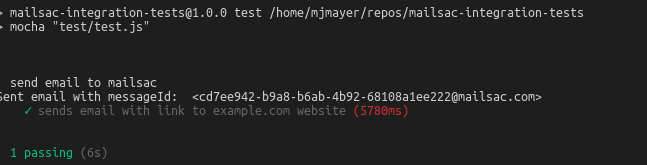
At this point the test code is complete and can be run using npm test. If all went well the following output is written to the console.

npm test

Run Test Using GitHub Repository

If you are having some trouble with the tests, I recommend downloading the code from GitHub and running it.

git clone https://github.com/mailsac/mailsac-integration-test-examples.git
cd mailsac-integration-test-examples
npm install
$EDITOR test/test.js # or open with your favorite editor

Edit the test.js and fill in your SMTP settings and Mailsac API key

const mailsacAPIKey = ""; // Generated by mailsac. See https://mailsac.com/api-keys
const mailsacToAddress = "[email protected]"; // Mailsac email address where the email will be sent
const smtpUserName = ""; // Username for smtp server authentication
const smtpPassword = ""; // Password for smtp server authentication
const smtpHost = ""; // hostname of the smtp server
const smtpPort = 587; // port the smtp is listening on

Run test running the command npm test in your terminal.

Next Steps

The example above can be used as part of your team’s quality assurance process. A real world example would be validating password reset links to customers. This test could be used to validate that when a customer requests a password reset an email is sent to them containing the correct password reset link.

If you have any questions about this example or want to talk about other implementations reach out to our community at https://forum.mailsac.com .

Multi-User Login using API Credentials, For Team Collaboration

Update: April 2021 – Multi-User login is now called “Sub-Accounts”

Named API Keys can now be used as website authentication.

Custom domains and Private Addresses have been great for quality assurance teams to conduct end to end automated testing of email. But sometimes interacting with an REST API can be a lot of overhead for non-repeating tasks. API Credentials can now be used to login to the website.

All private addresses and custom domains associated with the primary account will be visible from the website for API users. The permissions for API users are the same as API keys.

Quality assurance teams often share credentials of test accounts for the web application they are testing. These test accounts might to be associated with an email provisioned by their IT department or the QA tester’s personal email. Mailsac private domains allow the test accounts to be created in an an environment all members of the QA team have access to.

This feature allows teams to work together in the Mailsac platform. There is no longer a need to for each person to have their own Mailsac account. A named API Key can be created for each person. That API key can be used to interact with the REST API and the website. As a result, password resets and transaction emails sent to a Mailsac private domain can be accessed by any member of the QA team.

“Internally we have used Mailsac for collaboration. Being able to share a private address or domain allows my team members to see exactly what I am seeing. This feature allows our customers to do the same with their own private domains and addresses” Michael Mayer – Member – Forking Software LLC

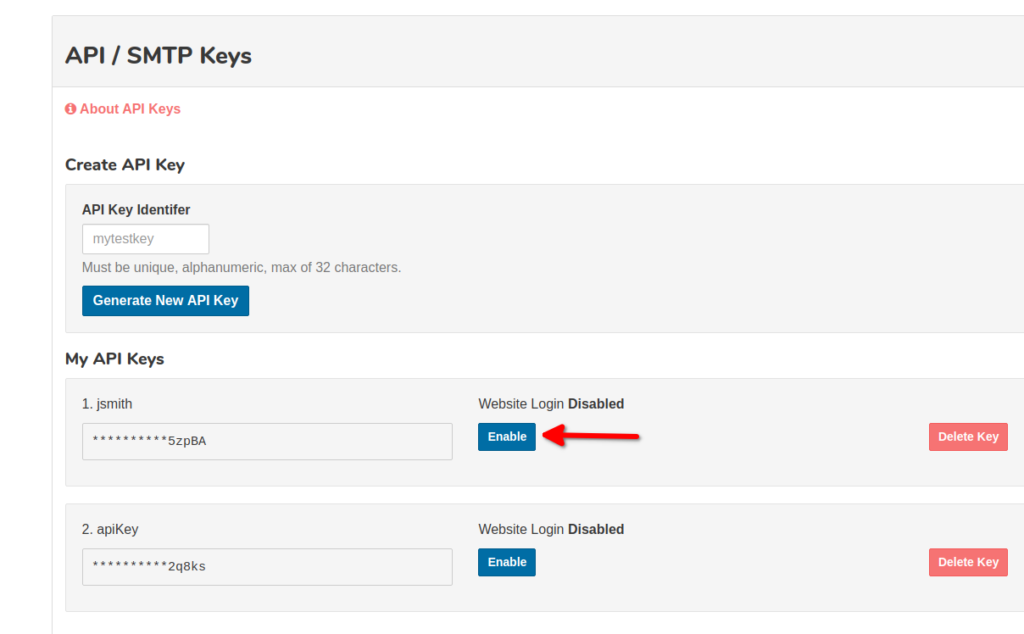
Getting started is as easy as provisioning a new set of API credentials and enabling the website login on the API Key. This can be done the the Dashboard and selecting API Credentials & Users

Enable Website Login

We will be rolling this feature out to our Business and Enterprise Plans in the next couple weeks. If you have an immediate need for this feature we can enable it on your account. Contact [email protected] to get early access to this feature on you Business or Enterprise Plan.

Using Mailsac for Shared QA Email Accounts

When building software-as-a-service, several pre-production environments are often in play.

Developers, product managers, and QA engineers work together to test software in the various environments.

But there’s confusion around which user accounts can be used in which environments. Which accounts have the right permissions for testing. And your test environments environments don’t map 1:1 with 3rd party services. It’s confusing to know if you tested the right thing.

Mailsac lets you create disposable email accounts within a private custom. Temp email addresses to share with the team. This results in less effort keeping testing environment accounts separate. It prevents user collisions with third party providers.

Common Environment Setup Example

A QA team may have a test environment called “UAT” and developers have a different test environment called “Staging.”

The infrastructure might map to URLs with different subdomains like:

  • uat.example.com – QA team
  • staging.example.com – Developers
  • app.example.com – Production (customers)

where each subdomain has a completely separate database with a users table.

However, our sample app uses a 3rd identity provider (such as Amazon Cognito, Forgerock, Auth0, etc). The identity provider only has two environments:

  • test-identity.example.com – All non-production usage (UAT, Staging)
  • identity.example.com – Production (customers)

Furthermore, our app uses Stripe, which also has only two environments:

  • Stripe Test Mode – All non-production usage (UAT, Staging)
  • Production Mode – Production (customers)

One can imagine a users database table with the following properties:

  • users.id int, primary
  • users.email text, unique
  • users.identity_provider_id text, unique, corresponds to the Identity Provider
  • users.stripe_customer_id text, unique, corresponds to the Stripe Customer ID

Such a setup is common. Problems begin brewing when using the same email address in multiple environments.

Password issues with shared email addresses

A QA person wants to test their app. They sign up with [email protected] in UAT. [email protected] was created by a friendly sysadmin at their company. It is a real email inbox. The company has to pay a few bucks per month for the inbox, and it isn’t easily accessible by anybody else. Where’s that password again? Oh you asked Dave from IT to reset the email password? Oh you mean the UAT app password was changed only? The new password should be in a spreadsheet..oops somebody reset it and didn’t update the password? It doesn’t look like I have access to the [email protected] inbox. Wait a second..the Dev team is also using it?

Identity Provider Clash, Stripe duplicate

UAT person uses [email protected] and creates the user account with the Identity Provider, linking the identity_provider_id to their user in UAT. They also link the Stripe customer.

idemailidentity_provider_idstripe_id
22[email protected]idp_q7e4cus_t6n
UAT users table

But then a developer in Staging attempts to perform the action but gets blocked by the identity provider, and duplicates the customer in Stripe with the same email address, making the tracking of financial transactions overly complicated. UAT and Stating also end up with a different user id.

idemailidentity_provider_idstripe_id
19[email protected]NULL (failed)cus_yb1
Staging users table

It is possible the same password is used for [email protected] with the identity provider, and both UAT and Development are able to login. But the identity_provider_id will need to be manually set to match both environments, and it will never match the users.id column.

Let’s add one more common layer: role based permissions.

Developer 1 sets up [email protected] to

These are just a few of the problems with using a limited number of shared credentials for testing software.

Using Mailsac for Test User Accounts

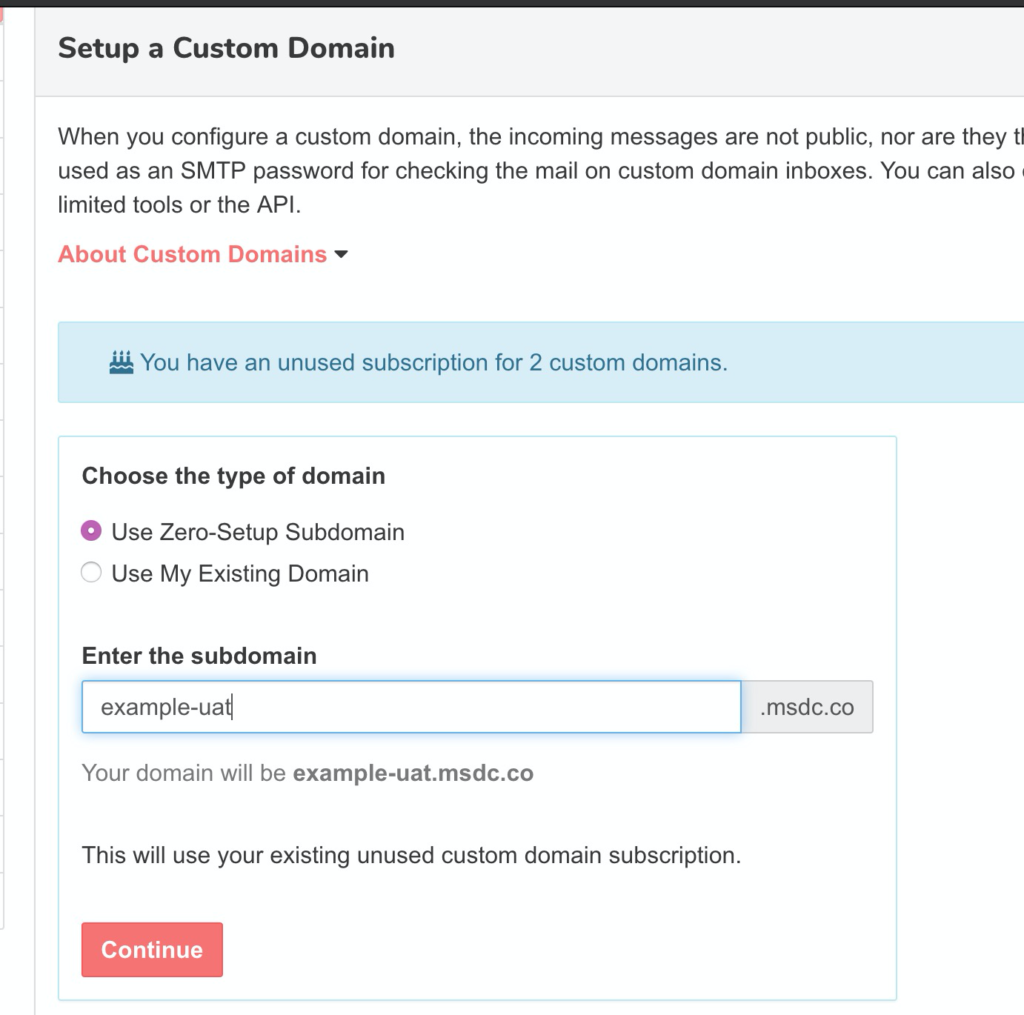
A software team and QA team can share the Mailsac Business account to add nearly unlimited email addresses, and apply special features to up to 50 private address across 5 custom domains (and more via addons). Mailsac allows any custom subdomain of *.msdc.co, it may not even be necessary to involve an IT department to configure DNS.

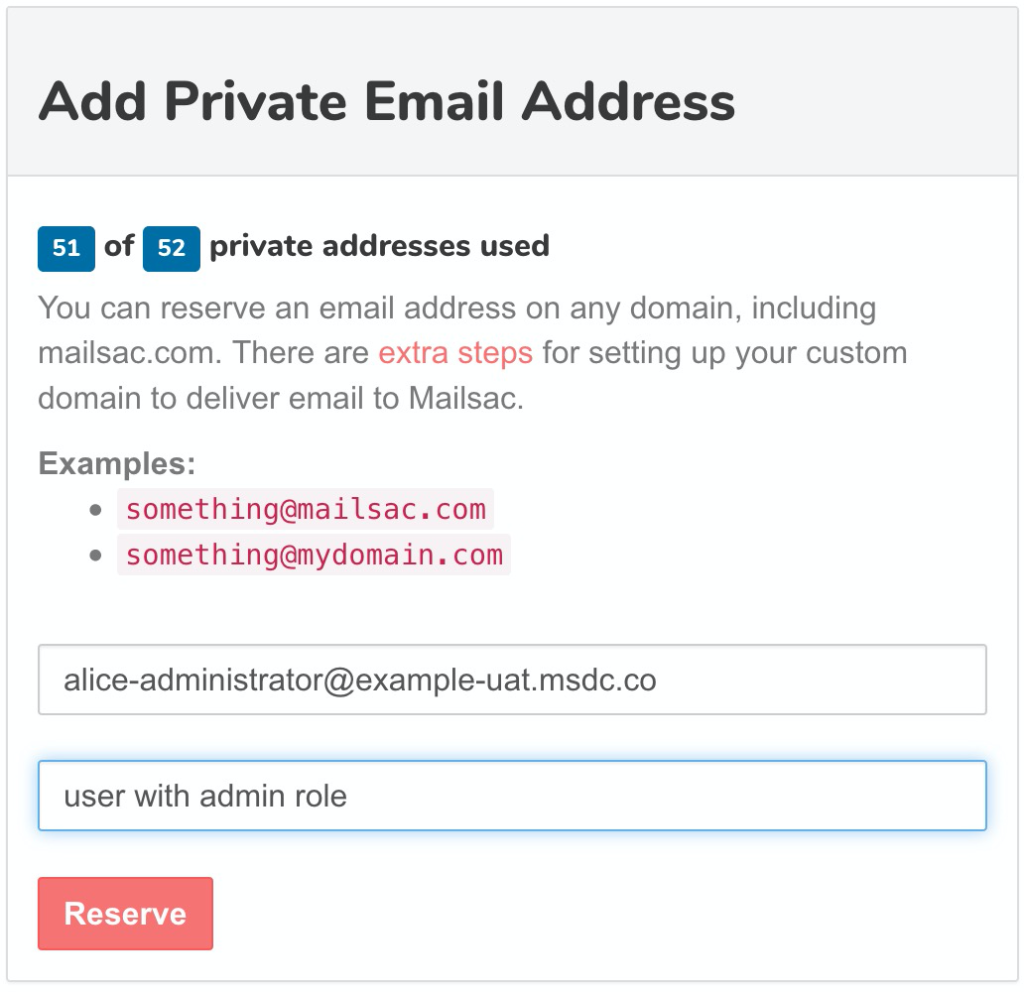
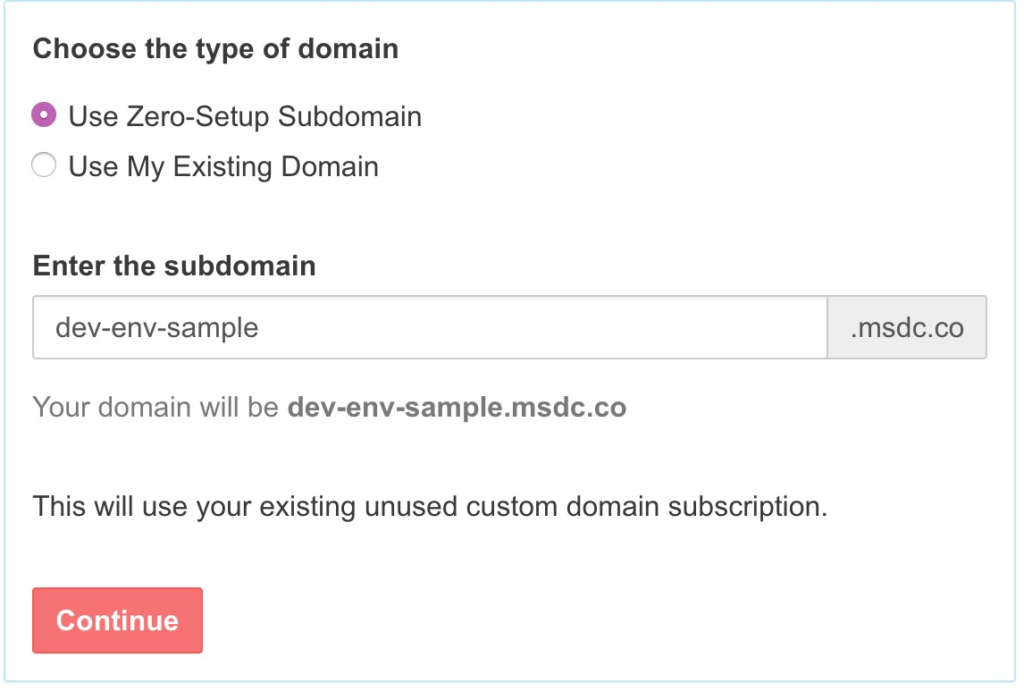
QA team sets up example-uat.msdc.co.

The QA team will create 10 private addresses with specific purposes such as a user they will configure in uat.example.com with elevated admin permissions:

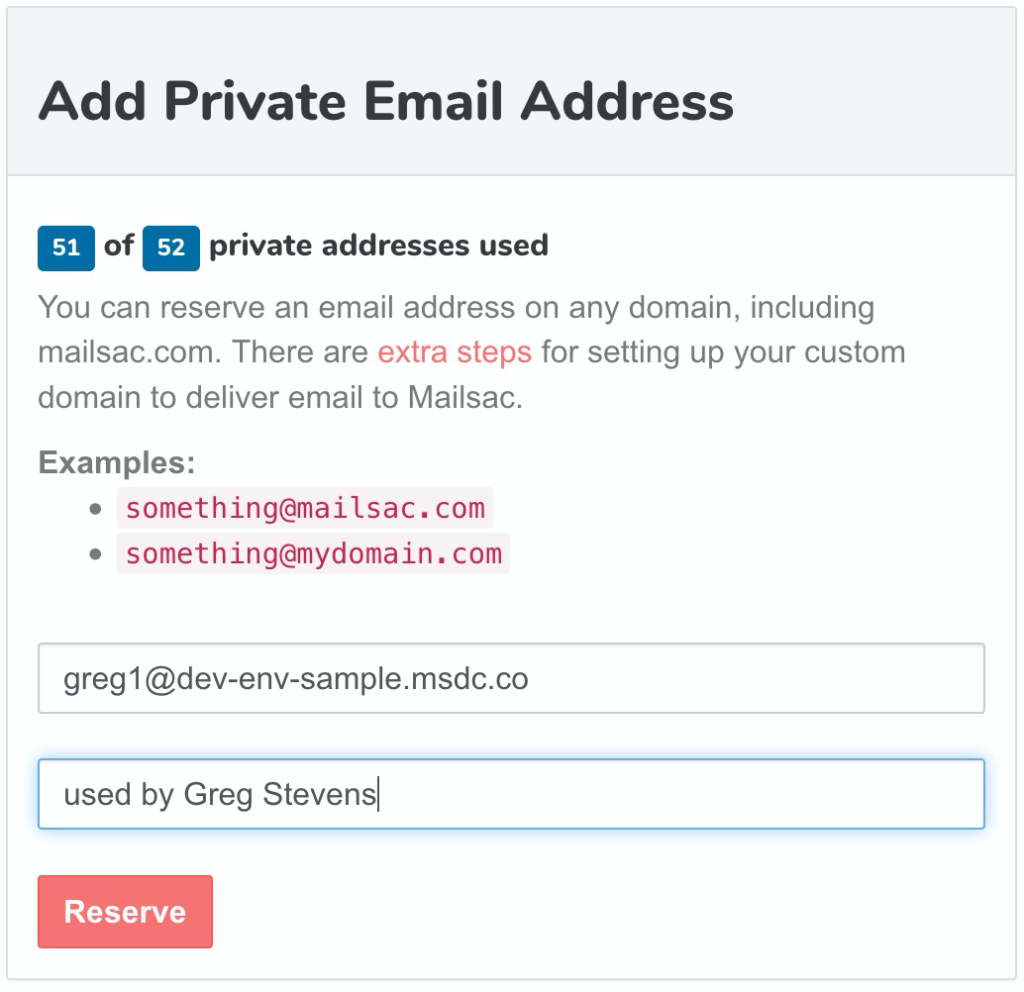
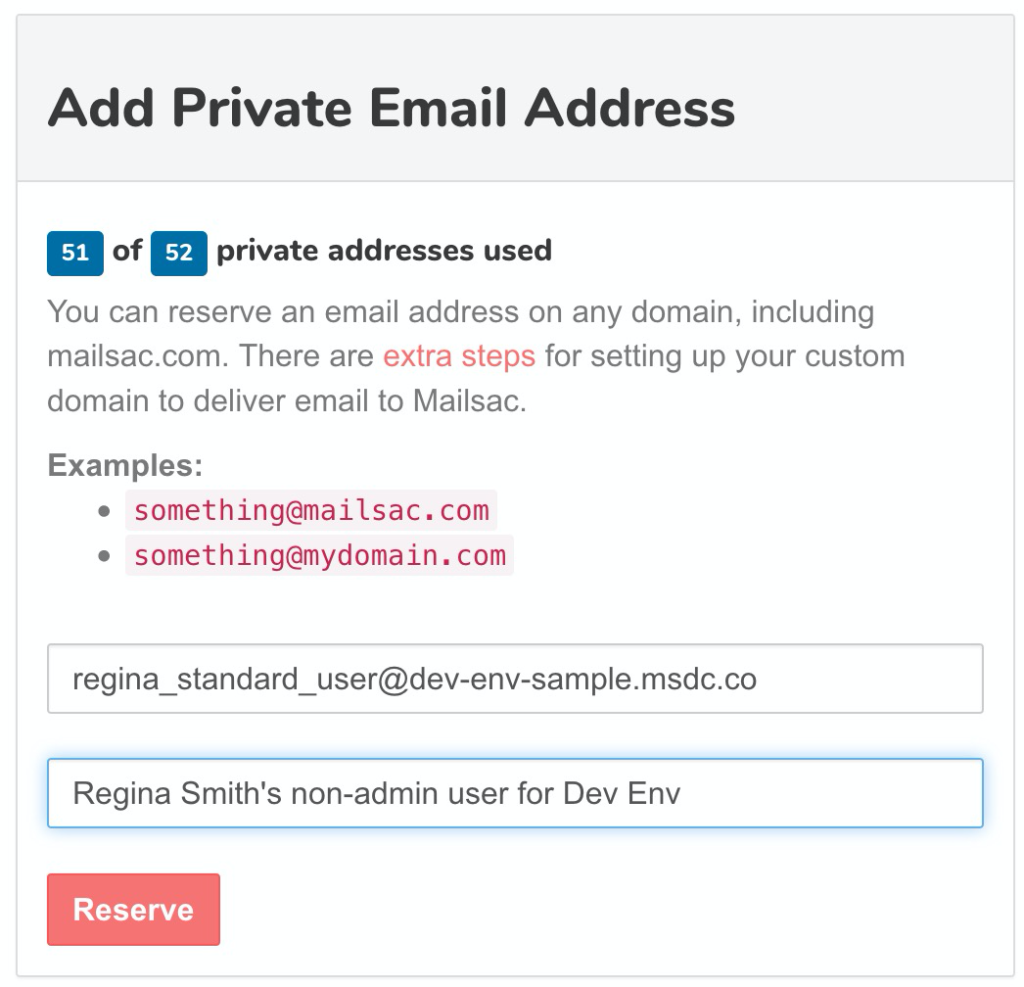
Next the Dev team, can do something similar but with a different custom domain, and different private email addresses.

Setting up a bunch of private addresses is simple and included with any paid plan. It can help prevent test credential collisions.

Random Inboxes and API Keys

It is not even necessary to setup private addresses, as done above, to receive email.

With a custom domain, any Developer or QA person can send email to any address in the domain without needing to create it first. Then they can check the mail with a personal API key.

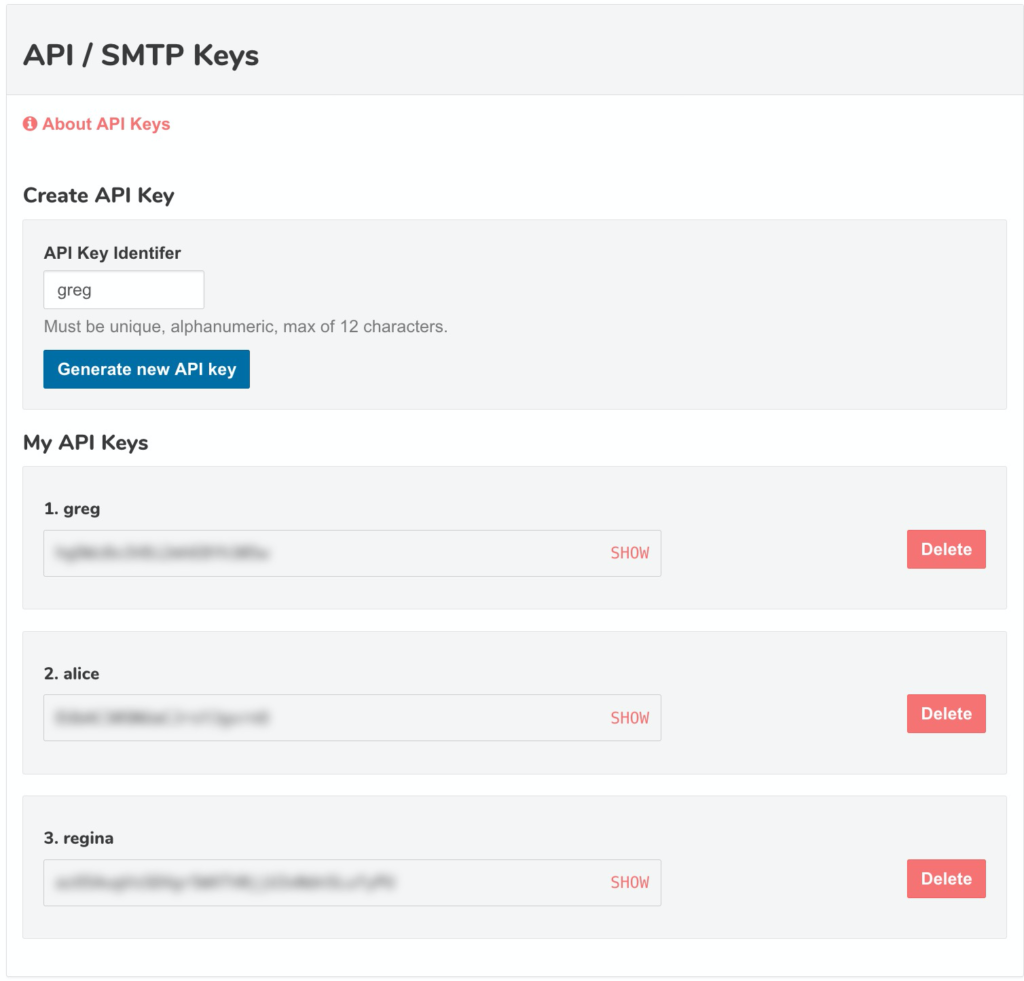
The Business Plan allows creating multiple custom API keys:

API Key management in Mailsac

To make a random address, generate a random string:

openssl rand -hex 4 yields de692e19 (for example)

and prefix it to your custom domain:

[email protected]

Assume Greg’s API key is: wv6OCCXE4svjxuv7sOsCBA (note: never share these!)

He can easily check the inbox using the following URL scheme:
https://mailsac.com/inbox/[email protected]?_mailsacKey=wv6OCCXE4svjxuv7sOsCBA

Or get messages as JSON:

curl --header 'Mailsac-Key: wv6OCCXE4svjxuv7sOsCBA' https://mailsac.com/api/[email protected]/messages

which returns an array of messages including any links to be clicked.

[{
  "_id": "m77238f-0",
  "inbox": "[email protected]",
  "subject": "Confirm your account or something",
  //.........
  "links": ["https://app.example.com/confirm-account/iOZifOYkLX5qFfEo"]
}]

Concluding remarks

We hope this guide provides an overview of how software teams are using Mailsac to simplify testing.

Thousands of enterprises and software project teams use Mailsac to test their environments and manage “known good” test accounts for their SaaS.

Start for free instantly