10 Best Testing Tools for Software Developers in 2022 Logo

10 Best Testing Tools For Software Developers in 2022

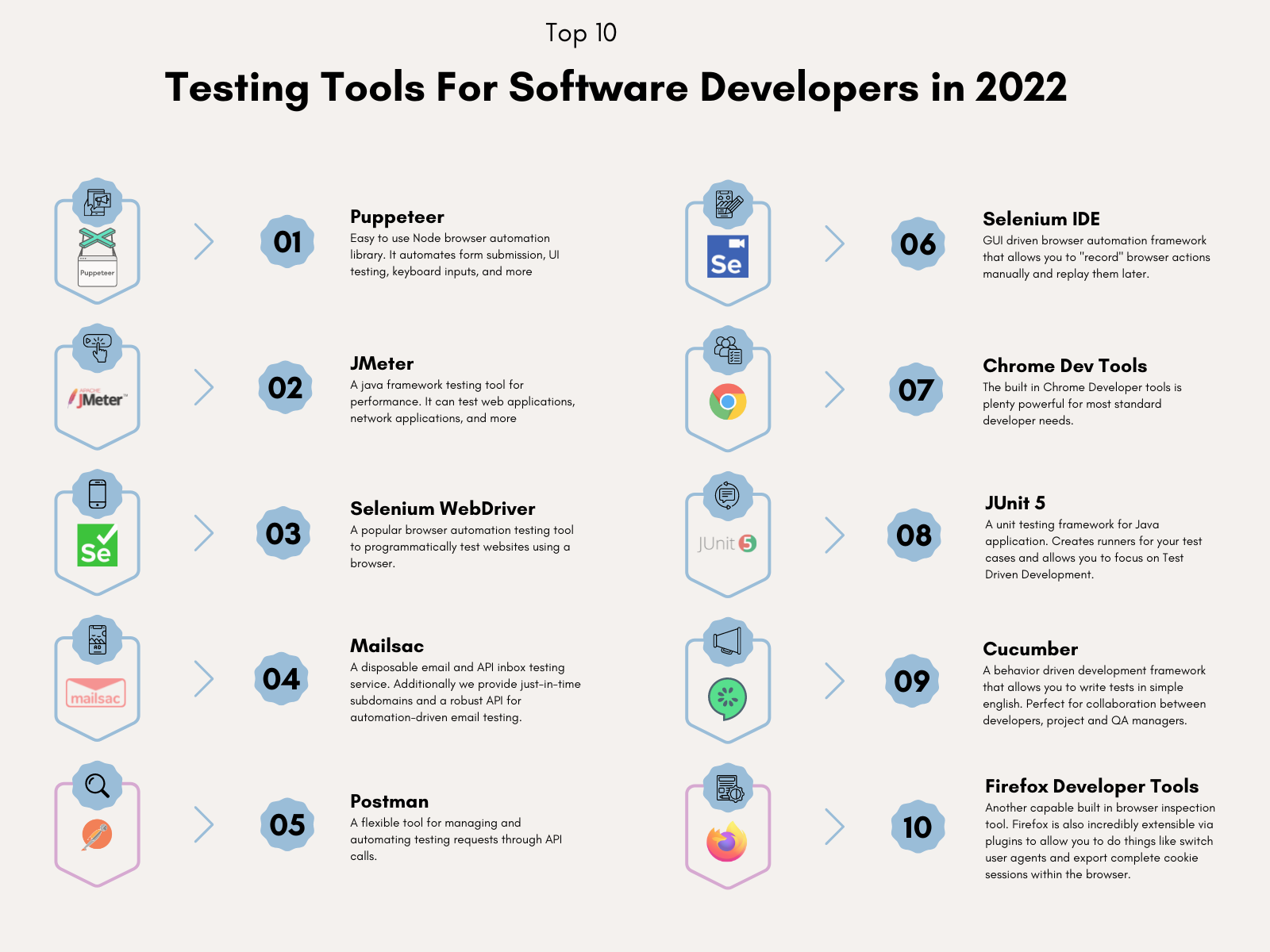
As a software developer, it’s crucial to have effective testing tools. They run the gamut from quick libraries to full-fledged analytic frameworks. They also range from free to paid. But which ones are the best in the testing space? In this article, we will list the top 10 best testing tools for software development teams.

But why test?

We can hear the groaning now. Testing is like exercise. We know we’re supposed to, but only so many of us do. Even fewer of us genuinely enjoy it. But testing doesn’t have to be a grind. In fact, we’re willing to bet a portion of you will enjoy it. Why bother with tests?

  • Testing can be fun – A lot of these tools are automation based. You can focus on crafting a comprehensive test as part of your feature building.
  • Testing can be done by other groups – It can create a bridge between you and, for example, the QA team. Commiserating around shared testing struggles can go a long way in building trust between teams.
  • An investment in yourself – Much like the exercise analogy, an investment in testing is an investment in yourself. Refactoring code, deployment flight checks, and all-around confidence about your changes can only be achieved by proper testing.

Now that you know some of the whys, let’s walk through the 10 best testing tools for software developers.

The 10 Best Testing Tools For Software Developers in 2022

1. Puppeteer 

Puppeteer is a favorite of the NodeJS community due to its easy integration into your existing build system. It automates form submission, UI testing, keyboard inputs, and more. The main limitation it does have surrounds browser support. As of this writing Puppeteer only supports Chrome. Firefox support is still in the experimental phase.

Puppeteer’s killer feature is that it installs the browser binary for you, making integrating it into your build system easy.

We’ve written an article on using Puppeteer to walk through a common testing scenario. It guides through testing a login screen to dev.to and ensuring entering a bad password does not allow you to log in. You can find it under Automate the Testing Pain Away with Browser Automation.

2. JMeter 

JMeter is a popular open-source tool that can test web applications, network performance, and more. It has a versatile GUI for manual testing and a CLI for automated testing. It also offers recording capabilities much like some other tools on this list. It’s a powerful tool with one enormous drawback: it can only integrate with Java applications.

3. Selenium WebDriver 

Selenium WebDriver is an open-source automation tool that can test web browsers across different platforms. It’s by far one of the more popular testing tools available around browser automation testing. It can incorporate into a variety of different continuous integration / continuous deployment tools.

Additionally, WebDriver is one of the few tools to be W3C recommended! In their words:

Major browser vendors (Mozilla, Google, Apple, Microsoft) support WebDriver and work constantly to improve the browsers and browser controlling code, which leads to a more uniform behavior across the different browsers, making your automation scripts more stable.

From Selenium’s Project Page
A successful Selenium WebDriver Test

To help you get started with WebDriver we’ve written a guide on creating your automated headless browser testing.

4. Mailsac 

Allow us to shamelessly plug ourselves for a moment, but for your email testing and capture needs, Mailsac is top-notch. We provide just-in-time subdomains and a robust API for automation-driven email testing.

Here’s a guide to using our on-demand subdomain feature to create Company-Wide Email Inboxes. 

A video walkthrough of using ad-hoc Developer Environments in your testing

5. Postman 

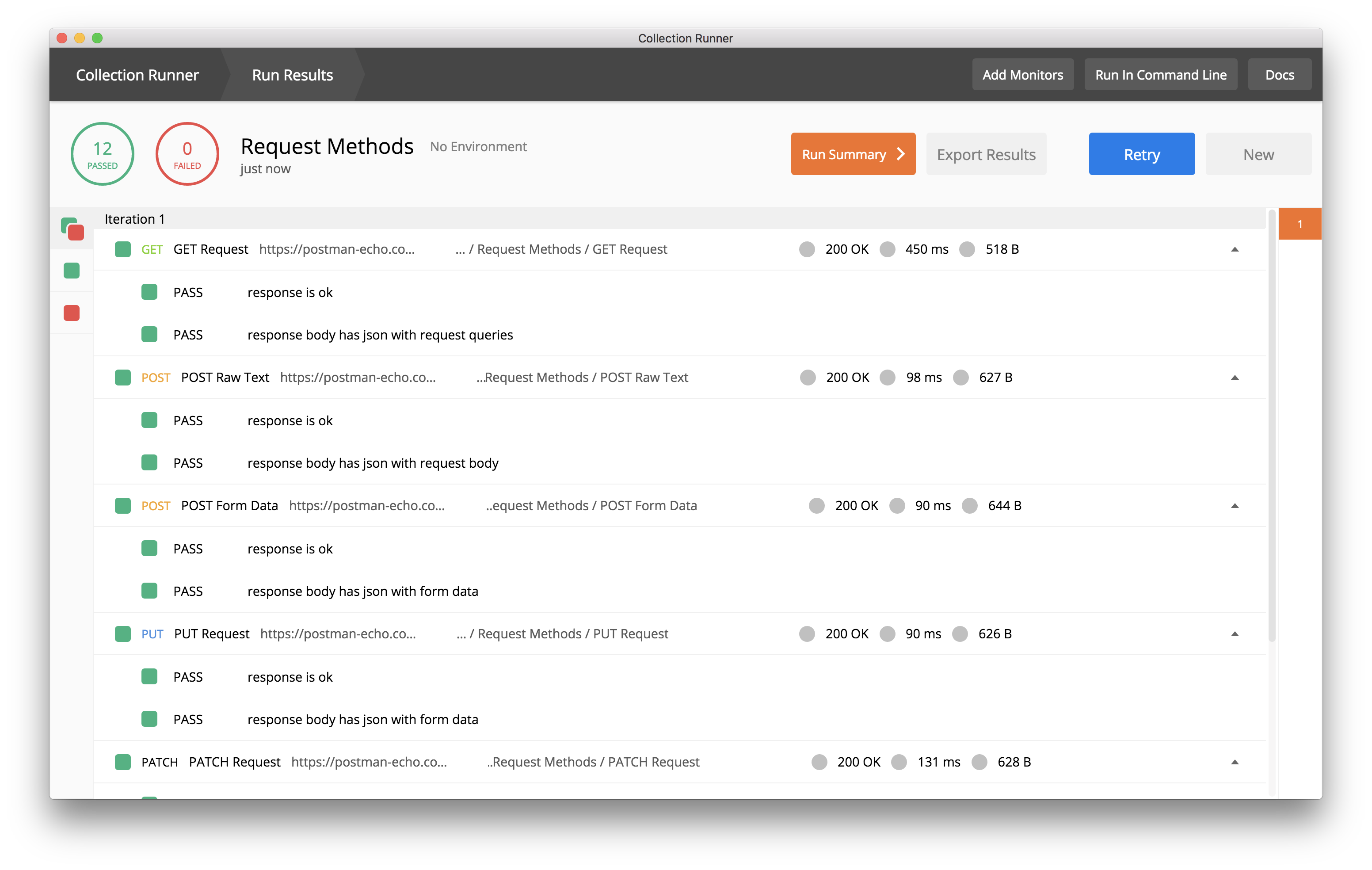
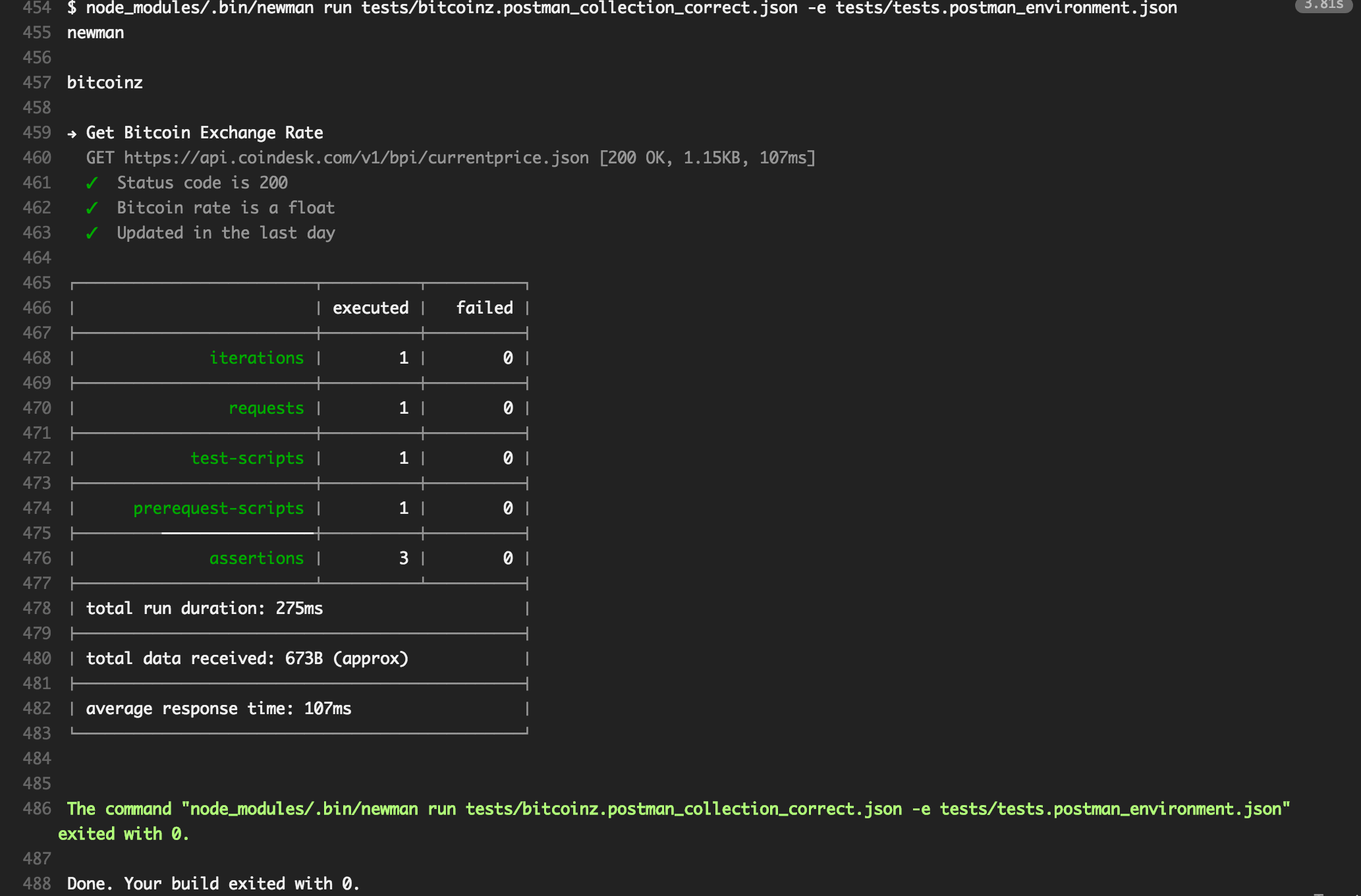
Postman is a flexible tool for managing and automating testing requests. It has an intuitive GUI and can generate scripts in various programming languages. You can also store playbooks in Postman to call later using their collection runner.

postman  test runner
Job Runner CLI Status From Postman’s Writing Tests Blog Post

Postman’s killer feature is the ability to integrate API calls onto your build system: 

postman   travis success
Job Runner CLI Status From Postman’s Writing Tests Blog Post

Give Postman a shot, it’s one of the most popular web API testing tools for a reason.

6. Selenium IDE

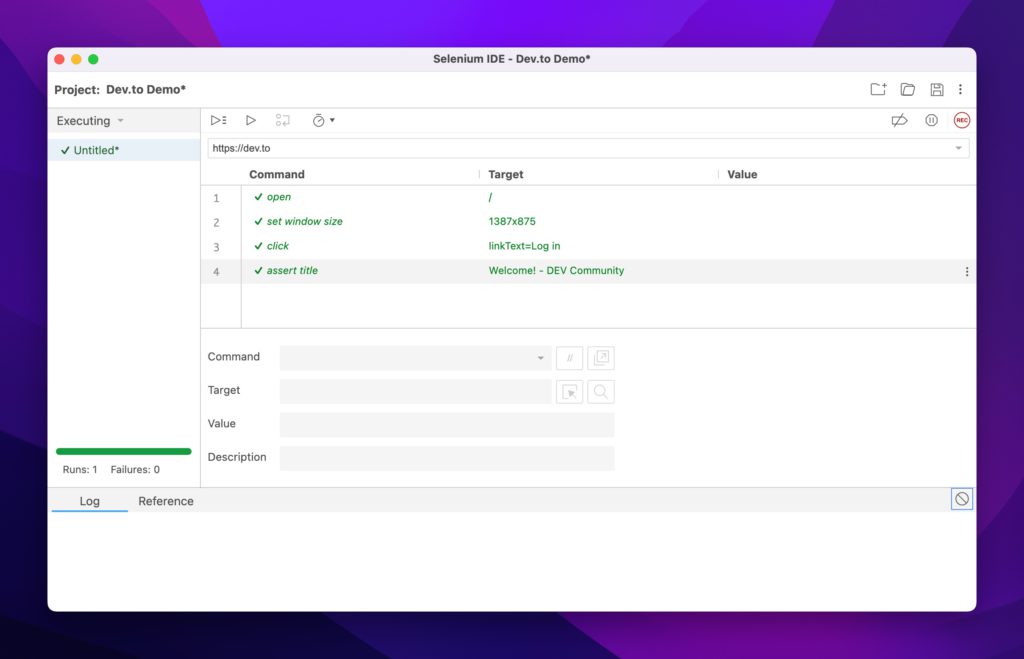
Selenium IDE is WebDriver’s GUI-driven sibling. It does a similar job of orchestrating browser functions but with the twist that it can “record” actions as you perform them in your browser.

Successful test suite

Selenium IDE can test web applications, API endpoints, and everything else that WebDriver can do. It’s available as Firefox, Chrome, and Edge extensions.

Much like WebDriver we’ve written a quick start guide on automating the browser.

7. Chrome DevTools

The built-in Chrome DevTools offer a powerful extension that allows you to inspect and test web pages in real-time. Most other browsers offer this capability but Chrome is hard to beat. It offers:

  • Built-in Lighthouse report capable of grading the accessibility of your page
  • Artificial network throttling to simulate slow connection speeds
  • Performance measurement across pages
  • Hundreds of extra plugins

8. JUnit5 

JUnit5 is a popular open-source unit testing framework that can test Java applications. It offers the ability to have test runners for your test cases and enables you to focus on Test Driven Development.

It even has its own tag on Stack Overflow.

9. Cucumber Open

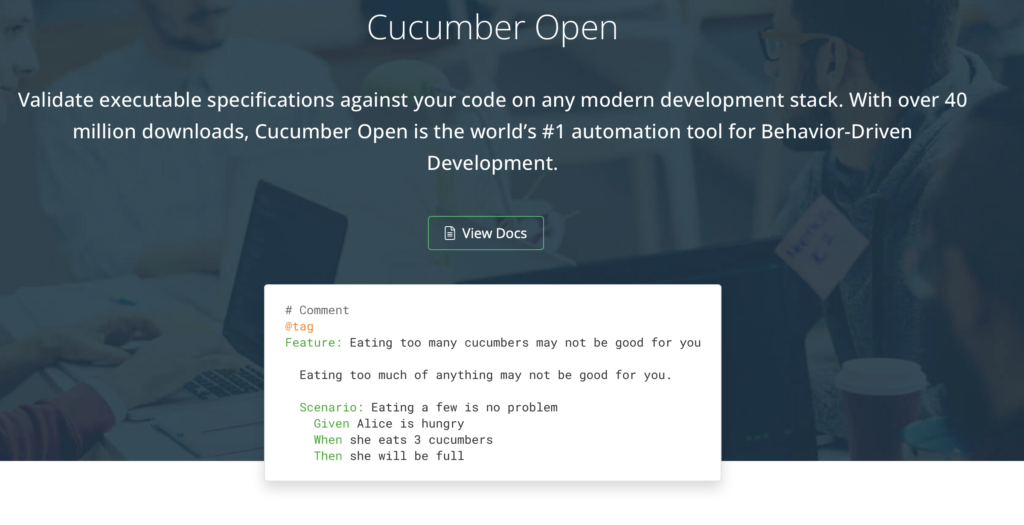
Cucumber is an open-source testing tool that can be used to test web applications and APIs. Cucumber is a rather unique one on this list in that it focuses on getting the specifications right the first time. It’s called Behavior Driven Development and it allows project managers and technical contributors to collaborate on concrete aspects of the application.

10. Firefox Developer Tools

Firefox does a great job innovating on the developer toolset. (3D View anyone?) Since it can do anything the Chrome DevTool set can, we’ll use this section to focus on specific plugin shoutouts:

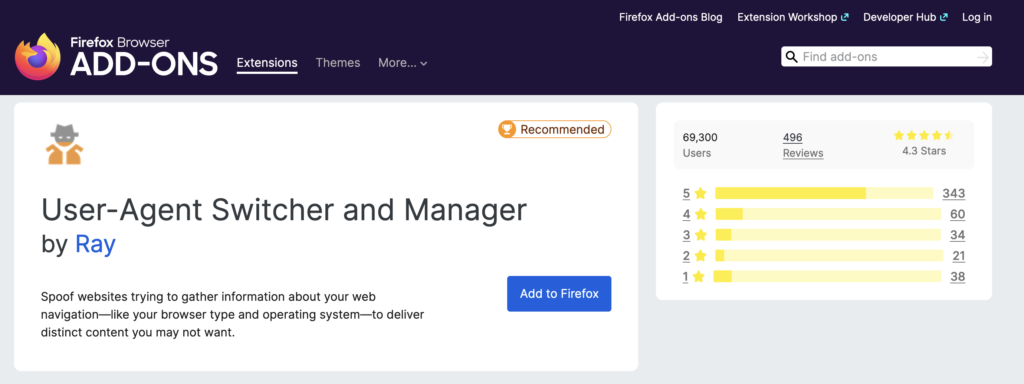
User-Agent Switcher

Test your browser detection logic with this extension.

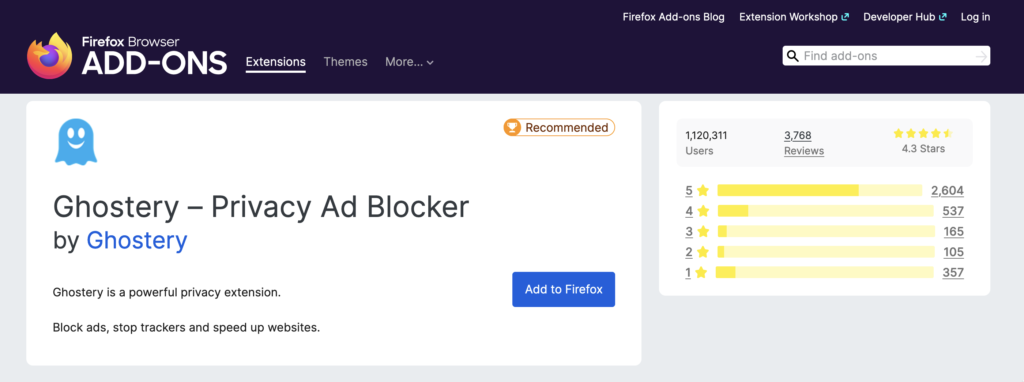
Ghostery

Ghostery is great for a variety of reasons, not least of which is to prevent distractions. It blocks a variety of trackers, ads, and generally improves page performance.

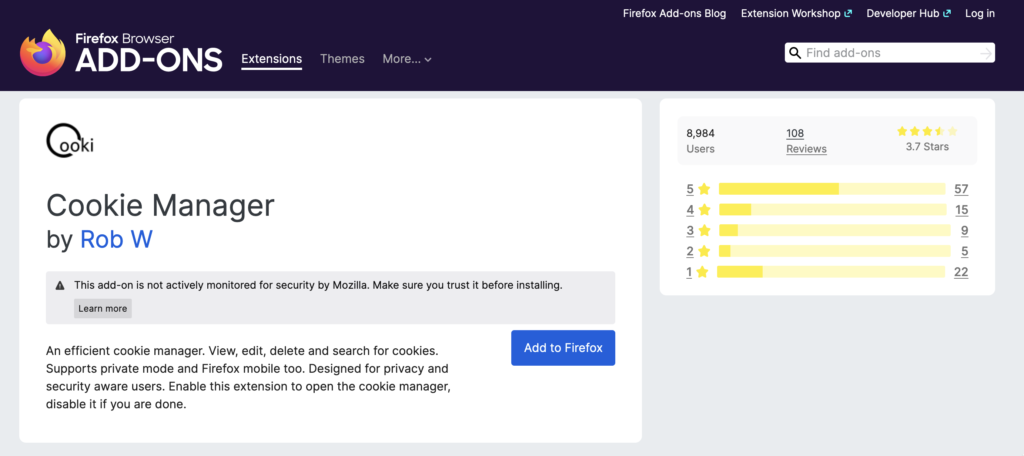
Cookie Manager

A versatile extension that can help you test all sorts of functionality in your application. Cookie Manager can help you with everyday tasks from authentication testing to session switching and inspection. You can additionally export and import cookie sets.

Conclusion

These are some of the best software testing tools available for developers. They all have their strengths and weaknesses, but they are all powerful tools that can help you improve your code quality.

If you’d like to discuss some of the tools you use for your software testing we’ll love to hear about it! Head on over to our community at forum.mailsac.com and discuss your must-have or time-saving tools.

Blog Cover

Automate the Testing Pain Away with Browser Automation

When I say “You need to test your code”, do you wince? Is it a feeling of guilt, one of “I know I should, but…”. Testing may not conjure up the sexiest of images. We as developers frequently put tests off until the end of our feature cycle. Or respond to a production bug by issuing a quick patch. Or worse, just bury our heads in the sand and pretend that we don’t have any bugs in our code at all. (Note: All code has bugs).

The reality is that testing is an incredible investment in your code’s future. Investing in tests is like an insurance policy: hedging your bets against an unknown future. An unknown future consisting of bitrot, dependency deprecations, or service API changes. Testing provides the ability to patch those unknowns through refactoring or flat-out removing stale dependencies. Testing can also buffer against those risks, providing peace of mind.

In this post, I’ll outline 3 different types of testing tools:

  • Selenium WebDriver
  • Selenium IDE
  • Puppeteer

To do an apples-to-apples comparison the testing scenario will be the same for all three tools. I’ll also model my testing after a user’s typical behavior. Behaviors like login attempts, searching, and form submissions. They also try to hit every layer of the application, from the user interface to the database.

Benefits of Testing a User Interface

Testing isn’t just limited to the backend. Testing your interface can provide complete end-to-end testing scenarios such as:

  1. Repeated calls to your modal. Does the modal come back after the first call?
  2. Does your submit button produce an error if the form has an incorrect value?
  3. Does the UI load after a successful login to an empty state in your application?
  4. Does a specific result come back after a form search?

I’m going to walk through a straightforward testing scenario with three tools. Not to rank them, but to touch on the nuances of each. Some of these tools allow you to create tests through simple browsing. Others are headless, allowing you to drive through programming languages.

What’s a headless browser?

Conventional browsing involves rendering forms, buttons, and images to the user. A headless browser interacts with websites through code without displaying any controls. Headless browsing opens up possibilities that are tough to achieve with conventional browsers like:

  • Integration with your build systems
  • Consistency in testing
  • Decreasing the duration of your tests
  • Layout screen captures and comparisons

Tools of the Automated Browser Trade

Onto the good stuff: The tools and testing scenarios.

The Most Popular – Selenium WebDriver

Selenium is by far the most popular testing tool out there. It covers headless testing and both local and remote tests.

WebDriver targets as its core base Developers and QA Team members who can write code.

The Easiest To Get Started with – Selenium IDE

Selenium designed the IDE version for exploratory testing and bug replication. It’s perfect for walking through a bug with someone else or creating a recording of a bug for your ticketing system.

The NodeJS Fan Favorite – Puppeteer

Puppeteer is a favorite of the NodeJS community due to its easy integration into your existing build system. It automates form submission, UI testing, keyboard inputs, and more. It’s main limitation however is the browsers it supports. As of this writing Puppeteer only supports Chrome. Firefox support is, as of this writing, experimental.

Puppeteer’s killer feature is that it installs the browser binary for you, making the integrating into your build system easy.

Testing Scenario: A Failed Login to dev.to

Here’s our testing scenario:

  1. Load https://dev.to
  2. Click the “Log in” button
  3. Load a page with “Welcome! – DEV Community” in its title.
  4. Click on the “Continue” button
  5. Ensure an “Unable to login” banner appears on the page.

For consistency throughout the walkthrough, I’ll use:

  1. Chrome as my browser
  2. Javascript as the programming language of choice

Test Case 1 – Selenium WebDriver

Let’s begin with an empty directory and selenium package installation:

npm init tests
cd tests
npm install selenium-webdriver

Next, download a browser driver. You can find the full supported list in selenium’s code repository. You can place the binary anywhere. For this walkthrough, I’ll place it in the current project directory under the bin/ path.

Set your specific browser driver path:

export PATH=$PATH:$PWD/bin

I’ll be using this quick test setup (selenium.js):

const {Builder, Browser, By, Key, until} = require('selenium-webdriver');

(async function example() {
  let driver = await new Builder().forBrowser(Browser.CHROME).build();
  try {
    await driver.get('http://dev.to');
    await driver.findElement(By.linkText('Log in')).click();
    await driver.wait(until.titleIs('Welcome! - DEV Community'), 3000);
    await driver.findElement(By.name('commit')).click();
    await driver.wait(until.titleIs(''), 3000);
    let errorBox = await driver.findElement(By.className('registration__error-notice'));
    await driver.wait(until.elementIsVisible(errorBox));
    let errorText = await errorBox.getText();

    if (!errorText.includes('Error')){
      throw new Error(`Error text does not contain expected value: ${errorText}`);
    }

  } finally {
    await driver.quit();
  }
})();

Set your driver and run the file

SELENIUM_BROWSER=chrome node selenium.js
A failed Selenium Test

In general I like to ensure my tests fail from the start, followed by working towards passing the tests:

const {Builder, Browser, By, Key, until} = require('selenium-webdriver');

(async function example() {
  let driver = await new Builder().forBrowser(Browser.CHROME).build();
  try {
    await driver.get('http://dev.to');
    await driver.findElement(By.linkText('Log in')).click();
    await driver.wait(until.titleIs('Welcome! - DEV Community'), 3000);
    await driver.findElement(By.name('commit')).click();
    await driver.wait(until.titleIs(''), 3000);
    let errorBox = await driver.findElement(By.className('registration__error-notice'));
    await driver.wait(until.elementIsVisible(errorBox));
    let errorText = await errorBox.getText();

    if (!errorText.includes('Unable to login')){
      throw new Error(`Error text does not contain expected value "${errorText}"`);
    }

  } catch(e) {
    console.error(`Error running test suite: ${e.message}`)
  }
  finally {
    await driver.quit();
  }
})();

With line 15 fixed, rerun the script:

A successful Selenium Test

Success!

The above was a taste of what you can do with Selenium. You can even break out of the testing mindset and use Selenium for scraping and populating activity trackers.

On to the next tool.

Test Case 2 – Selenium IDE

While the previous test requires some programming ability, Selenium IDE is friendly to anyone who can drive a browser. The IDE version’s main use case is bug discovery, recording and profiling.

First, download the package from the Selenium page.

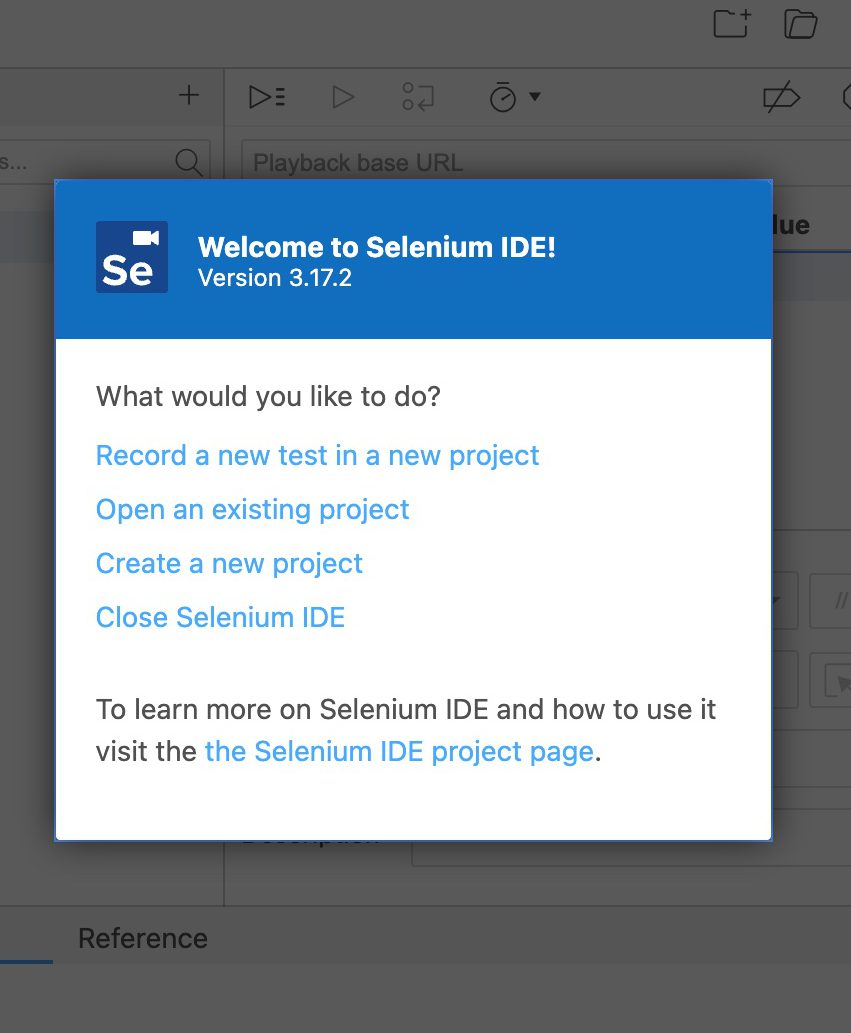
After installing the plugin, start a new project:

Selenium IDE introduction screen.
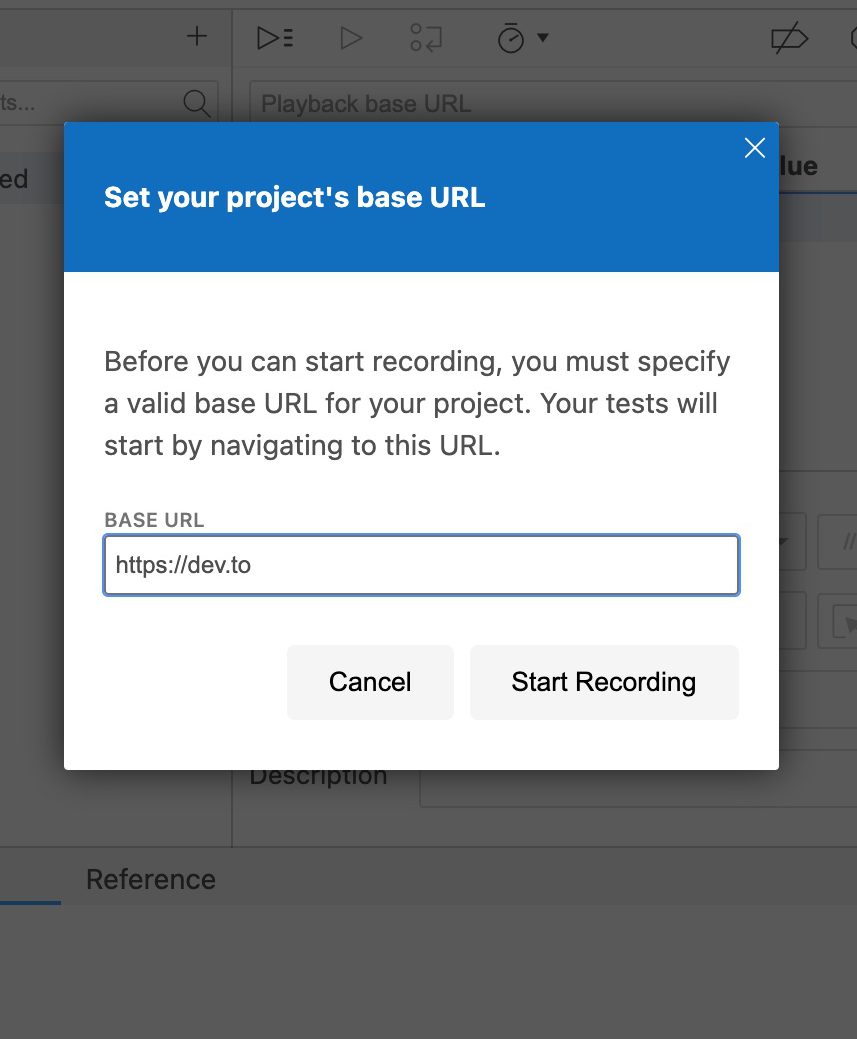
New Project Page
Selenium IDE's project base URL, where all of your tests will start.
Set our base url to dev.to

After you hit “Start Recording”, Selenium will launch a new Chrome window and redirect you to dev.to

Initial Dev.To Walkthrough with Selenium IDE

From the video, we:

  1. Let the initial dev.to page load
  2. Clicked on the “Log in” button
  3. Clicked on the Selenium IDE extension
  4. Stopped the Extension recording
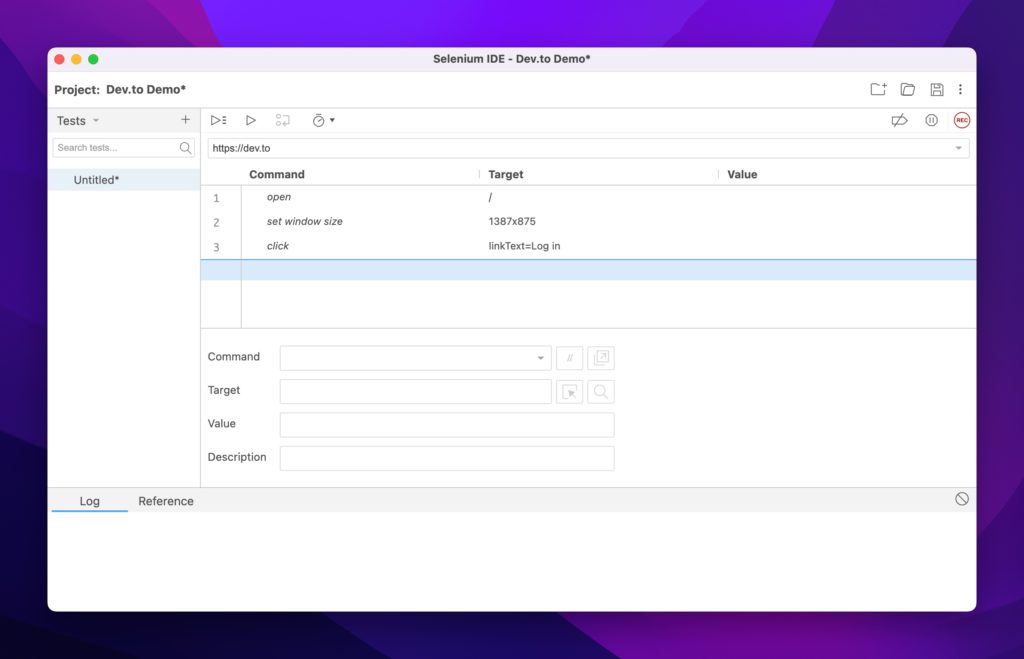
  5. Arrived at the Commands window below
Selenium IDE's properties loaded automatically
Selenium testing properties loaded automatically

To continue our test scenario, let’s ensure that the page title is Welcome! - DEV Community and that our login attempt fails with an empty submission.

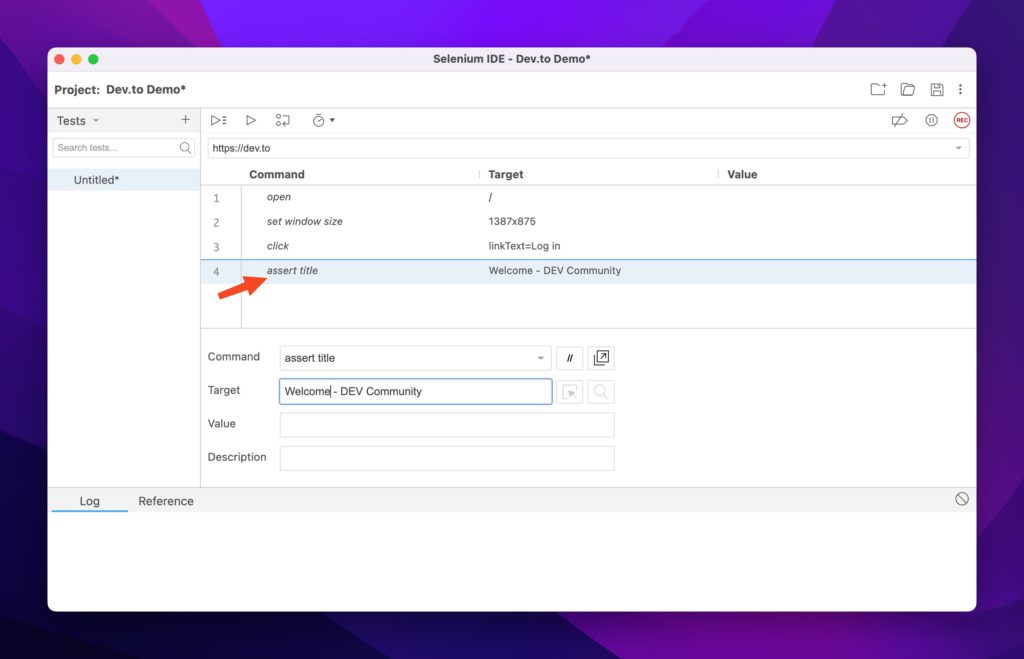
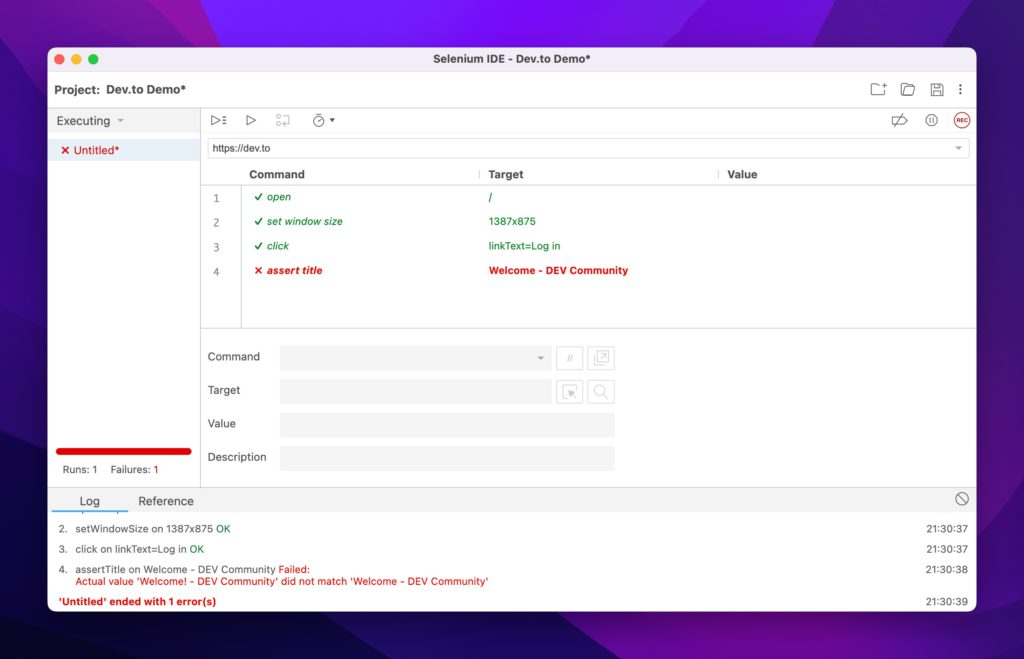
Again, I always like to have my tests fail first, so let’s start with that case. Use Selenium’s assert title command to ensure the title is what we expect. Add it to the command list:

Selenium IDE's asserting that the title fails.
Asserting the page title to fail

If you run the test, it should fail:

Failed automation testing in Selenium IDE.
Example of a failed test

Let’s go ahead and fix it with the correct title and rerun the test:

Successful Title Check

And success! Now let’s add the login check:

Walking through a complete test to success.

To summarize the video, we:

  1. Started a new recording
  2. Hit the Log in button
  3. Clicked Continue without supplying credentials
  4. Used the Selenium element picker to pick out the element we were interested in asserting.

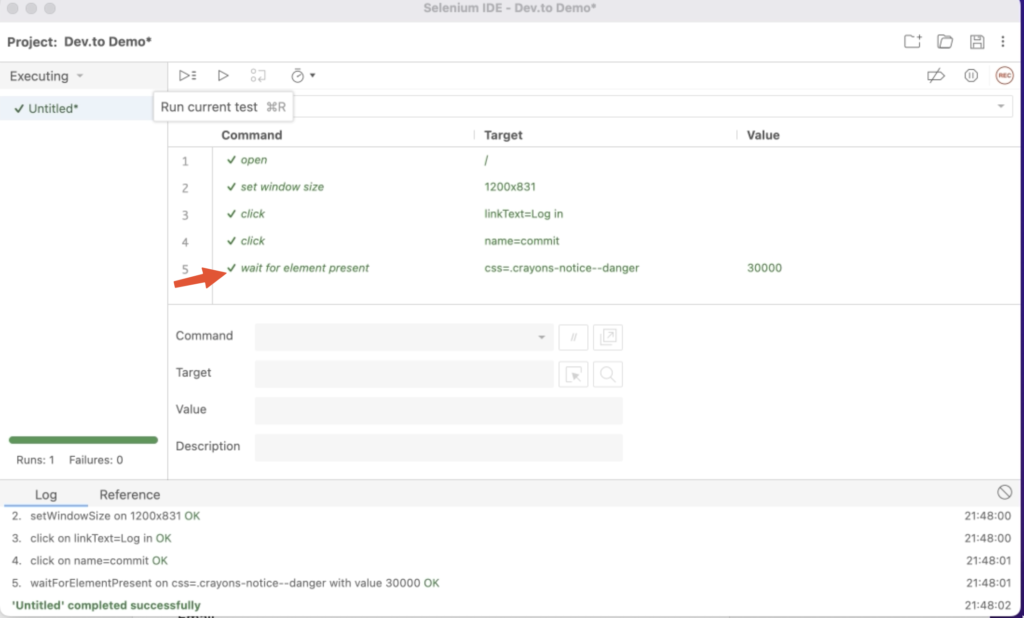
The Commands window should now look like this:

Successful automation testing in Selenium IDE.
Added Command Check

Success!

The IDE version is the simplest to get started with and I recommend it for initial test write-ups. It can help you identify which elements you need to test against, think about app flow and what counts as a failure.

One question remains: Rendering the browser is nice, but I want to hook this into my continuous integration system. How can I do that when every test wants to load an application that requires a windowing system?

The answer is to go headless.

Test Case 3 – Puppeteer

Puppeteer is the perfect match to test web UI components inside a continuous integration system. It’s fast, headless, brings its own dependencies and runs the latest versions of Chrome and Firefox.

Let’s start by installing puppeteer on a new project:

mkdir tests
npm i puppeteer

Keep in mind that this automatically installs the chrome driver we had to manually download in the Selenium example. From Puppeteer’s documents:

When you install Puppeteer, it downloads a recent version of Chromium (~170MB Mac, ~282MB Linux, ~280MB Win) that is guaranteed to work with the API (customizable through Environment Variables).

https://pptr.dev/#installation

With that said, let’s create a test file that will run (and fail) our test scenario (puppeteer.js):

const puppeteer = require('puppeteer');

(async () => {
  const browser = await puppeteer.launch({headless: false});
  const page = await browser.newPage();
  const loginSelector = 'a[href="/enter"]';
  const submitLoginSelector = '[name="commit"]';
  const errorBoxSelector = '.bad notice';
  try {
    await page.goto('https://dev.to');
    await page.waitForSelector(loginSelector,{ timeout: 3000 });
    await page.click(loginSelector);
    const pageTitle = await page.title();

    if (pageTitle !== 'Welcome! - DEV Community'){
      throw new Error(`Page title ${pageTitle} does not match expected value`);
    }
    await page.waitForSelector(submitLoginSelector,{ timeout: 3000 });
    await page.click(submitLoginSelector);
    await page.waitForSelector(errorBoxSelector,{ timeout: 3000 });
    
  }catch(e){
    console.error(`Error in test suite: ${e.message}`)
  }finally {
    await browser.close();
  }
})();
Failed test due to incorrect error box selection

Some notes on the above code:

  • Lines 6-8 are Puppeteer’s method of selecting elements on the page.
  • Like Selenium WebDriver, you have to manually check a page’s attributes and decide on what to do should they fail
    • In the above code it’s line 15, asserting the title matches the expected value
    • It’ll also implicitly fail on line 20, due to the error div class not matching what dev.to sends to the browser.
  • I’ve disabled the headless feature to show that Puppeteer lets you do that!

Let’s fix the test. Change it to the correct value *and* turn on headless mode:

const puppeteer = require('puppeteer');

(async () => {
  const browser = await puppeteer.launch({headless: true});
  const page = await browser.newPage();
  const loginSelector = 'a[href="/enter"]';
  const submitLoginSelector = '[name="commit"]';
  const errorBoxSelector = '.registration__error-notice';
  try {
    await page.goto('https://dev.to');
    await page.waitForSelector(loginSelector,{ timeout: 3000 });
    await page.click(loginSelector);
    const pageTitle = await page.title();

    if (pageTitle !== 'Welcome! - DEV Community'){
      throw new Error(`Page title ${pageTitle} does not match expected value`);
    }

    await page.waitForSelector(submitLoginSelector,{ timeout: 3000 });
    await page.click(submitLoginSelector);
    await page.waitForSelector(errorBoxSelector,{ timeout: 3000 });
  }catch(e){
    console.error(`Error in test suite: ${e.message}`)
  }finally {
    await browser.close();
  }
})();

Now rerunning the test simply gets you the empty prompt:

tests:DreamMachine % node puppeteer.js
tests:DreamMachine % 

Nice, simple, and clean.

Conclusion

I’ve gone through three different sets of tools for different needs. The best part about these tools is that you can string them all together or pick and choose the ones that are right for you.

I hope the main takeaway is the same: Testing can be painless and even fun!

Selenium can also be used to test email signups with Mailsac.

Questions or comments? Stop by the Mailsac Forums, we’d love to hear from you!

Blog Cover

Guide To Stress Free Email Testing with Next.js

Developing an application that sends emails is straightforward but not without its risks. Ensuring deliverability but not actually having any of those emails land inside real inboxes is a top concern for any developer. Which leads to questions like: “How do you test your application’s outbound email capabilities?” or “How do I manage email testing for free?”

Enter email capture services. While the term “email capture service” tends to focus on the marketing aspects (capturing information from your calls to action, ensuring emails don’t get caught in spam, etc) they also include SMTP deliverability. Mailsac offers an email capture service that addresses the deliverability aspect, specifically not delivering any email to its intended recipient. Effectively a “black hole” where no email should escape to the outside world.

In this post, we’ll walk through a sample application in Next.js that will generate emails and have those emails captured by Mailsac’s email sandboxing service.

Do I Really Need To Do Email Testing?

Some frameworks do come with email previewing capabilities like Rails’ ActionMailer. Said frameworks don’t actually attempt to send anything but instead preview the email on your machine. We recommend real testing during the development and quality assurance phase by using an external SMTP server to mimic the application’s behavior in production.

Testing that capability has to be done safely unless you want to land on Twitter’s trending page for accidentally sending customers an integration test email.

Test Email Sending With A Next.js Application

For the rest of this guide, we’ll focus on wiring up a simple application that will allow users to send an email when a button is pushed from a UI. We’ll then demonstrate the capture of those emails in our development environment.

The components we’ll use are:

Application Creation

While the focus of this guide isn’t a line-by-line walkthrough of the sample code, we’ll focus on the key aspects of the application that mainly involve emailing capabilities.

The application source can be found in our git repository.

1. Application setup

Let’s start by creating a quick next app with tailwind support:

mailsac % npx create-next-app
…
Success! Created nodejs-send-email at /Users/mailsac/code/nodejs-send-email

cd nodejs-send-email
npm install -D tailwindcss postcss autoprefixer @tailwindcss/forms
npm install @headlessui/react@latest @heroicons/react
npx tailwindcss init -p

The above is the recommended way to install tailwind on Next.js according to their guide.

Configure tailwind.config.js by adding the highlighted lines:

module.exports = {
  content: [
	"./pages/**/*.{js,ts,jsx,tsx}",
	"./components/**/*.{js,ts,jsx,tsx}",
  ],
  theme: {
	extend: {},
  },
  plugins: [
    require('@tailwindcss/forms'),
  ],
}

and then add tailwind itself to the global CSS file inside styles/global.css and comment out some default CSS created by npx:

/* @media (prefers-color-scheme: dark) {
  html {
    color-scheme: dark;
  }
  body {
    color: white;
    background: black;
  }
}
*/

@tailwind base;
@tailwind components;
@tailwind utilities;

Tailwind is strictly optional but recommended for easy styling of the frontend.

2. Add the front page UI

Feel free to add your custom frontend code or use the index.js and components/notifications.js react component samples inside our repo.

index.js

import { useEffect, useState } from "react";
import Notification from "../components/notifications";

export default function Index() {
  const [sentEmail, setSentEmail] = useState(false);
  const [emailTo, setEmailTo] = useState("");
  const [emailBody,setEmailBody] = useState("");
  const [resultMessage, setResultMessage] = useState("");

  const sendEmail = () => {
    setSentEmail(true);
  }

  useEffect( () => {
    fetch('/api/send-email',{
      method: 'POST',
      body: JSON.stringify({ to: emailTo, body: emailBody})
    })
    .then( res => res.json())
    .then(response => {
      setResultMessage(response.message)
    })
    .catch(error => console.log(error));    

  },[sentEmail]);

  const SentEmailBanner = sentEmail === true? <Notification message={resultMessage} /> : null;

The second line brings in a component that takes in a message and formats it as a pop-up notification. The useEffect() method sends your email recipient and body input to the backend, which will forward that data to Mailsac’s servers.

3. Sign up for Mailsac’s Email Capture

Mailsac has a free email capture service. All you need is to sign up for an account and generate a key:

Mailsac dashboard
Mailsac Dashboard

4. Add a backend mail handler route

Once you’ve generated and saved your keys, you can place them in a .env file:

.env

MAILSAC_USERNAME=lcanal
MAILSAC_API_KEY=Key generated from above

Following our email capture documentation, we’ll create a backend API route for Next to handle the request:

pages/api/send-email.js

const nodemailer = require("nodemailer");

export default async function handler(req, res) {
  let emailEnvelope = JSON.parse(req.body)
  if (
        req.method === 'POST' 
        && typeof(emailEnvelope.to) !== 'undefined' 
        && emailEnvelope.to !== ''
  ){
    const mailsaUserName = process.env.MAILSAC_USERNAME
    const mailsacAPIKey  = process.env.MAILSAC_API_KEY
  
    const transporter = nodemailer.createTransport({
      host: 'capture.mailsac.com',
      port: 5587,
      // will use TLS by upgrading later in the connection with STARTTLS
      secure: false,
      auth: {
        user: mailsaUserName,
        pass: mailsacAPIKey
      }
    })
  
    try {
      const results = await transporter.sendMail({
        from: '"Sample App" [email protected]',
        to: emailEnvelope.to,
        subject: 'Sample App Send',
        text: emailEnvelope.body
      })
      res.status(200).json(
        { 
          message: "You should now see an email in Mailsac's capture service", 
          response: results.data 
        }
      )
    } catch (error){
      console.log(`ERROR ${error}`)
      res.status(500).json({ message: `${error.response}`, response: error })
    }
  } else {
    return res.status(200).json({message: "No data"});
  }
}

In the highlighted line, we’re ensuring the useEffect() hook gets called with input data before we allow the rest of the function to continue. useEffect() gets called a variety of times in the component lifecycle, and this check is to ensure it was initiated by an end user and not as part of the component mounting.

5. Test driving the app

Fire up the application via

npm run dev

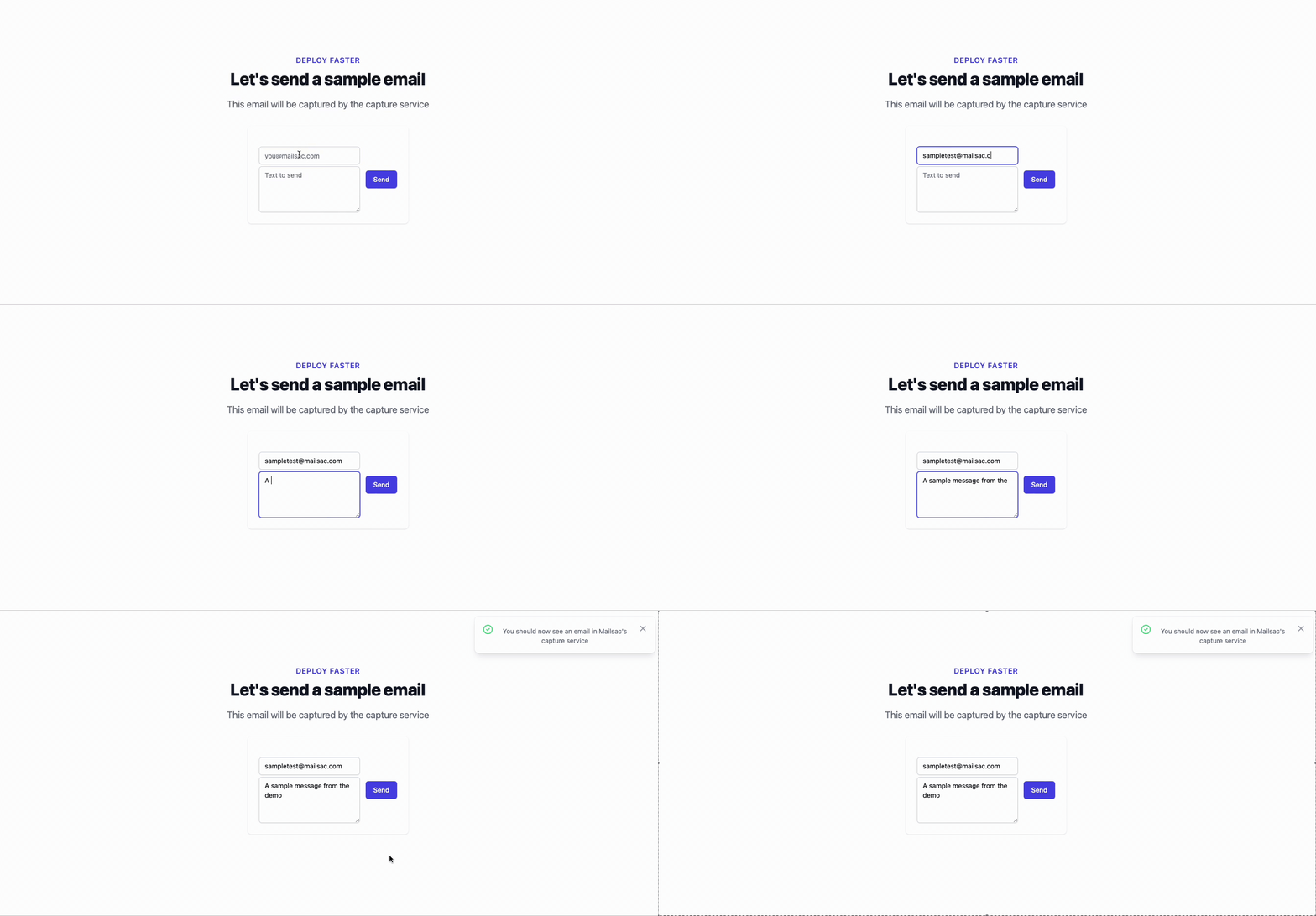
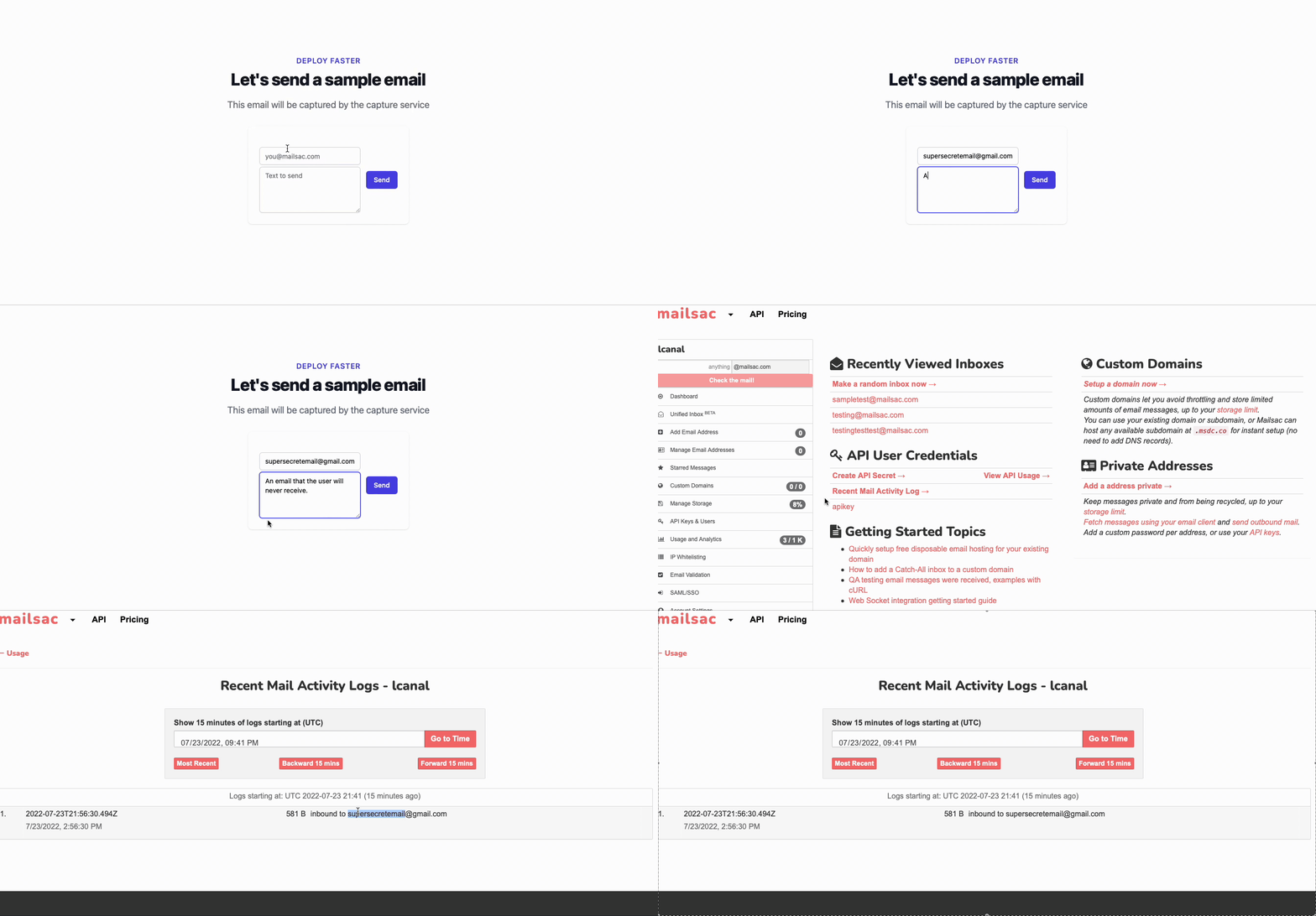
Navigate to http://localhost:3000 and type a text message:

Walking through our sample application form.

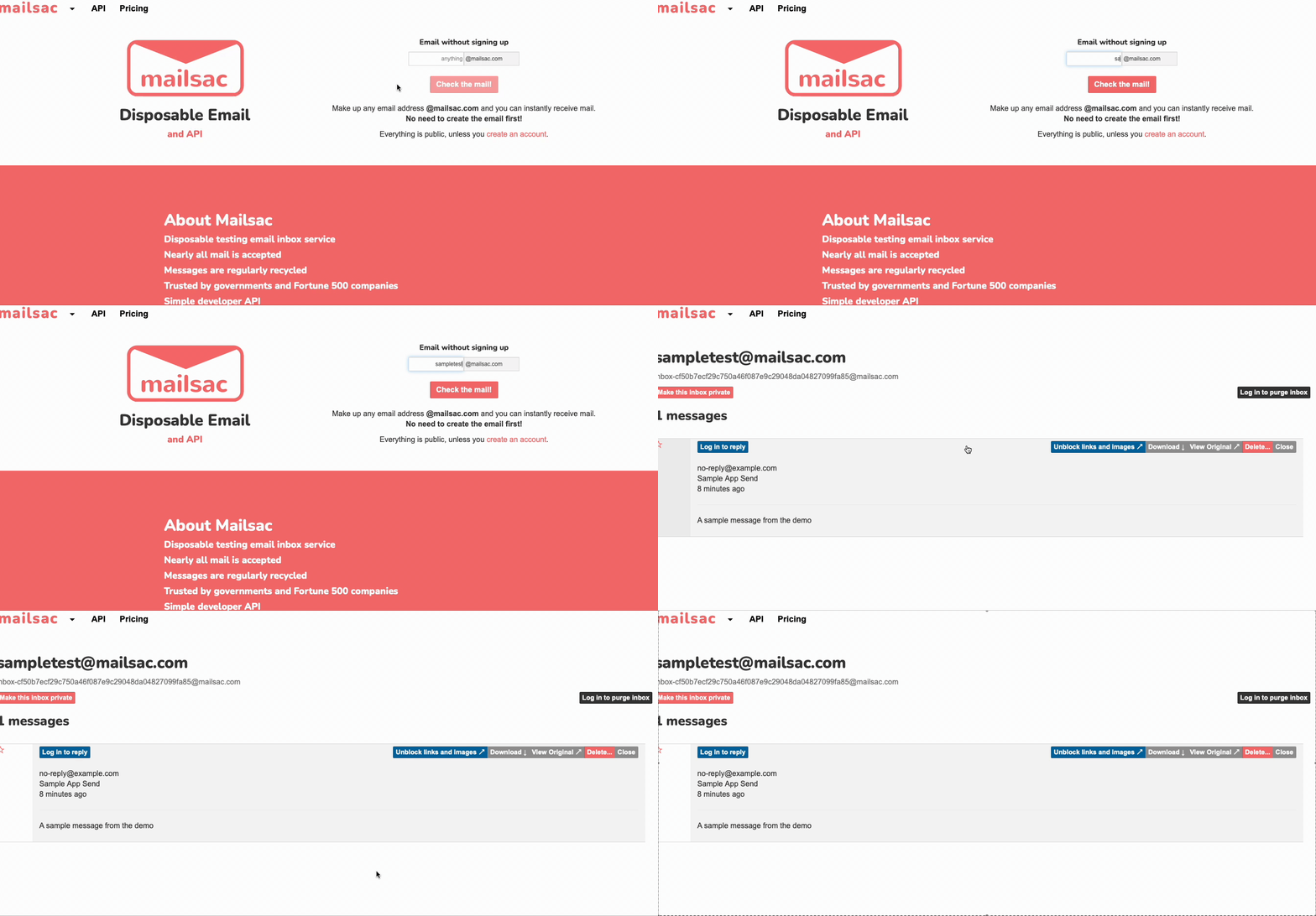
Then navigate over to mailsac.com to view the message

Checking the inbox at mailsac.com

6. Capturing other email domains

While that works well as a contrived example, the real value comes when using any arbitrary email in the recipient field:

Full application walkthrough demo, with a free check at mailsac.

Capturing emails outside the mailsac.com domain is extremely valuable when switching between different environments. For example, in the demo application example above, the .env environment file could instead look like

MAILSAC_USERNAME=$MAILSAC_NAME
MAILSAC_API_KEY=$MAILSAC_KEY
MAILSAC_HOST=capture.mailsac.com
MAILSAC_PORT=5587

With the updated send-email.js

const nodemailer = require("nodemailer");

export default async function handler(req, res) {
  let emailEnvelope = JSON.parse(req.body)
  if (
        req.method === 'POST' 
        && typeof(emailEnvelope.to) !== 'undefined' 
        && emailEnvelope.to !== ''
  ){
    const mailsaUserName = process.env.MAILSAC_USERNAME
    const mailsacAPIKey  = process.env.MAILSAC_API_KEY
  
    const transporter = nodemailer.createTransport({
      host: process.env.MAILSAC_HOST,
      port: process.env.MAILSAC_PORT,
      // will use TLS by upgrading later in the connection with STARTTLS
      secure: false,
      auth: {
        user: mailsaUserName,
        pass: mailsacAPIKey
      }
    })
  
    try {
      const results = await transporter.sendMail({
        from: '"Sample App" [email protected]',
        to: emailEnvelope.to,
        subject: 'Sample App Send',
        text: emailEnvelope.body
      })
      res.status(200).json(
        { 
          message: "You should now see an email in Mailsac's capture service", 
          response: results.data 
        }
      )
    } catch (error){
      res.status(500).json({ message: `${error.response}`, response: error })
    }
  } else {
    return res.status(200).json({message: "No data"});
  }
}

The above edits would allow you to deploy to a testing or production environment and the only changes required would be in the .env file. Specifically, the SMTP host and authentication settings.

Conclusion

The above guide just scratches the surface of what you can do with our email services. We provide a unified inbox that allows testers to view their bulk email testing in one unified view and custom domains for those who do not have their own domains with zero setup configurations.

Additionally, we have a guide on using both custom domains and a unified inbox in your system testing. Check it out and tell us what you think on our forums!

Selenium Email Testing: Verify Signup Emails with Node.js

Updated September 2026. Tested with selenium-webdriver 4.49, headless Chrome 153 and Node.js 22, 24 and 26.

Selenium email testing covers the part of a user journey that leaves the browser. Your app sends an email, and the test has to read it before it can continue. Selenium WebDriver can fill in a signup form, but the email lands somewhere else. This guide adds that missing piece with the Mailsac email testing API, in JavaScript with selenium-webdriver and headless Chrome.

You’ll build an end-to-end signup test. It signs up with a new address, waits for the verification email, follows its link and checks that the account is verified. The same helper then reads a 6-digit sign-in code, and the whole suite runs in GitHub Actions.

How Selenium email testing works

  1. Trigger. Selenium signs up with a new, unique address at mailsac.com. Your app sends the verification email through its usual email provider; Mailsac only receives it. There’s no inbox to create first: any address at mailsac.com, or on your own custom domain, can receive mail.
  2. Wait. The test asks the Mailsac REST API for that address’s messages every 2 seconds. It gives up after 60 seconds, and it ignores anything that arrived before the signup.
  3. Check. It reads the links Mailsac found in the email, opens the verification link in the same browser, and checks the page your app shows.

What you need

  • Node.js 22 or later. selenium-webdriver 4.47 and later declare Node.js 22 as their minimum. The Mailsac helper on its own runs on Node.js 18 and later.
  • Google Chrome. Selenium Manager ships with selenium-webdriver and downloads a matching ChromeDriver when none is on your PATH, so there’s no driver to install.
  • A Mailsac API key. Create a free account; API access is included on every plan, including free. Generate a key under API Keys & Users in the dashboard. It’s shown only once, so treat it like a password.
  • Your app, running where Chrome can reach it and able to send real email. This guide assumes http://localhost:3000.

Set up Selenium 4 with headless Chrome

Add selenium-webdriver to your app’s repository, or to a new folder if your tests live on their own. 4.49.0 is the version tested here.

# In your app's repository, or in a new folder after running: npm init -y
npm install --save-dev selenium-webdriver@4.49.0
npm pkg set scripts.test:email="node --test e2e/*.test.mjs"
mkdir e2e

The test:email script uses Node’s built-in test runner, so there’s no test framework to install. If your suite uses Mocha or Jest, keep the Selenium and Mailsac code below and adapt the imports, the before/after hooks (Jest calls them beforeAll/afterAll) and the timeout setting.

Add a small Mailsac helper

Save this as e2e/mailsac.mjs. It uses Node’s built-in fetch and has no dependencies. It reads your API key from the MAILSAC_API_KEY environment variable and sends it only in the Mailsac-Key header.

// e2e/mailsac.mjs: wait for an email with the Mailsac REST API. Node 18+, no dependencies.
import { randomUUID } from 'node:crypto';

const API = process.env.MAILSAC_API_URL || 'https://mailsac.com/api'; // override only for a mock

// A new address for every test, so reruns and parallel jobs never share an inbox.
// Public @mailsac.com by default; set MAILSAC_TEST_DOMAIN to use your private domain.
export function uniqueAddress(prefix) {
  const domain = process.env.MAILSAC_TEST_DOMAIN || 'mailsac.com';
  return `${prefix}-${Date.now()}-${randomUUID().slice(0, 8)}@${domain}`;
}

async function mailsac(path, as = 'json') {
  const key = process.env.MAILSAC_API_KEY; // a CI secret; never in browser code
  if (!key) throw new Error('Set MAILSAC_API_KEY');
  const headers = { 'Mailsac-Key': key };
  const res = await fetch(API + path, { headers, signal: AbortSignal.timeout(10_000) });
  // Fail fast on errors. A 429 means the account hit its monthly Ops limit; retrying won't help.
  if (!res.ok) throw new Error(`Mailsac API returned ${res.status} for ${path}`);
  return as === 'json' ? res.json() : res.text();
}

// Poll every 2 s until the deadline. The list is newest first; skip anything received
// before `receivedAfter`, a Date.now() taken just before your app sends the email.
export async function waitForEmail(email, { subject, receivedAfter, timeoutMs = 60_000 }) {
  const deadline = Date.now() + timeoutMs;
  while (Date.now() <= deadline) {
    const list = await mailsac(`/addresses/${email}/messages?limit=10`);
    const match = list.find((m) =>
      Date.parse(m.received) >= receivedAfter && m.subject?.includes(subject));
    if (match) {
      // Metadata has links[], the URLs Mailsac found in the email. Plain-text links can keep
      // trailing punctuation, e.g. <url> or [url]; drop it, then de-duplicate.
      const message = await mailsac(`/addresses/${email}/messages/${match._id}`);
      const links = (message.links ?? []).map((url) => url.replace(/[>\]).,;:!?'"*]+$/, ''));
      return { ...message, links: [...new Set(links)] };
    }
    await new Promise((resolve) => setTimeout(resolve, 2_000));
  }
  throw new Error(`No "${subject}" email for ${email} within ${timeoutMs / 1000} s`);
}

// The message as plain text. Mailsac generates it for HTML-only email.
export const readText = (email, messageId) => mailsac(`/text/${email}/${messageId}`, 'text');

What it does:

  • A unique address per test. uniqueAddress('signup') returns a new address each time, so reruns, retries and parallel CI jobs never read each other’s mail.
  • Bounded polling. waitForEmail() lists the inbox every 2 seconds, newest first, and throws when timeoutMs (60 seconds by default) runs out. Each request also has a 10-second timeout, so a stalled connection can’t hang your suite.
  • Only mail received after the trigger. The list endpoint has no “received after” filter, so the helper compares each message’s received time with receivedAfter and also matches the subject. An older verification email, or a welcome email that arrives first, is skipped. Tests that just take the newest message can end up clicking yesterday’s link.
  • Links parsed by Mailsac. The message metadata includes links, the HTTP(S) URLs Mailsac found in the email’s text and HTML. The helper trims punctuation that plain-text emails can leave on the end of a link, such as > or ].
  • Plain text for codes. readText() returns the message as plain text. Mailsac generates it for HTML-only email.
  • Fails fast on API errors. Any non-2xx response throws with the status and path, never the key. In CI, consider retrying 5xx responses within your deadline. MAILSAC_API_URL is only for pointing the helper at a mock server.

Each API call counts as one Mailsac Op. The signup test uses 2 Ops when the email is there on the first poll (list, then metadata), plus 1 for each extra poll. The 2FA test below also reads the text, so it starts at 3. Each message that arrives at a private address or custom domain adds 1 more. A test that times out after 60 seconds uses about 30. The free plan includes 1,500 Ops a month; here’s how Ops are counted.

Test the signup verification email

Save this as e2e/signup.test.mjs. Change the lines marked PLACEHOLDER to match your app’s signup page, field names, confirmation text and email subject.

// e2e/signup.test.mjs: sign up in headless Chrome, then verify the address from the email.
import assert from 'node:assert/strict';
import { after, before, describe, it } from 'node:test';
import { Browser, Builder, By, until } from 'selenium-webdriver';
import chrome from 'selenium-webdriver/chrome.js';
import { readText, uniqueAddress, waitForEmail } from './mailsac.mjs';

const APP_URL = process.env.APP_URL || 'http://localhost:3000'; // PLACEHOLDER: your app

describe('signup email', () => {
  let driver;
  before(async () => {
    const options = new chrome.Options().addArguments('--headless=new', '--window-size=1280,1000');
    driver = await new Builder().forBrowser(Browser.CHROME).setChromeOptions(options).build();
  });
  after(() => driver?.quit());

  it('verifies a new account from the link in the email', { timeout: 90_000 }, async () => {
    const email = uniqueAddress('signup');

    // PLACEHOLDER: your signup page, field names, confirmation text and email subject.
    await driver.get(`${APP_URL}/signup`);
    await driver.findElement(By.name('email')).sendKeys(email);
    await driver.findElement(By.name('password')).sendKeys('a-test-password-123');
    const receivedAfter = Date.now(); // just before the app sends the email
    await driver.findElement(By.css('button[type=submit]')).click();
    const status = await driver.wait(until.elementLocated(By.css('[role=status]')), 10_000);
    await driver.wait(until.elementTextMatches(status, /check your email/i), 10_000,
      'Signup not confirmed');

    const message = await waitForEmail(email, { subject: 'Verify your email', receivedAfter });
    const links = message.links.filter((url) => url.startsWith(`${APP_URL}/verify`));
    assert.equal(links.length, 1, `Expected one verification link, found ${links.length}`);

    await driver.get(links[0]);
    const heading = await driver.wait(until.elementLocated(By.css('h1')), 10_000);
    await driver.wait(until.elementTextIs(heading, 'Email verified'), 10_000, 'Email not verified');
  });
});

Start your app, then run the test with your key in the environment. Keep the key out of committed files.

MAILSAC_API_KEY=your_api_key npm run test:email

The test fails with a clear message if the email doesn’t arrive within 60 seconds, or if it doesn’t contain exactly one distinct link to your app’s /verify page. Filtering on your app’s origin and path means the test can’t pass by following a help or unsubscribe link, or a link to another site.

Take receivedAfter just before the click that sends the email. Taken earlier, it can let an older email through. Taken after the click, it can skip an email that arrived quickly.

Read a 6-digit OTP or 2FA code

Codes work the same way, except the test reads the plain text and finds the code itself; Mailsac doesn’t extract codes for you. Two-factor tests usually sign in to a seeded account, so the address is fixed and older codes pile up in its inbox. Because the code signs in to an account, give that account a private address; the free plan includes one.

Add this test inside the describe block in e2e/signup.test.mjs (readText is already imported), and set TWO_FACTOR_EMAIL and TWO_FACTOR_PASSWORD for the seeded account. It clears the browser’s cookies first, because many apps sign you in as soon as you verify an email.

  it('signs in with the 6-digit code from the email', { timeout: 90_000 }, async () => {
    // PLACEHOLDER: a seeded test account with email 2FA turned on. Its address is fixed, so
    // older codes stay in the inbox; receivedAfter makes the test read only the new one.
    const { TWO_FACTOR_EMAIL: email, TWO_FACTOR_PASSWORD: password } = process.env;
    assert.ok(email && password, 'Set TWO_FACTOR_EMAIL and TWO_FACTOR_PASSWORD');

    await driver.manage().deleteAllCookies(); // the signup test may have left you signed in
    await driver.get(`${APP_URL}/login`);
    await driver.findElement(By.name('email')).sendKeys(email);
    await driver.findElement(By.name('password')).sendKeys(password);
    const receivedAfter = Date.now();
    await driver.findElement(By.css('button[type=submit]')).click();
    const codeInput = await driver.wait(until.elementLocated(By.name('code')), 10_000);

    const message = await waitForEmail(email, { subject: 'Your sign-in code', receivedAfter });
    const codes = [...new Set((await readText(email, message._id)).match(/\b\d{6}\b/g))];
    assert.equal(codes.length, 1, `Expected one 6-digit code, found ${codes.length}`);

    await codeInput.sendKeys(codes[0]);
    await driver.findElement(By.css('button[type=submit]')).click();
    await driver.wait(until.urlContains('/account'), 10_000); // PLACEHOLDER: your signed-in page
  });

Requiring exactly one distinct 6-digit number keeps the test honest. If the email also contains an order number or a postcode with six digits, the test fails instead of typing the wrong one. In that case, match the words around the code instead, such as /code is (\d{6})/, and use its first capture group. For a longer walkthrough of a login form with an emailed 2FA code, see Verifying 2FA code delivery via email with Selenium.

Run the email tests in CI

In CI, the app under test has to send real email to the test address, just as it does locally. This GitHub Actions workflow assumes the tests live in your app’s repository. It starts the app, waits until it answers, then runs the tests in headless Chrome. The ubuntu-latest runner image includes Google Chrome and a matching ChromeDriver, so there’s nothing to install.

# .github/workflows/email-tests.yml
name: Email tests
on: [push, pull_request]
permissions:
  contents: read
jobs:
  selenium:
    runs-on: ubuntu-latest # includes Chrome and a matching ChromeDriver
    steps:
      - uses: actions/checkout@v7
      - uses: actions/setup-node@v7
        with:
          node-version: 24
          cache: npm
      - run: npm ci
      - name: Start the app, then run the Selenium email tests
        env:
          MAILSAC_API_KEY: ${{ secrets.MAILSAC_API_KEY }}
          MAILSAC_TEST_DOMAIN: ${{ vars.MAILSAC_TEST_DOMAIN }} # e.g. yourteam.msdc.co
        run: |
          npm start & # PLACEHOLDER: start your app; it must really send its email
          timeout 60 bash -c 'until curl -s -o /dev/null http://localhost:3000; do sleep 1; done'
          npm run test:email

Add MAILSAC_API_KEY as a repository secret under Settings, then Secrets and variables, then Actions. Optionally add a MAILSAC_TEST_DOMAIN variable for a private domain (see below). If you added the 2FA test, store TWO_FACTOR_EMAIL and TWO_FACTOR_PASSWORD as secrets and add them to the step’s env, like MAILSAC_API_KEY. Its seeded inbox is shared, so keep two runs from overlapping: add concurrency: email-tests at the top level of the workflow.

Pull requests from forks don’t receive repository secrets, so the helper fails there with Set MAILSAC_API_KEY. To skip the job for those pull requests, add if: ${{ !github.event.pull_request.head.repo.fork }} to it. For a walkthrough of the GitHub settings with screenshots, see Run Selenium tests in GitHub Actions: email testing.

Don’t want a staging app delivering mail at all? Point its SMTP settings at Email Capture (capture.mailsac.com). Mailsac keeps each message instead of delivering it, and the same helper reads it by recipient address. Each captured message is one Op, and captured mail is public unless you turn on private capture or use a private custom domain.

Public vs private test addresses

By default, mail sent to a mailsac.com address is public. Anyone can view a public inbox on the Mailsac website without an account, and any Mailsac API key can read it or delete individual messages from it through the API. Public inboxes are temporary: messages may be recycled quickly. Public addresses also have lower inbound throttling thresholds.

A random address makes it unlikely that anyone stumbles on your test mail, but it isn’t access control. Use public addresses for synthetic test data only. If a verification link or code would work on a real account, or the email contains real personal data, use a private address or a private custom domain:

  • Private address. Reserve an address in the dashboard or with POST /api/addresses/{email}, and only your account can read its mail. The free plan includes one; it suits a fixed test account like the 2FA example. Private address docs
  • Custom domain. Every address on the domain can receive mail without setup, and its mail is private once the domain is verified. A zero-setup subdomain of msdc.co, such as yourteam.msdc.co, works right away with no DNS changes. Or bring your own domain: verify it with a TXT record, then point its MX records to Mailsac. Paid plans include custom domains (Indie 1, Business 5, Enterprise 12+); the free plan doesn’t. Custom domain docs

With a custom domain, set MAILSAC_TEST_DOMAIN=yourteam.msdc.co and every uniqueAddress() is on your private domain, so each test still gets its own private inbox. It’s the setup we recommend for team CI suites. Compare plans on the pricing page.

Troubleshooting

  • No "Verify your email" email for … within 60 s. Check that your app really sends email in this environment (many dev and CI setups log mail or use a sandbox instead), that the test polls the exact address the app emailed, and that the subject in the test matches; the match is case-sensitive. Keep the test machine’s clock in sync, because the helper skips mail received before receivedAfter. Busy public addresses can be throttled. The missing-mail guide covers other causes.
  • Expected one verification link, found 0. No link in the email starts with your APP_URL and /verify. Check that APP_URL matches the host the email uses, for example localhost versus 127.0.0.1. If your email provider rewrites links for click tracking, turn tracking off for test mail, or match the tracking link and let Chrome follow the redirect.
  • Expected one verification link, found 2 means the email has two different matching links, such as a plain-text part that broke a long URL across lines. Fix the template, or make the filter stricter.
  • Mailsac API returned 401 means the key is wrong; Set MAILSAC_API_KEY means it’s empty. In CI, pass the secret in the step’s env. 403 means the address is another account’s private address: pick another name or use your own domain. 429 means your account went past its monthly Ops and API access is paused; Mailsac emails warnings before that happens. Retrying won’t help: add Ops or move to a larger plan.
  • SessionNotCreatedError: session not created: This version of ChromeDriver only supports Chrome version …. An old ChromeDriver on your PATH takes precedence over Selenium Manager. Remove it, and Selenium Manager downloads the driver that matches your Chrome.
  • ERR_MODULE_NOT_FOUND for selenium-webdriver/chrome. In an ES module, import selenium-webdriver/chrome.js, with the extension.
  • npm warn EBADENGINE during install. Your Node.js is older than 22, the minimum that current selenium-webdriver declares. Upgrade Node.js.

Next steps

  • See the same trigger, wait and check loop with curl and plain Node.js on the Email Testing API page.
  • Browse every endpoint, including attachments, headers and cleanup, in the API reference, or start with the Mailsac docs.
  • For long waits, turn on webhook or WebSocket forwarding for a private address, or for a catch-all on your custom domain, instead of polling. Domain-wide WebSockets need Business or Enterprise, and pushed messages use Ops.
  • Using Cypress too? Read the Cypress email testing guide.

Create a free Mailsac account to get an API key, then run the signup test against your app.